How to expand images beyond their borders with AI
What you'll learn
What is AI image expansion?
Common use cases
Expand your image step by step
STEP 1: Upload your image
- On web: Go to picsart.com/ai-image-extender → Click "Upload image" → Select your photo
- On mobile: Open Picsart app → Tap "+" → Select photo → Scroll to "AI Expand"
STEP 2: Choose expansion direction
Select how you want to expand:
- Horizontal: Add space to left, right, or both sides
- Vertical: Add space to top, bottom, or both
- Preset ratios: Quick conversion to 16:9, 9:16, 1:1, 4:5
- Custom: Drag edges to specify exact dimensions you need
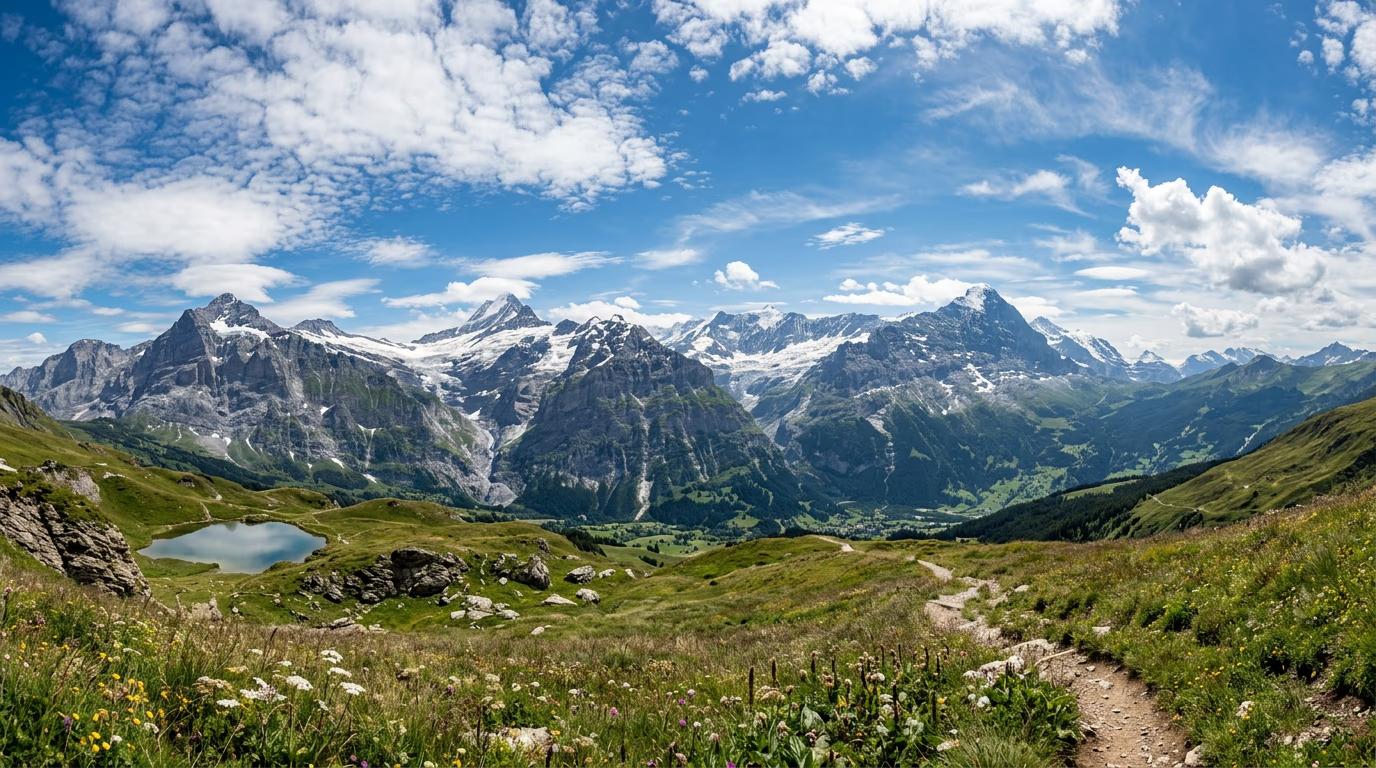
STEP 3: Generate expanded image
Click "Expand" and let the AI analyze your photo's style, lighting, and content, then fill the new areas with content that matches naturally.
STEP 4: Review and download
Check that the expanded areas look natural: Not perfect? Generate again for a different result, or manually edit problem areas with the inpainting tool.
- Look for smooth transitions between original and generated content
- Check that lighting direction and intensity match
- Verify no duplicated elements or strange artifacts appear
Tips for best results
💡 Start with high-quality images
The AI works best with clear, well-lit photos. Blurry or low-resolution images will produce less convincing expansions.
💡 Expand in small increments
Adding too much space at once can create unrealistic results. If you need major expansion, do it in two steps rather than one big jump.
💡 Avoid expanding complex patterns
Text, repeating patterns, and geometric designs are harder for AI to continue naturally. Keep these elements away from expansion zones when possible.
💡 Use simple backgrounds for best results
Photos with plain skies, blurred backgrounds, or solid colors expand more convincingly than busy scenes with lots of detail.
Common aspect ratios for different platforms
Frequently asked questions

Need more space in your photos?
Expand any image with AI to add space naturally without cropping or stretching.
Try AI Expand