logo

How to add text and captions to videos online
VIDEO EDITING4 minBeginner

Create animated text overlays, subtitles, and captions with custom fonts and precise timing.

How to add text and captions to videos online

What you'll learn

  • Add text overlays with custom positioning
  • Create animated text with timing controls
  • Style text with fonts, colors, and effects
  • Generate auto-captions from video audio

What are video text overlays?

Video text overlays are words or captions layered on top of your video footage. They can be titles, subtitles, explanatory notes, or any text that adds context to your visuals. In Picsart, text overlays are fully customizable — you control font, size, color, position, animation, and timing. Think of them as the difference between a silent movie and one that speaks directly to viewers.

Common use cases

  • Social media: Add captions to make videos accessible without sound
  • Tutorials: Include step numbers and instructions for educational content
  • Marketing: Highlight product names, prices, or call-to-action messages
  • Storytelling: Show dialogue, narration, or scene descriptions
  • Memes: Add punchlines and captions to trending video formats
  • Presentations: Display key points and bullet points over footage

Add text to your video step by step

STEP 1: Upload your video

  • On web: Go to picsart.com/add-text-to-video → Click "Add text to your video" → Upload your clip
  • On mobile: Open Picsart → "+" → Video → Select clip → Tap "Text" button
Add text now

STEP 2: Customize your text

Design your text overlay with these options:

  • Text content: Type your message or paste longer captions
  • Font: Choose from hundreds of fonts or upload custom typefaces
  • Size and position: Drag to place anywhere, resize by pulling corners
  • Colors: Pick solid colors, gradients, or add stroke outlines
  • Animation: Select entrance effects like fade-in, slide, or bounce
  • Timing: Set when text appears and disappears on timeline
STEP 3: Sync text with video

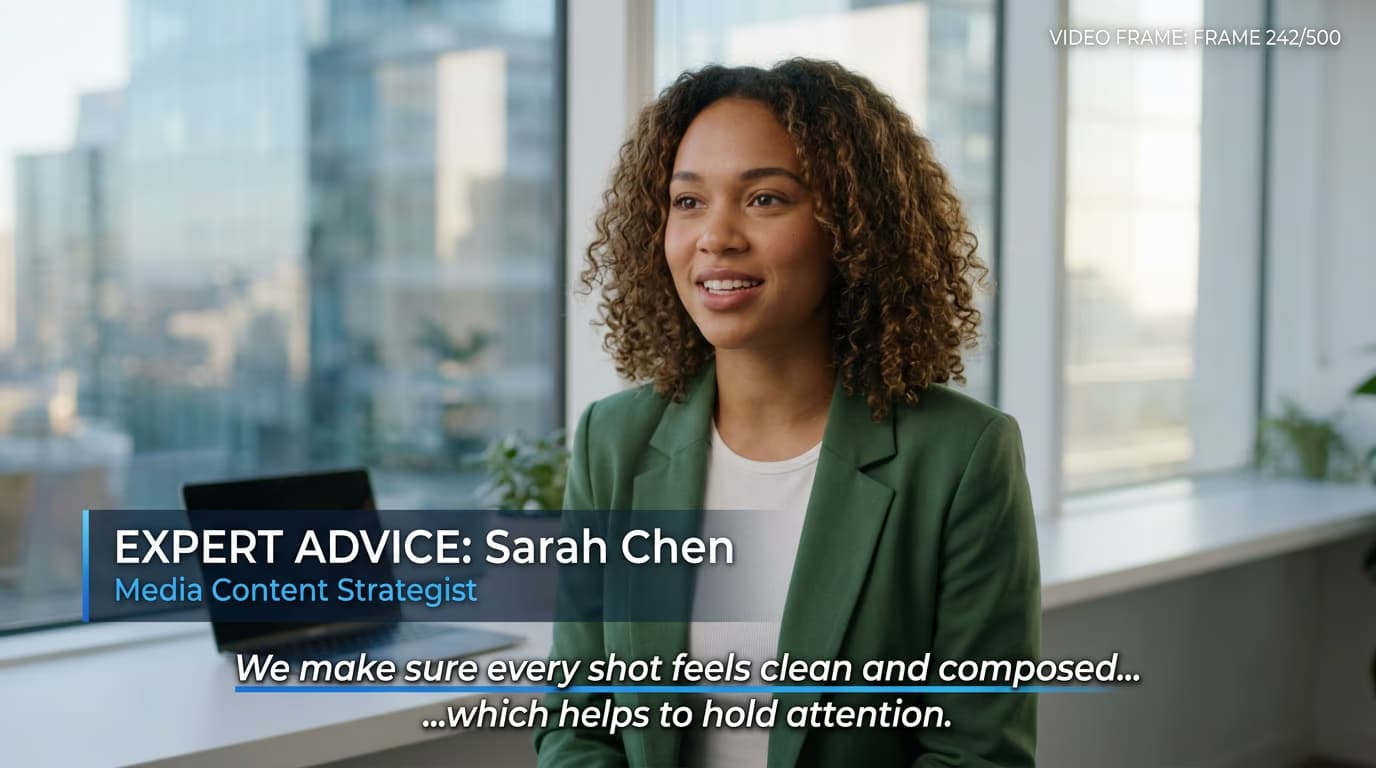
Drag the text layer on the timeline to match when you want it visible. Play through your video to verify timing. If you have multiple text elements, add each as a separate layer and position them on the timeline so they appear in the right sequence without overlapping.

STEP 4: Review readability

Watch your video at full size to confirm: Text too small or hard to read? Go back and increase font size or add a background shape behind text for better contrast.

  • Text is large enough to read on mobile screens
  • Colors contrast well with video background throughout
  • Text appears long enough for viewers to read comfortably
Add text now

Tips for best results

💡 Follow the 3-second rule

Keep text on screen for at least 3 seconds so viewers have time to read it. For longer captions, add 1 second per 3 additional words. Reading speed matters more than you think.

💡 Use contrasting colors

White text with a black outline works on almost any background. If your video has light sections, this combination ensures text stays readable throughout. Test your colors on both light and dark frames.

💡 Position text strategically

Keep important text in the center safe zone — about 20% from edges. Social platforms crop videos differently, and edge text often gets cut off on mobile feeds or TV displays.

💡 Enable auto-captions first

If you need accurate subtitles, start with AI auto-captioning. It transcribes your audio automatically, then you can style those captions. This saves hours compared to typing manually.

Frequently asked questions

Open the Picsart mobile app, tap the "+" button, select Video, and choose your clip. Once the editor loads, tap the "Text" button at the bottom toolbar. Type your message, then use touch gestures to resize and reposition. Tap the text to access styling options like font, color, and animation.

Yes, Picsart includes AI-powered auto-captioning. Upload your video, then click "Auto Caption" in the text tools. The AI transcribes spoken words and creates timed captions automatically. You can then edit the text for accuracy and style the captions with fonts and colors.

Sans-serif fonts like Arial, Helvetica, or Montserrat work best because they stay readable at small sizes and on mobile screens. Avoid thin or decorative fonts for body text. Save stylized fonts for short titles or emphasis. Bold weights increase readability significantly.

Basic text overlays are completely free, including positioning, sizing, and color customization. Some premium fonts and advanced animation effects require Picsart Plus. Free users can export videos with text, though a watermark appears. Plus members get watermark-free exports.

Ready to caption?

Make your videos accessible and engaging with custom text overlays.

Add text now