How to choose the right AI video model for your content
What you'll learn
What are AI video models?
Common use cases
Choose your video model step by step
STEP 1: Open video models
- On web: Go to picsart.com/video-models → Browse available models
- On mobile: Open Picsart → AI Video → Select "Choose Model"
STEP 2: Match model to your needs
Pick based on what matters most for your project:
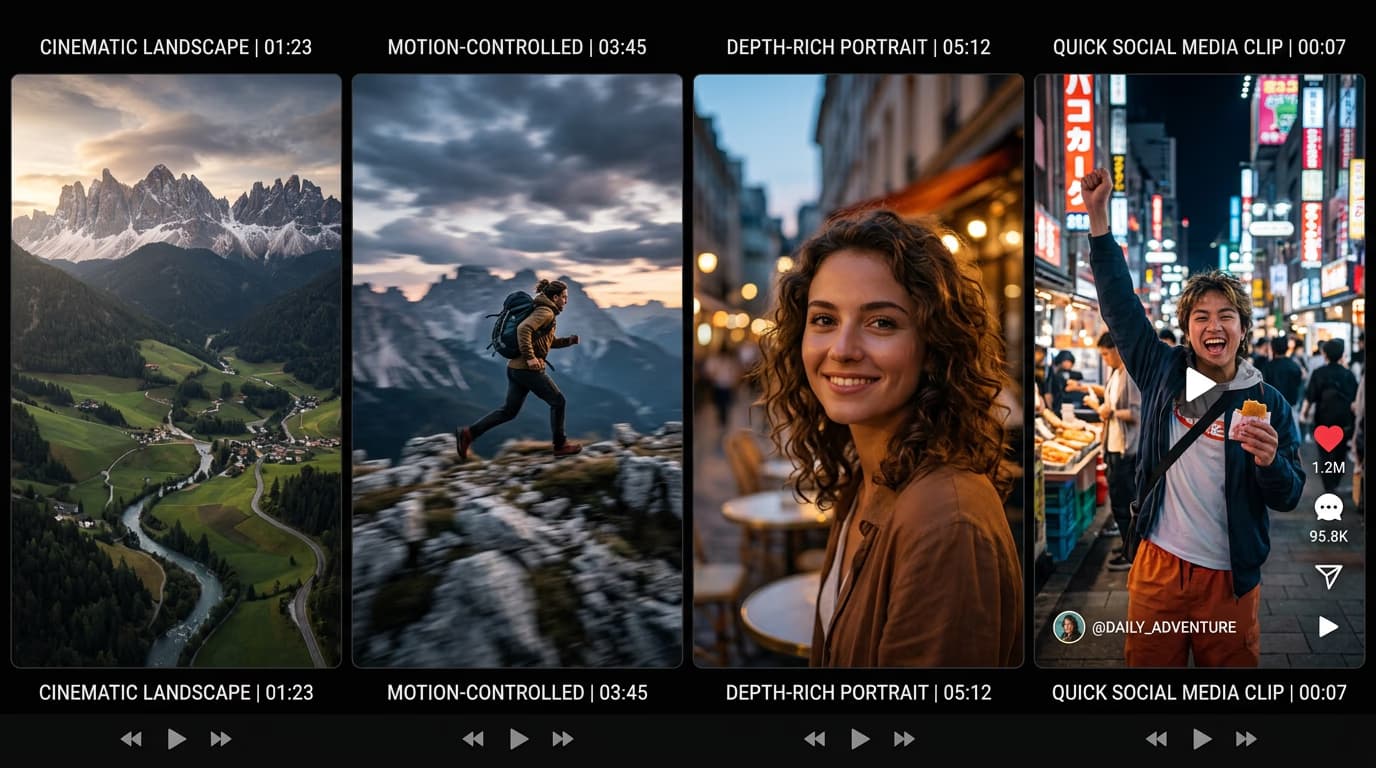
- Veo 3.1: Cinematic realism, natural physics, best for high-end commercial work and film-style shots
- Runway Gen 4: Precise motion control, camera movements, ideal for product demos and choreographed scenes
- Luma Ray 2: Dramatic depth and volumetric effects, great for artistic and atmospheric content
- Pika Frames: Fast generation, perfect for social media clips and quick iterations
- Sora 2: Long-form narrative capability, multi-shot consistency for storytelling
- Kling 3.0: Strong character animation and facial expressions for people-focused content
STEP 3: Test with your prompt
Enter the same prompt across two models to compare results. Different models interpret prompts differently — Veo focuses on realism, Runway emphasizes camera control, Luma enhances depth. Generate samples to see which aesthetic matches your vision.
STEP 4: Refine your choice
Review your test results and check: Not satisfied? Try a different model — each excels at different things, and switching models often solves creative problems faster than tweaking prompts.
- Does the motion feel natural and match your vision?
- Is the visual quality high enough for your intended platform?
- Did the model interpret your prompt the way you expected?
Tips for best results
💡 Start with fast models for experimentation
Use Veo 3.1 Fast or Pika to test different prompts and ideas cheaply. Once you nail the concept, switch to premium models for final output. This saves credits and speeds up creative iteration.
💡 Match aspect ratio to the model's strengths
Cinematic models like Veo work best in 16:9 or wider. Vertical social models like Pika excel at 9:16. Use each model in its native format for optimal results.
💡 Use motion-focused models for camera work
If your shot requires specific camera movements (dolly, pan, orbit), choose Runway Gen 4 or similar motion-control models. They respond better to directional prompts than purely realistic models.
💡 Layer models for complex scenes
Generate a base video in Veo for realism, then use motion tools to add camera moves, or combine depth from Luma with subjects from other models. No single model does everything best.
Model comparison guide
Frequently asked questions
