logo

How to export videos for TikTok, Reels, YouTube, and Stories
VIDEO EDITING5 minIntermediate

Get optimal dimensions, bitrate, and codec settings for every major platform in one click.

How to export videos for TikTok, Reels, YouTube, and Stories

What you'll learn

  • Choose correct aspect ratios for each platform
  • Set optimal resolution and bitrate settings
  • Export with platform-specific codec requirements
  • Use preset templates for one-click optimization

What are video export settings?

Video export settings control how your edited video gets saved — file format, dimensions, quality, and file size. Each social platform has specific requirements and recommendations. Wrong settings mean compressed quality, cropped content, or rejected uploads. Picsart's export presets automatically configure resolution, aspect ratio, bitrate, and codec for each platform so you don't have to memorize technical specs. Think of it as having a technical expert ensuring your video looks perfect everywhere you post it.

Common use cases

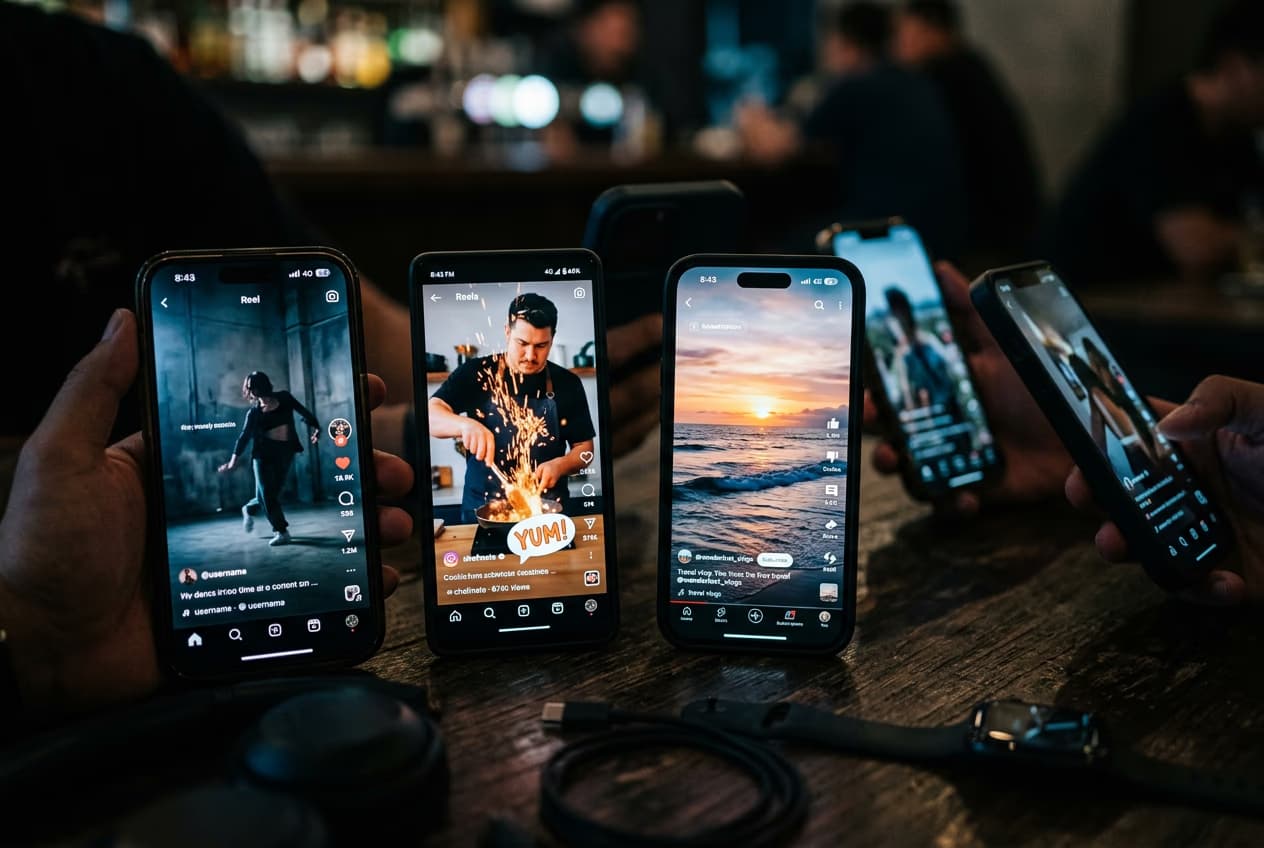
  • TikTok: Vertical videos optimized for mobile feeds and For You page
  • Instagram Reels: Same vertical format with Instagram-specific optimization
  • YouTube Shorts: Vertical format with YouTube's compression requirements
  • Instagram/Facebook Stories: Full-screen vertical for 24-hour story format
  • YouTube videos: Horizontal format for desktop and TV viewing
  • Twitter/X: Square or horizontal depending on feed placement

Export your video for platforms step by step

STEP 1: Open export settings

  • On web: Finish editing → Click "Export" button → Select "Platform presets" tab
  • On mobile: Tap checkmark/done → Select "Export" → Choose platform from preset list
Start editing

STEP 2: Choose your platform

Select where you'll post this video:

  • TikTok/Reels/Shorts: 9:16 vertical, 1080x1920, H.264 codec, 30fps
  • Instagram/Facebook Stories: 9:16 vertical, 1080x1920, optimized for 15-second segments
  • YouTube standard: 16:9 horizontal, 1920x1080, H.264 codec, 30-60fps
  • Twitter/X feed: 1:1 square, 1080x1080, or 16:9 horizontal
  • LinkedIn: 16:9 horizontal, 1920x1080, professional quality settings
  • Custom: Set your own dimensions, bitrate, and codec
STEP 3: Adjust quality settings

Fine-tune the export after selecting your platform preset. Choose quality level (High, Medium, Low) — high quality means larger files but better visuals. Check estimated file size below the quality slider. Most platforms have upload limits, typically 50-100MB for mobile, 2GB for YouTube.

STEP 4: Export and verify

Click "Export" and wait for processing to complete. Then verify before posting: File too large? Go back and reduce quality slightly or trim video length. Wrong dimensions? Select a different platform preset.

  • Video plays correctly without black bars or stretched content
  • Quality looks sharp on your target device (mobile for TikTok/Reels, desktop for YouTube)
  • File size fits platform upload limits
Export video now

Tips for best results

💡 Edit in the aspect ratio you'll export

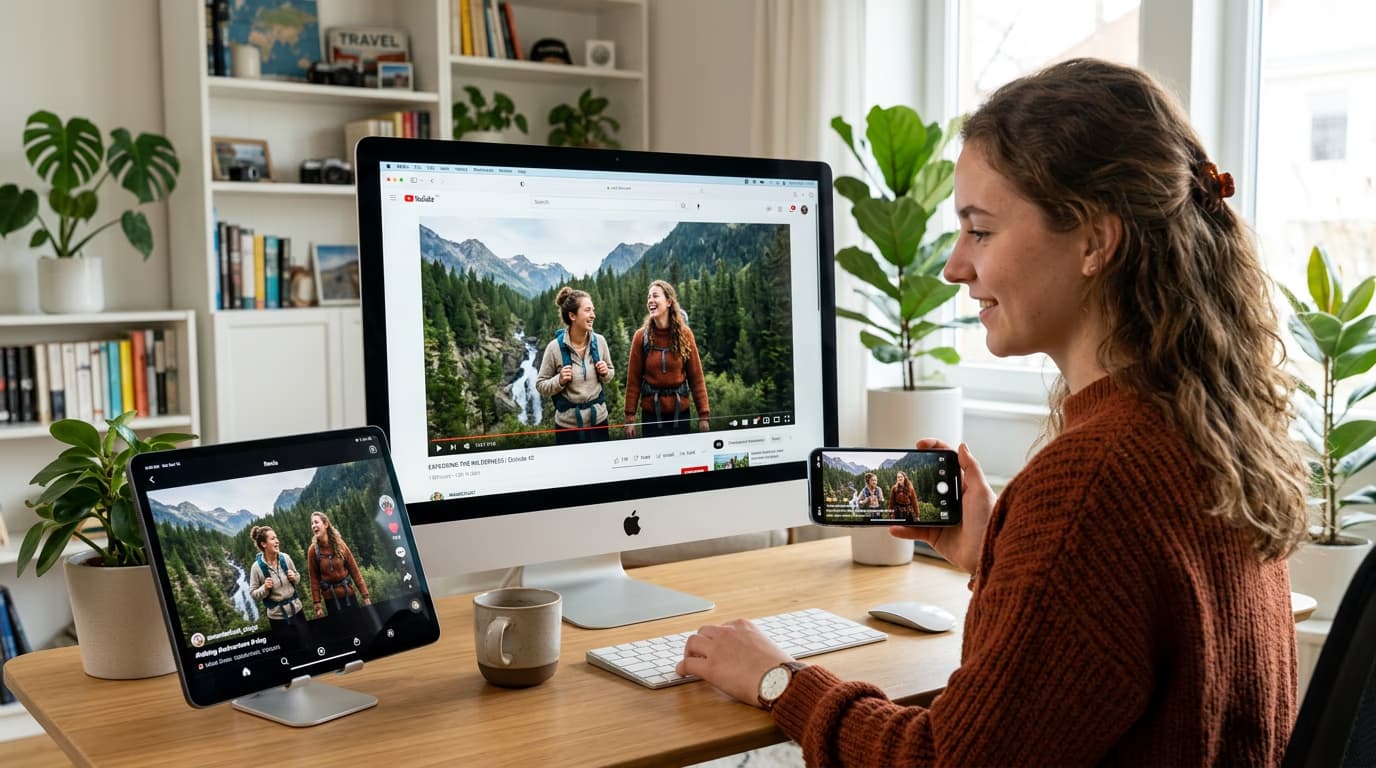
Start your project with the correct dimensions from the beginning. Editing in 16:9 then exporting to 9:16 crops content. Choose your target platform before you start editing, not after.

💡 Higher bitrate for motion-heavy videos

Action sequences, fast camera movements, and complex scenes need higher bitrates to avoid compression artifacts. For static or slow videos, standard bitrate works fine and keeps file sizes smaller.

💡 Test on actual devices

Before posting publicly, send your exported video to your phone and watch it in the actual app. What looks great on desktop might have issues on mobile. Better to catch problems in testing.

💡 Keep originals for cross-posting

Export separate files for each platform rather than reusing one video everywhere. Instagram Reels compressed from a YouTube video always looks worse than a native Reels export.

Platform specifications quick reference

  • TikTok: 9:16 vertical, 1080x1920, H.264, 30fps, max 287MB for 10min
  • Instagram Reels: 9:16 vertical, 1080x1920, H.264, 30fps, max 4GB for 90sec
  • YouTube Shorts: 9:16 vertical, 1080x1920, H.264, 30fps, max 60sec duration
  • Instagram Stories: 9:16 vertical, 1080x1920, H.264, 30fps, max 4GB
  • YouTube standard: 16:9 horizontal, 1920x1080 or 3840x2160 (4K), H.264, 30-60fps
  • Twitter/X: 16:9 or 1:1, max 1920x1080, H.264, 30fps, max 512MB
  • Facebook feed: 16:9 or 1:1 recommended, 1080x1080 square optimal, max 4GB
  • LinkedIn: 16:9 horizontal, 1920x1080, H.264, 30fps, max 5GB for 10min

Frequently asked questions

MP4 with H.264 codec is universally accepted across all platforms. It balances quality and file size efficiently. Every major platform — TikTok, Instagram, YouTube, Twitter — accepts MP4. Some platforms technically accept MOV or WebM, but MP4 ensures maximum compatibility.

For TikTok, Reels, and Stories, 1080p (1080x1920 vertical) is perfect — higher resolution won't show on mobile screens. For YouTube standard videos, 4K (3840x2160) gives better quality but creates massive files. Export 1080p unless you're sure your audience watches on 4K screens.

Social platforms compress videos after upload to save bandwidth. Export at the highest quality you can within file size limits to give the platform more data to work with. Also ensure you're uploading the platform-specific preset, not a generic export that gets re-compressed aggressively.

Technically yes, but quality suffers. A 16:9 YouTube video uploaded to TikTok will have black bars on top and bottom. A 9:16 TikTok video on YouTube looks tiny. Better to export separate versions — it takes a few minutes but looks professional everywhere.

Ready to export?

Get your videos looking perfect on every platform with optimized export settings.

Export now