How to generate app assets at scale with Picsart Skills
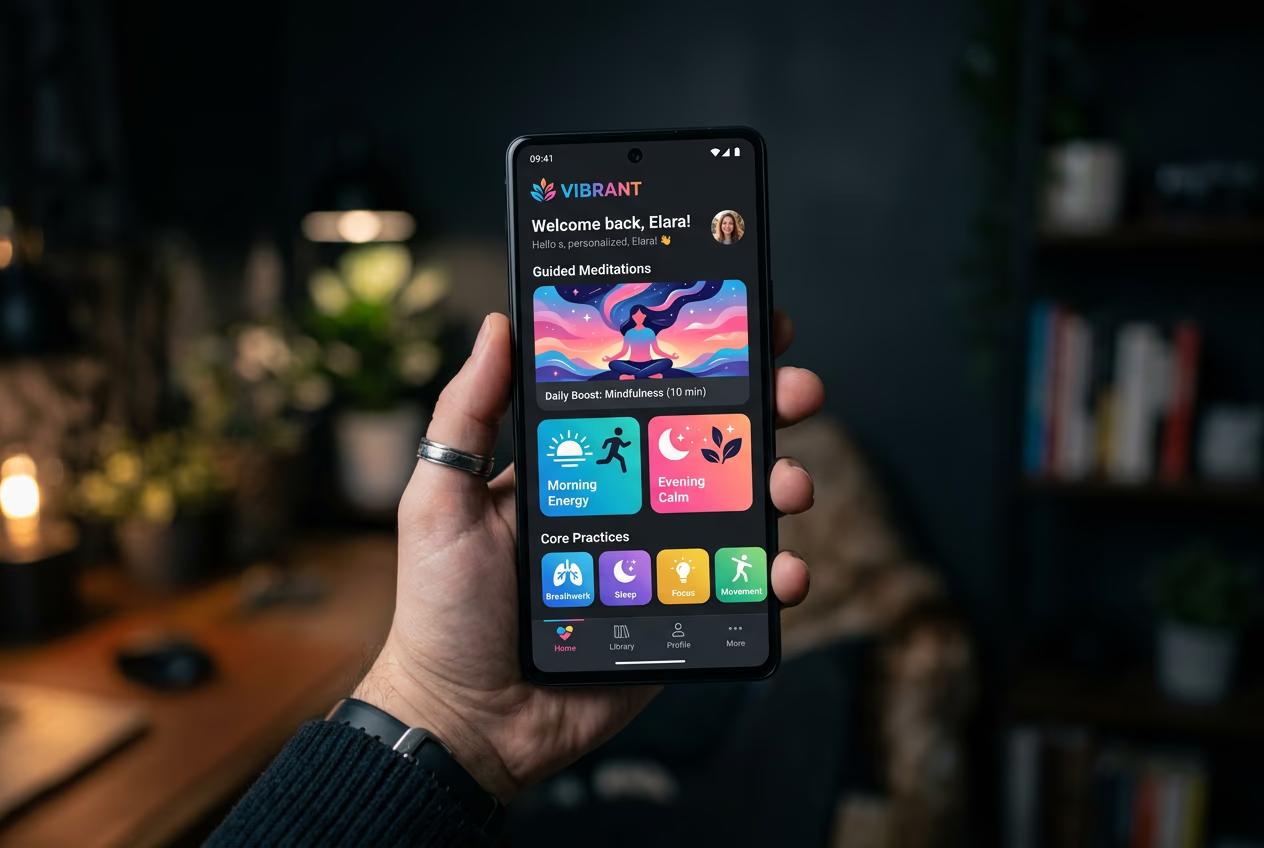
What you'll learn
What are app assets?
Common use cases
Generate your app assets step by step
STEP 1: Install Picsart Skills
- On web: Go to picsart.com/cli → Copy the install command for your OS
- On mobile: Not available — Skills runs in terminal or CI environments
STEP 2: Define your asset list and style
Create a manifest that describes what you need:
- Asset type: Icons, illustrations, empty states, or onboarding frames
- Style parameters: Color palette, line weight, rendering style (flat, isometric, 3D)
- Size and format: Export dimensions and file types (SVG, PNG, or both)
- Naming convention: File naming pattern for organized exports
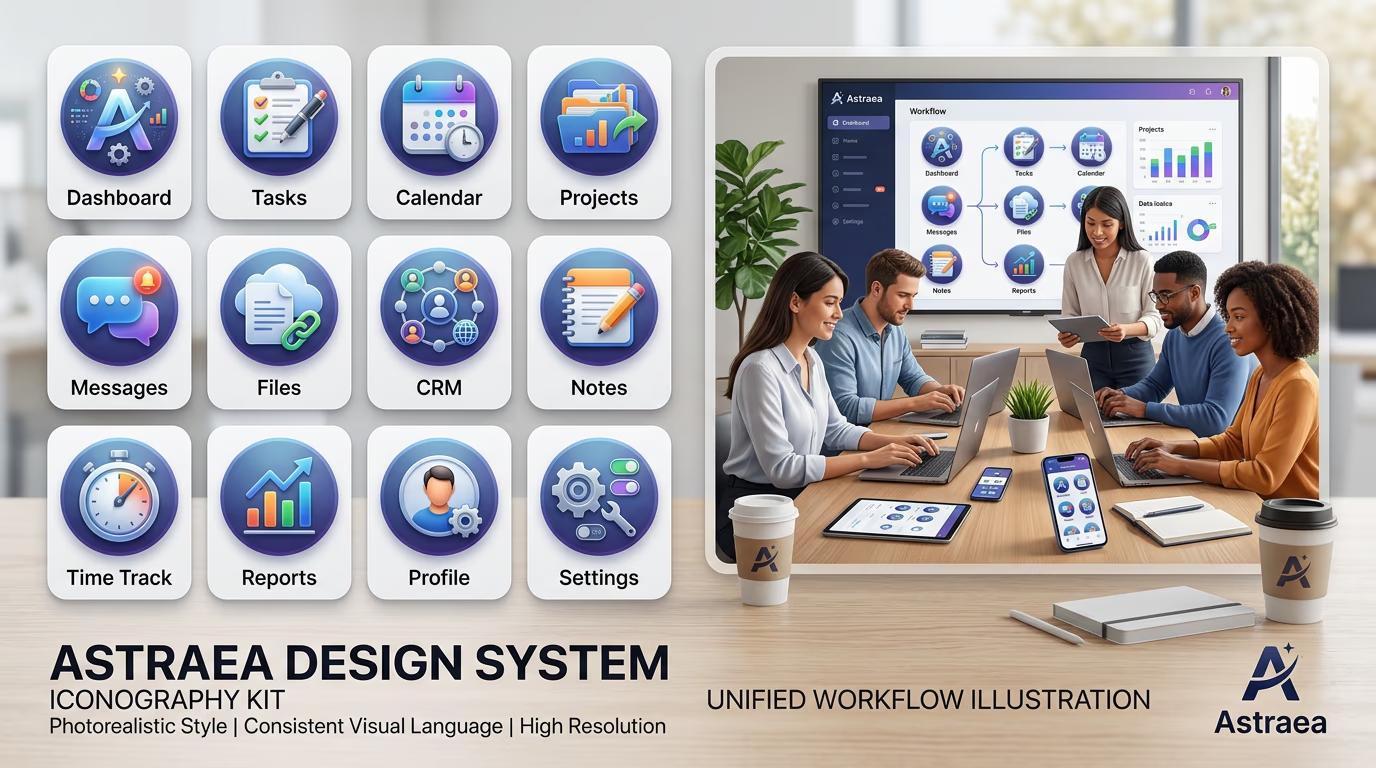
STEP 3: Run batch generation
Execute the Skill with your manifest. The generator creates each asset with consistent style rules applied across the entire set. Progress updates show in your terminal, and failed generations auto-retry. All files save to your specified output directory, ready to import into Figma or your codebase.
STEP 4: Review and refine
Check that all assets match your style requirements: Not satisfied with specific assets? Edit your manifest prompts for those items and regenerate just the ones you need. The rest of your set stays unchanged.
- Verify visual consistency across the entire set (colors, line weights, style)
- Check that icon sizes are optically balanced, not just mathematically equal
- Test illustrations at actual screen sizes to confirm readability and impact
Tips for best results
💡 Start with a reference image
Upload one example asset that defines your desired style. The generator will match its aesthetic across all other assets, ensuring tighter consistency than text prompts alone.
💡 Use semantic naming in your manifest
Name assets by function, not appearance (e.g., 'icon-settings' not 'icon-gear'). This makes it easier to swap styles later without renaming files across your codebase.
💡 Generate in batches by asset type
Run icons separately from illustrations. Different asset types often need different style parameters, and splitting batches makes it easier to tweak settings per category.
💡 Export multiple sizes in one run
Define size variants in your manifest (1x, 2x, 3x for mobile or 16px, 24px, 32px for web). The Skill generates all sizes at once, saving manual resizing work.
Frequently asked questions

Need a full asset library?
Generate style-consistent icons and illustrations for every screen in your app.
Start creating