logo

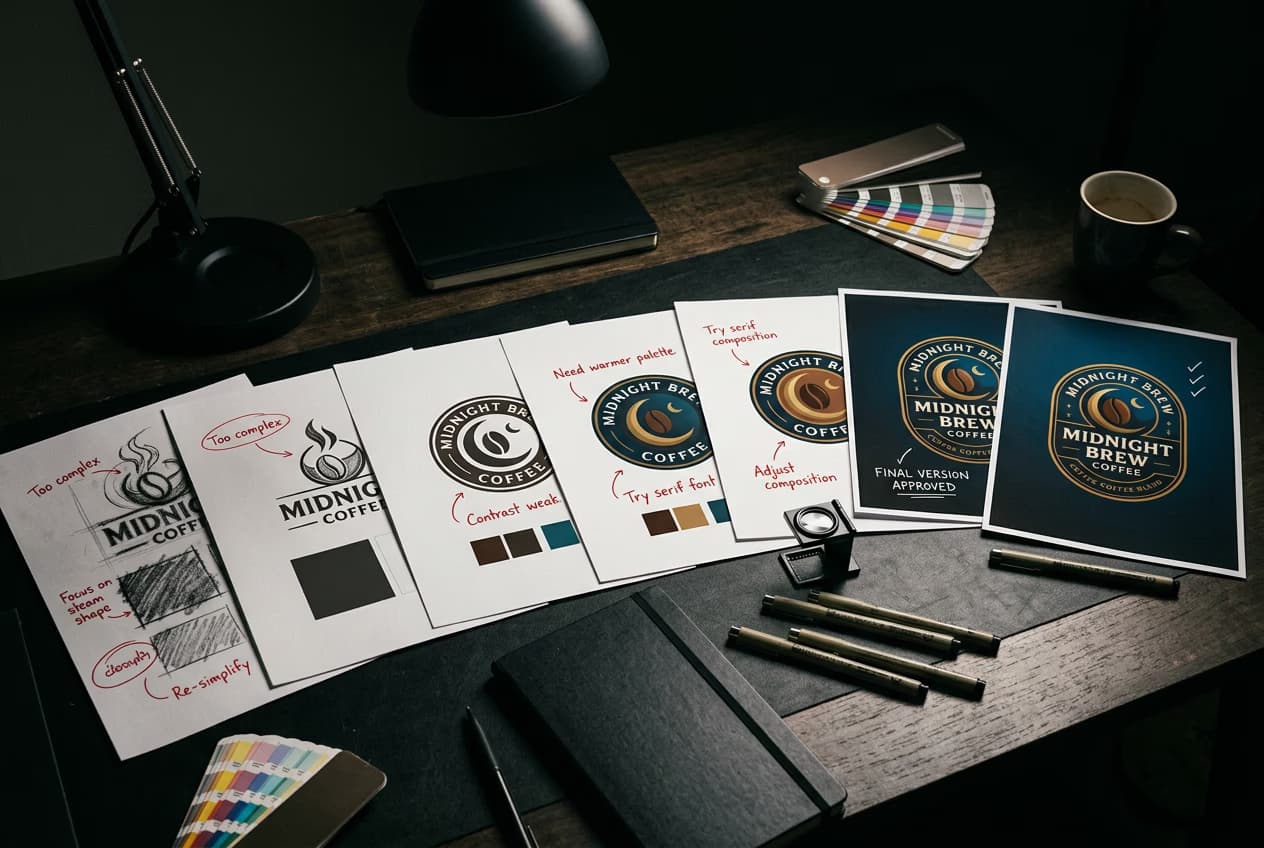
How to iterate and refine AI image outputs
PROMPTING6 minAdvanced

Master prompt tweaking, seed locking, variation generation, and inpainting workflows.

How to iterate and refine AI image outputs

What you'll learn

  • How to systematically improve AI outputs through iteration
  • When to lock seeds versus generate new variations
  • How to use inpainting to fix specific problem areas
  • Upscaling strategies for final high-resolution exports

What is AI image iteration?

AI image iteration is the process of progressively improving outputs through controlled adjustments. Instead of hoping for perfection on the first try, you generate, analyze, tweak, and regenerate until you reach your goal. Professional AI artists rarely use first-generation results—they refine through multiple passes, targeting specific improvements each time.

Common use cases

  • Client work: Refine outputs to match exact specifications and feedback
  • Print production: Upscale to high resolution and fix artifacts before printing
  • Brand assets: Lock successful compositions while testing color and style variations
  • Portfolio pieces: Polish AI outputs to professional quality through targeted fixes
  • Social media: Generate multiple variations to A/B test engagement
  • Product mockups: Fix specific elements while preserving overall composition

Refine AI images step by step

STEP 1: Generate your initial batch

  • On web: Go to picsart.com/ai-image-generator → Enter prompt → Generate 4 variations
  • On mobile: Open Picsart → AI Image Generator → Input prompt → Tap "Generate"
Open AI generator

STEP 2: Choose your iteration strategy

Pick the right refinement approach for your needs:

  • Prompt tweaking: Change text description to adjust subject, style, or details (use when overall composition needs work)
  • Seed locking: Save the random seed of your best result, then modify prompt to keep composition while changing details
  • Variation generation: Create subtle variations of a good output to explore minor differences
  • Inpainting: Select and regenerate specific problem areas while keeping the rest unchanged
  • Upscaling: Increase resolution of final output for print or detail work
STEP 3: Apply targeted fixes

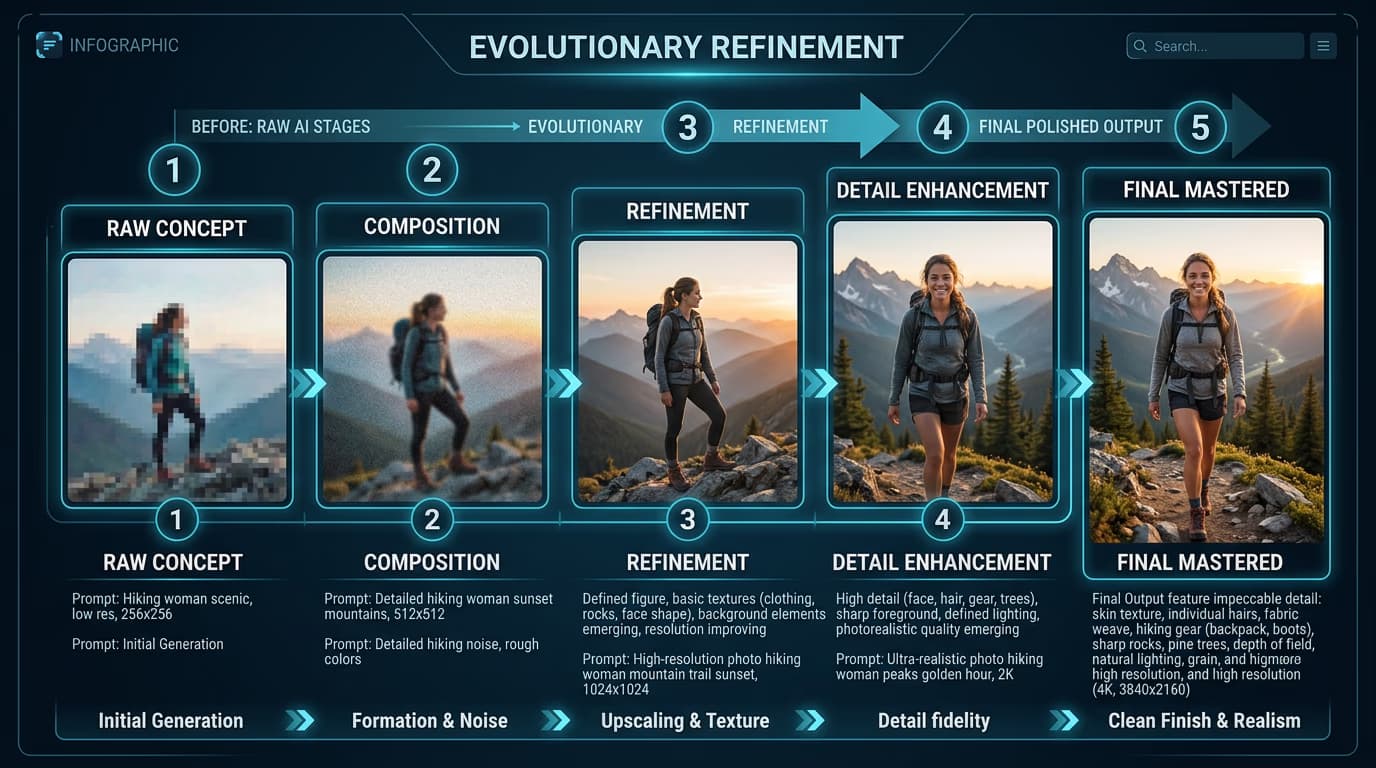
Work through problems systematically. If colors are off, adjust color terms in your prompt. If composition is wrong, change framing keywords. If specific elements are distorted, use inpainting to regenerate just those areas. Make one type of change per iteration so you can track what works.

STEP 4: Upscale and export

Check your final refined output meets all requirements: Not perfect? Go back and apply additional iterations. Lock the seed before upscaling if you might need to generate more variations later. Most professional results require 3-5 iteration rounds.

  • Are all problem elements fixed without introducing new issues?
  • Does the composition match your original vision?
  • Is the resolution high enough for your intended use?
Start iterating

Tips for best results

💡 Change one variable at a time

If you modify prompt, seed, and settings all at once, you won't know which change caused improvement or made things worse. Adjust one element per iteration and compare results directly.

💡 Save your seeds from good results

When you get a composition you like, note the seed number. You can regenerate with that exact seed while modifying other aspects. This lets you test color changes, style shifts, or detail adjustments without losing the layout you want.

💡 Use inpainting for localized fixes only

Don't inpaint the entire image—that's just regenerating from scratch. Select only the problem area: a distorted hand, a blurry face, or an awkward element. Keep your selection tight so surrounding context helps guide the fix.

💡 Upscale after you're done iterating

Work at standard resolution during iteration to save time. Only upscale your final chosen output. High-resolution generation is slower and uses more resources, so reserve it for the end of your workflow.

Iteration workflow guide

  • Round 1: Exploration: Generate 4+ variations with broad prompts. Pick the best composition and note its seed.
  • Round 2: Style refinement: Lock seed from Round 1. Adjust style keywords, lighting terms, and art direction in prompt.
  • Round 3: Detail pass: Add specific detail keywords. Use negative prompts to remove unwanted elements.
  • Round 4: Problem fixing: Use inpainting to regenerate distorted areas, wrong colors, or out-of-place elements.
  • Round 5: Variation testing: Generate 2-3 variations of your refined result to compare subtle differences.
  • Final: Upscale: Increase resolution to target size. Export in required format for final use.

Frequently asked questions

Most professional outputs require 3-5 iteration rounds. Simple images might work in 2 rounds, while complex compositions with specific requirements can take 6-8. Each round should make meaningful progress—if you're iterating more than 10 times without improvement, your prompt strategy needs rethinking, not more attempts.

Variations create subtle differences from the same prompt and seed—think of it as minor randomness within similar results. Seed locking keeps the exact composition and layout, letting you change other aspects through prompt edits. Use variations to explore options, seed locking to refine a specific direction.

Inpaint first at standard resolution, then upscale. Inpainting at high resolution is slower and harder to control. Fix all problems at normal size, verify the result works, then upscale the final corrected image. This saves time and prevents wasting resources on outputs you'll change anyway.

Your selection might be too small, cutting off context the AI needs to match the surroundings. Expand your selection to include more surrounding area—the AI uses edges of the selection as reference. Also verify you're using the same prompt and settings as the original generation.

Ready to refine?

Master AI iteration techniques for professional-quality outputs.

Start refining