logo

Upscale low-resolution images to HD with AI
IMAGE EDITING3 minBeginner

Increase image resolution up to 4x without losing quality using AI enhancement.

Upscale low-resolution images to HD with AI

What you'll learn

  • How to upscale images without losing quality
  • When to use 2x vs 4x upscaling
  • How AI enhancement improves sharpness and detail
  • Best practices for preparing images for print or social media

What is AI image upscaling?

AI image upscaling (also called super-resolution or AI enhancement) increases your photo's resolution by adding pixels intelligently. Unlike traditional upscaling that just stretches pixels and makes images blurry, AI analyzes your photo and generates new detail based on what it learns. Think of it like CSI's "enhance" feature, but it actually works.

Common use cases

  • Print preparation: Upscale small images to print-quality resolution for posters, canvas, or merchandise
  • Social media: Improve quality of compressed or low-res images for professional posts
  • Old photos: Restore and enhance scanned family photos or vintage images
  • Product photography: Make small product shots usable for large e-commerce displays
  • Profile pictures: Upscale blurry profile photos for professional networks
  • Screenshots: Enhance low-resolution screenshots for presentations or documentation

Upscale your image step by step

STEP 1: Upload your image

  • On web: Go to picsart.com/ai-image-enhancer → Upload your image or paste a URL
  • On mobile: Open Picsart → "+" → Select photo → Tools → AI Enhance
Open AI enhancer

STEP 2: Choose upscale level

Select how much to increase resolution:

  • 2x upscale: Doubles width and height (good for moderate improvements or faster processing)
  • 4x upscale: Quadruples dimensions (best for print preparation or heavy restoration)
  • Auto enhance: AI automatically fixes lighting, color, and sharpness alongside upscaling
  • Face enhancement: Extra detail recovery for portraits (available on some plans)
STEP 3: Enhance and upscale

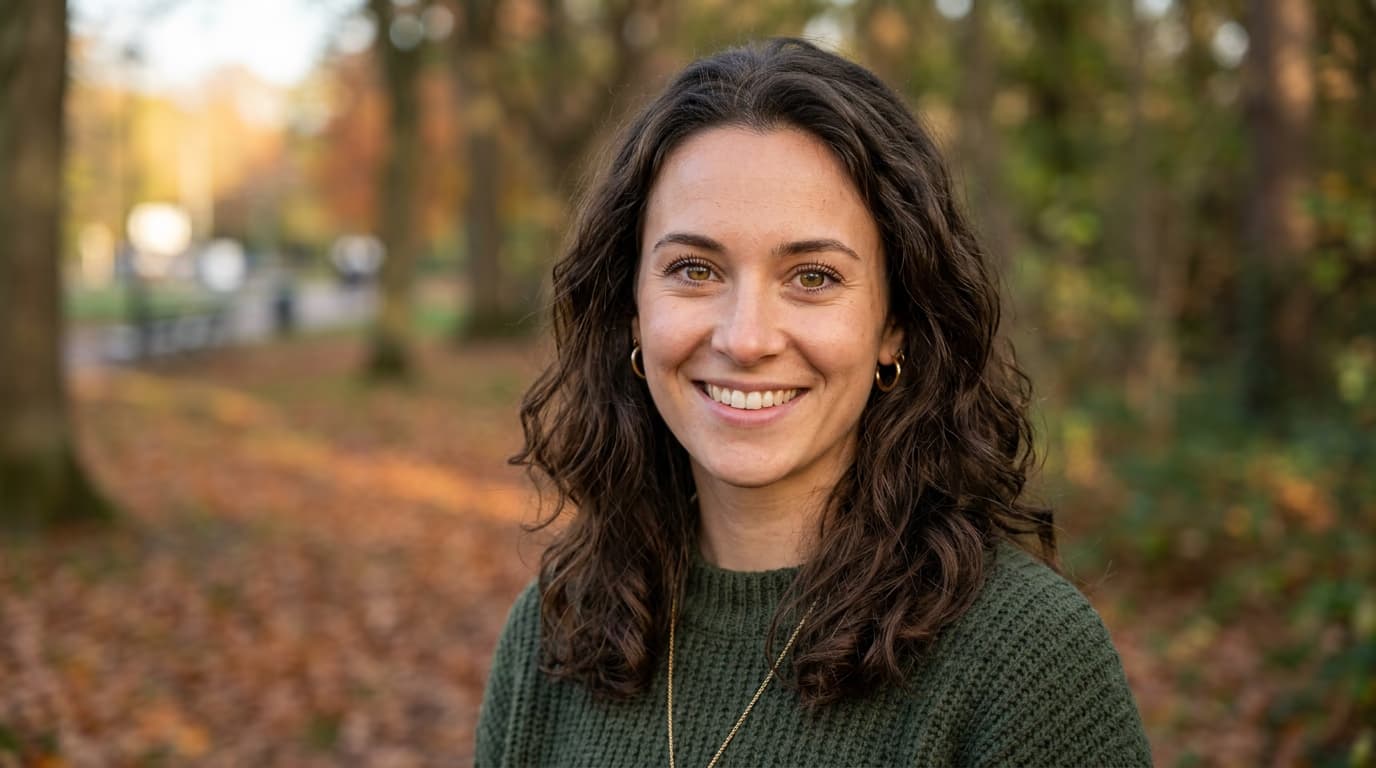
Click "Enhance" and wait while AI processes your image. The AI analyzes textures, edges, and patterns in your photo, then generates new pixels that add detail instead of blur. Higher upscale levels take longer to process.

STEP 4: Review and download

Check the enhanced image quality before saving: Not satisfied? Try the other upscale level or enable auto enhance if you didn't use it the first time.

  • Zoom to 100% and check sharpness in detailed areas (text, faces, textures)
  • Look for natural detail recovery without artificial sharpening halos
  • Verify colors and brightness look natural (auto enhance can shift these slightly)
Enhance my image

Tips for best results

💡 Start with the highest quality you have

AI enhancement works better on images that are just slightly too small rather than extremely low-resolution. If you have multiple versions of the same photo, always start with the largest or least-compressed version. The better your input, the better your output.

💡 Use 2x for social media, 4x for print

2x upscaling is perfect for making images social-media ready or fixing moderately low-res photos. Use 4x upscaling when you need print quality (300 DPI for posters, canvas prints, or merchandise). 4x takes longer but delivers significantly more detail.

💡 Enhance faces separately if needed

For portraits with multiple people or group photos, crop individual faces and enhance them separately at 4x, then composite them back. This gives you more control over face detail than enhancing the whole image at once.

💡 Don't expect miracles from extreme blur

AI enhancement can't recover detail that never existed. Heavily pixelated, motion-blurred, or extremely compressed images will improve but won't become perfect. If your original image is completely unrecognizable, enhancement will only help so much.

Resolution guide for different uses

  • Social media posts: 1080px minimum width (Instagram, Facebook, Twitter)
  • YouTube thumbnails: 1280x720px minimum (1920x1080px recommended)
  • Website hero images: 1920px width minimum for desktop displays
  • Small prints (4x6, 5x7): 1200x1800px minimum at 300 DPI
  • Medium prints (8x10, 11x14): 2400x3000px minimum at 300 DPI
  • Large prints (16x20, posters): 4800x6000px minimum at 300 DPI
  • Canvas or gallery prints: 300 DPI at final size (use 4x upscale)

Frequently asked questions

AI upscaling uses deep learning models trained on millions of high-resolution images. When you upload a low-res photo, the AI compares it to patterns it learned during training and predicts what the missing detail should look like. It generates new pixels based on surrounding context, texture patterns, and edge information. This is why AI upscaling produces sharp results instead of the blur you get from traditional resizing.

Yes. Picsart offers free AI upscaling with some limits on the number of images you can enhance per day. Free users get access to both 2x and 4x upscaling. Picsart Premium removes daily limits, adds batch processing for multiple images at once, and includes priority processing for faster results.

2x upscaling doubles your image width and height (4x the total pixel count). 4x upscaling quadruples width and height (16x the total pixels). Use 2x for moderate improvements, social media prep, or when processing speed matters. Use 4x when you need print-quality resolution or are recovering heavy detail loss. 4x takes significantly longer but delivers much sharper results.

AI upscaling can improve sharpness significantly, but it can't perform magic on extremely blurry images. If your photo is slightly soft or pixelated, upscaling will add detail and clarity. If your photo is motion-blurred, out of focus, or heavily compressed, upscaling will help but won't make it perfectly sharp. The AI generates likely detail based on context, not actual detail that was never captured.

Ready for HD quality?

Upscale your images up to 4x resolution with AI enhancement.

Enhance image now