


Adding extra space to your image background can boost your composition in seconds. It allows you to fix tight crops, reposition subjects, and create scroll-stopping visuals for social media, websites, and digital campaigns. Photoshop gives you several powerful ways to do this—from smart fill tools to manual techniques that offer total control.
This guide will show you how to extend background in Photoshop using content-aware fill, AI-based features, the Crop tool and the Clone Stamp. You’ll also learn how to get the same professional-quality results in less time using a web-based solution built for speed and simplicity.
Tools to extend a background in Photoshop
Photoshop provides a range of methods to expand images. Some are automated, others manual and each serves a different creative purpose depending on the image complexity.
1. AI-powered generative fill
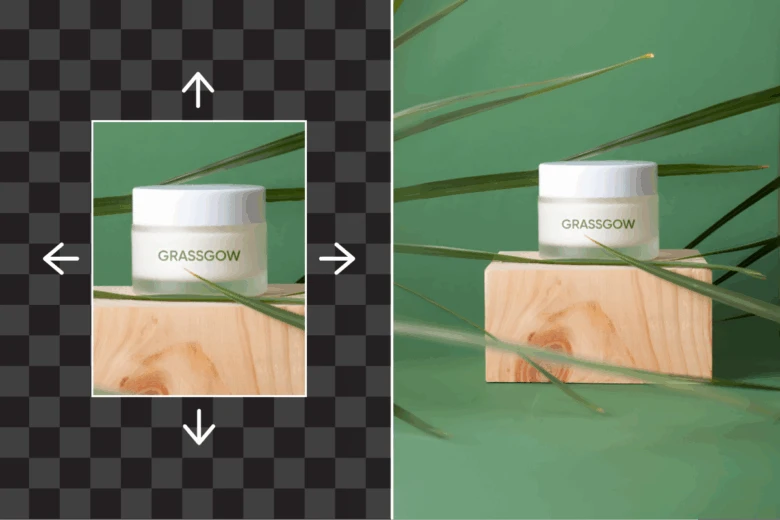
One of the most popular methods today is the use of photoshop generative fill, which leverages AI to expand images in a way that feels natural and realistic. It scans the surrounding pixels, understands context, and generates new parts of the background automatically.
How to expand an image in Photoshop AI:
- Unlock the image layer.
- Use the Crop Tool to extend the canvas.
- Select the blank space with the Marquee Tool.
- Click the AI fill button and generate variations.
This approach is best for adding space around subjects in lifestyle, landscape, and studio photography. The result is often seamless and requires minimal touch-up.
2. Content-aware fill
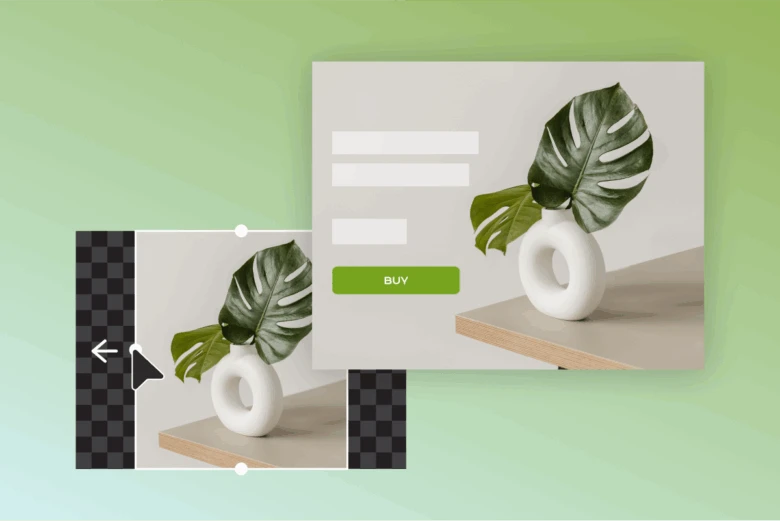
This tried-and-true feature works by sampling nearby pixels and filling in selected areas with matching data. It’s ideal for more minimal or consistent backgrounds like skies, walls, or gradients.
How to content-aware fill in Photoshop:
- Expand the canvas using the Crop Tool.
- Select the new area with the Marquee Tool.
- Go to Edit > Content-Aware Fill.
- Tweak the sample area and hit OK.
Quick, efficient, and effective—especially for clean backdrops.
3. Crop tool

The Crop Tool sets up your background extension by increasing the canvas size. It’s the first step in every workflow.
Steps:
- Select the Crop Tool.
- Drag the edges of the image outward to add empty space.
- Press Enter to confirm.
Once the new space is created, you can fill it in using your method of choice.
4. Clone Stamp tool
When you need to match patterns, textures, or details manually, the Clone Stamp Tool offers full control. It allows you to paint parts of the image onto new areas by sampling pixels.
How to use:
- Select the Clone Stamp Tool.
- Hold Alt (Windows) or Option (Mac) to sample from the image.
- Brush over the empty space with care.
Use it to refine areas after using AI or content-aware fills, or to fully extend more intricate backgrounds.
How to extend a simple background in Photoshop
Solid-color or clean backgrounds are the easiest to extend. Here’s a fast workflow:
- Use the Crop Tool to increase the canvas size.
- Select the new space with the Marquee Tool.
- Apply Content-Aware Fill via the Edit menu.
- Fine-tune with the Clone Stamp Tool if needed.
For even better results, you can switch to an AI-based fill that adapts more naturally to gradients, lighting changes or subtle shadows.
A faster alternative: Picsart’s AI Image Extender
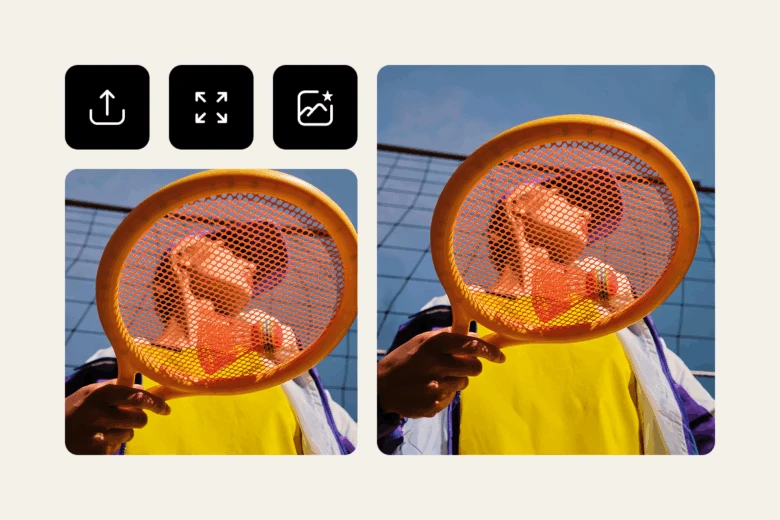
Photoshop gives you deep editing capabilities but it’s not always the fastest or most accessible option. Picsart’s AI Image Extender offers a streamlined way to expand backgrounds online in seconds.
This free, browser-based tool uses advanced AI to automatically extend your background while maintaining the image’s natural look. No downloads, subscriptions or technical know-how needed.
Why users love it:
- Easy to use on any device
- Completely free
- Great for social content, product photos, and marketing graphics
- No software installation required
Just upload your image, choose how much space to add, and let the AI do the work. It’s fast, intuitive, and ideal for creators on the go.
Final thoughts
Mastering how to extend background in Photoshop gives you control over your compositions, layouts, and creative storytelling. From smart fills to manual cloning, there’s a tool for every type of image and design goal.
Still, not every project requires a full Photoshop workflow. For fast, effective background extension, web-based tools like Picsart’s AI-powered solution offer a user-friendly alternative that saves time without compromising quality.
Explore more design solutions, editing tips and creative tools to keep your content bold, polished and scroll-worthy.


