


You know that moment when a photo almost feels perfect, but something’s slightly off?
A lot of the time, it’s the smile. Teeth can look darker or more yellow in photos than they actually are. It happens more often than people realize, and it usually has nothing to do with your real-life smile. Lighting, shadows, and even your phone camera can all shift the way colors show up. The fix doesn’t have to be complicated, though.
If you’re looking for a quick way to whiten teeth in photos, AI tools have made it incredibly simple. Picsart’s AI Retouch feature, for example, comes with a Teeth Whiten preset that handles everything automatically. You tap once, and it adjusts your smile in a way that still looks natural.
No fine-tuning. No careful brushing. Just a small adjustment that makes the whole photo feel more polished.
Why teeth look different in photos
If you’ve ever wondered why your teeth look fine in the mirror but not in pictures, you’re not imagining it.
Cameras don’t always capture color the way our eyes see it. Warm lighting can add a yellow tint. Low light can dull everything down. Even the angle of your face can cast shadows across your teeth.
And then there are the little things – coffee, tea, or certain foods – that don’t stand out in person but become more noticeable in close-up shots.
This is why people often choose to whiten their teeth in a photo before posting or sharing it.
You’ll notice it most in:
- Selfies taken indoors
- Close-up portraits
- Professional profile photos
- Event pictures, especially weddings
- Group shots with uneven lighting
It’s not about changing your appearance. It’s more about correcting how the camera captured it.
How to whiten teeth in photos with Picsart AI Retouch
1. Open the Picsart AI Retouch tool
Go straight to the AI Retouch miniapp. Once you're in, you can upload your photo there – no need to prepare anything in advance.
2. Upload your photo
Choose any image where your smile is visible. This can be a selfie, portrait, or group photo.
3. Go to the Face tab
After your image loads, head into the Face section where facial edits are grouped.
4. Tap the Teeth Whiten preset
Select Teeth Whiten and let the tool handle the rest. It automatically detects your teeth and applies the adjustment.
5. Preview the result using the before/after slider
Check the difference to make sure everything looks natural and not overdone.
6. Click Apply, then export or download
When you're happy with the result, save your edited photo.
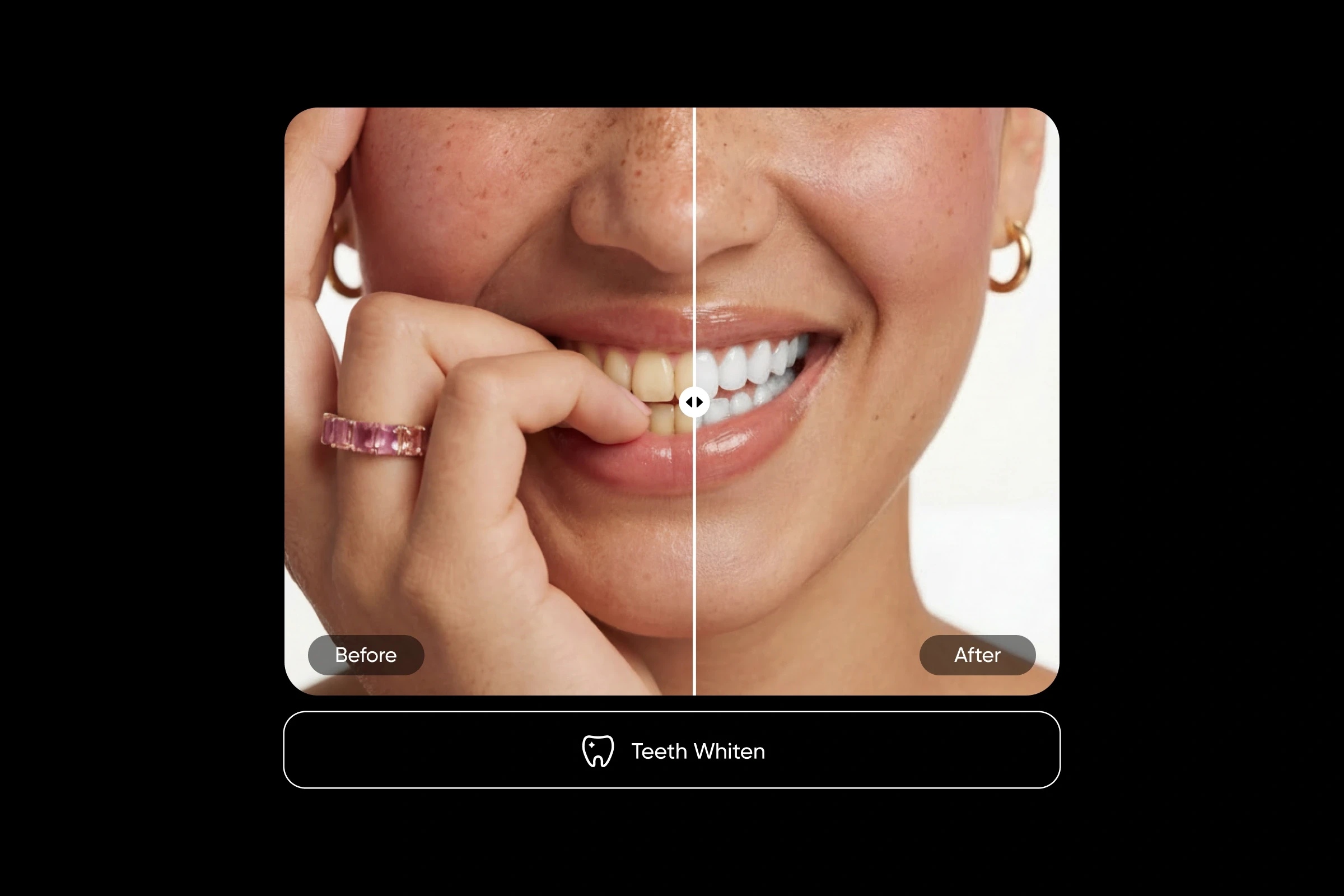
The whole process takes just a few seconds. There’s no need for manual brushing or adjusting sliders – the AI does the work for you.
It also works across different types of images, whether it’s a quick selfie or a group shot.
Tips for the best results:
- Use a photo where your teeth are clearly visible
- Front-facing, well-lit images usually give the most natural results
- Avoid heavy shadows around the mouth area
- Combine with other Face presets for a more polished look (like Fuller Lips or Long Lashes)
AI vs. manual teeth editing
Manual editing used to be the only option.
You’d pick a brush tool, adjust the size, tweak the opacity, and carefully go over each tooth. It worked, but it took time, and it was easy to go too far.
That’s how you ended up with overly white, flat-looking smiles.
AI tools changed that.
Instead of guessing where to edit, the software detects your teeth and adjusts them evenly. The result keeps some natural variation, which is what makes it believable.
For most everyday photos, especially selfies, using a teeth whitening filter is simply easier and usually looks better.
What else you can adjust (without overdoing it)
If you’re already editing your photo, you might be tempted to try a few extra tweaks. That’s not a bad thing, as long as you keep it subtle.
Picsart’s AI Retouch includes a handful of quick adjustments that pair well with teeth whitening:
- Slight lip enhancement
- A bit of lash definition
- Soft facial contouring
- Light brow filling
There are also skin and makeup options if you want to go further, but you don’t have to use everything.
In most cases, a few small changes across different areas look more natural than one heavy edit.
A small edit that makes a big difference
Sometimes, it’s the smallest changes that bring a photo together. If your smile looks a little off in a picture, fixing it doesn’t have to take more than a few seconds. A simple teeth whitening filter can make the image feel more balanced without making it look edited.
If you want to try it for yourself, the Teeth Whiten preset in Picsart AI Retouch is an easy place to start.
Frequently asked questions
The quickest way is to use an AI tool. Upload your image, apply a teeth whitening filter, and let the tool adjust your smile automatically.


