

Contents
AI photo editing prompts are short text instructions that tell an AI model how to change a photo. One sentence in, one finished edit out – no layers, no brushes, no two-hour Photoshop session.
This post is a copy-paste library: 40+ prompts organized by the edits people actually make (backgrounds, retouching, style transfers, outfits, color grading, object removal, restoration, products, creative effects, and lighting). Pick a category, copy the prompt, paste it into Picsart AI Playground or Picsart Flow, and tweak the specifics to match the photo on screen.
The best edits start with the right prompt.
Learn the formula behind every prompt
Every prompt below uses the same four-part structure: action, what to edit, desired look, what to keep the same. Get those four right and most models behave.
Start with the action verb (replace, remove, enhance, restyle, brighten). Name the exact element changing. Describe the result with concrete language (“golden-hour Mediterranean coastline” lands harder than “nice beach”). Then lock the non-negotiables. Two to four sentences is the sweet spot. Here’s the formula in one line:
Replace the background with a golden-hour Mediterranean coastline. Keep the subject, pose, and outfit identical.
Describe light, not just the scene. For stylized edits, name a real reference (film stock, decade, director, art movement) instead of vague mood words.
Try these new trending photo editing prompts first
These are the editing prompts going viral right now. Each one is a real edit on your own photo – it keeps your face and features and only changes the look – and follows the four-part formula, so paste it straight into Picsart.
Y2K flash filter
Edit this photo with a 2000s direct-flash look: harsh on-camera flash, high contrast, glossy skin, deep shadows behind the subject, and a slightly grainy digital texture. Keep the face, expression, pose, and outfit exactly the same.
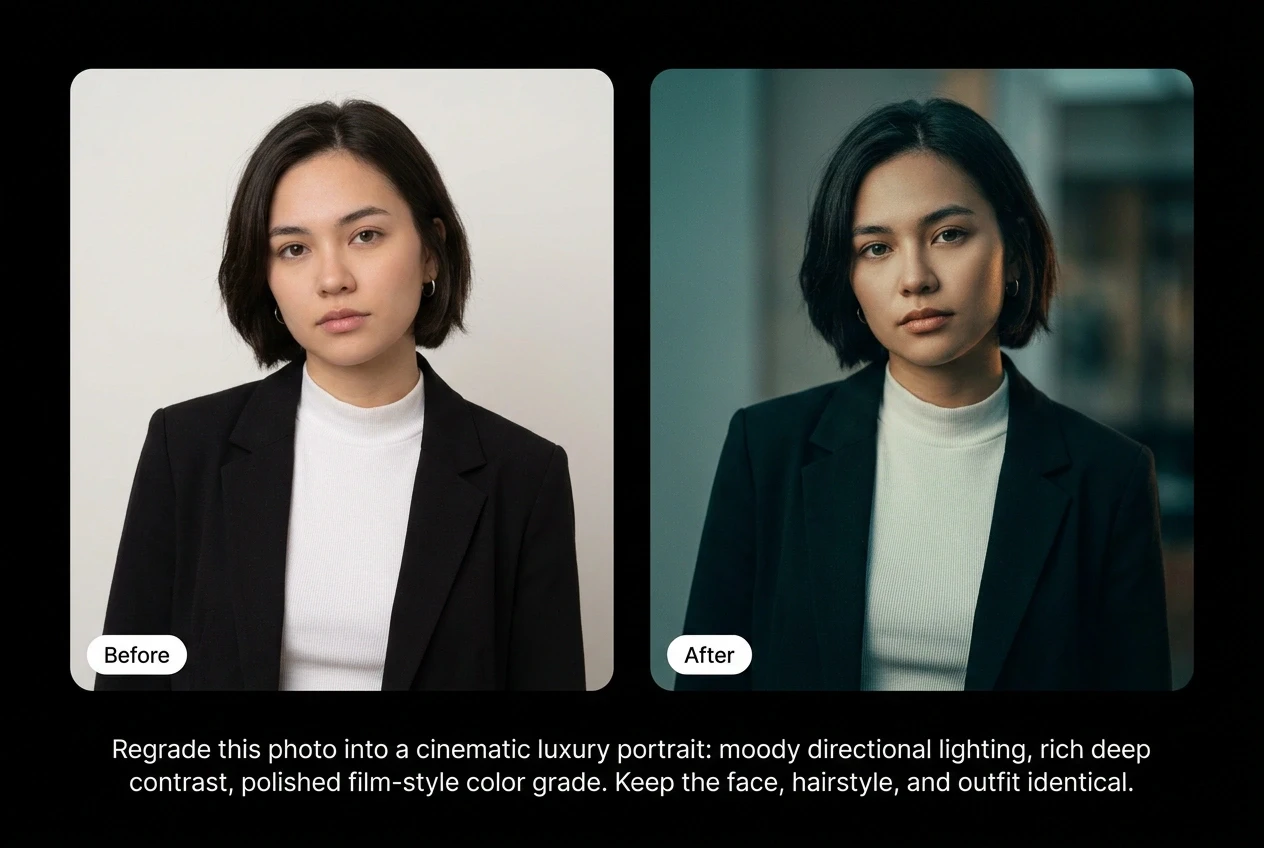
Cinematic luxury portrait
Regrade this photo into a cinematic luxury portrait: moody directional lighting, rich deep contrast, and a polished film-style color grade. Keep the subject’s face, hairstyle, and outfit identical and leave the composition unchanged.
Soft pastel dream edit
Give this photo a soft pastel dream aesthetic with a lavender, mint, and peach color palette, gentle diffusion, and a dreamy glow. Keep the face, features, and natural skin texture intact – change only the tones and mood.
Milestone celebration post
Turn this photo into an aesthetic follower-milestone post: add a clean cinematic color grade and subtle glow, and leave clear space at the top for milestone text. Keep the subject’s face, pose, and outfit exactly the same.
Retro film flash
Apply a vintage film-flash look with warm muted tones, soft halation around the highlights, fine grain, and a nostalgic 35mm feel. Keep the subject, composition, and the true colors of the clothing recognizable.
Aesthetic clean edit
Give this portrait a clean, aesthetic Instagram finish: even bright lighting, a soft neutral background, and a crisp natural color grade. Keep the face, expression, and outfit identical – do not smooth away natural skin texture.
Make any selfie look cinematic
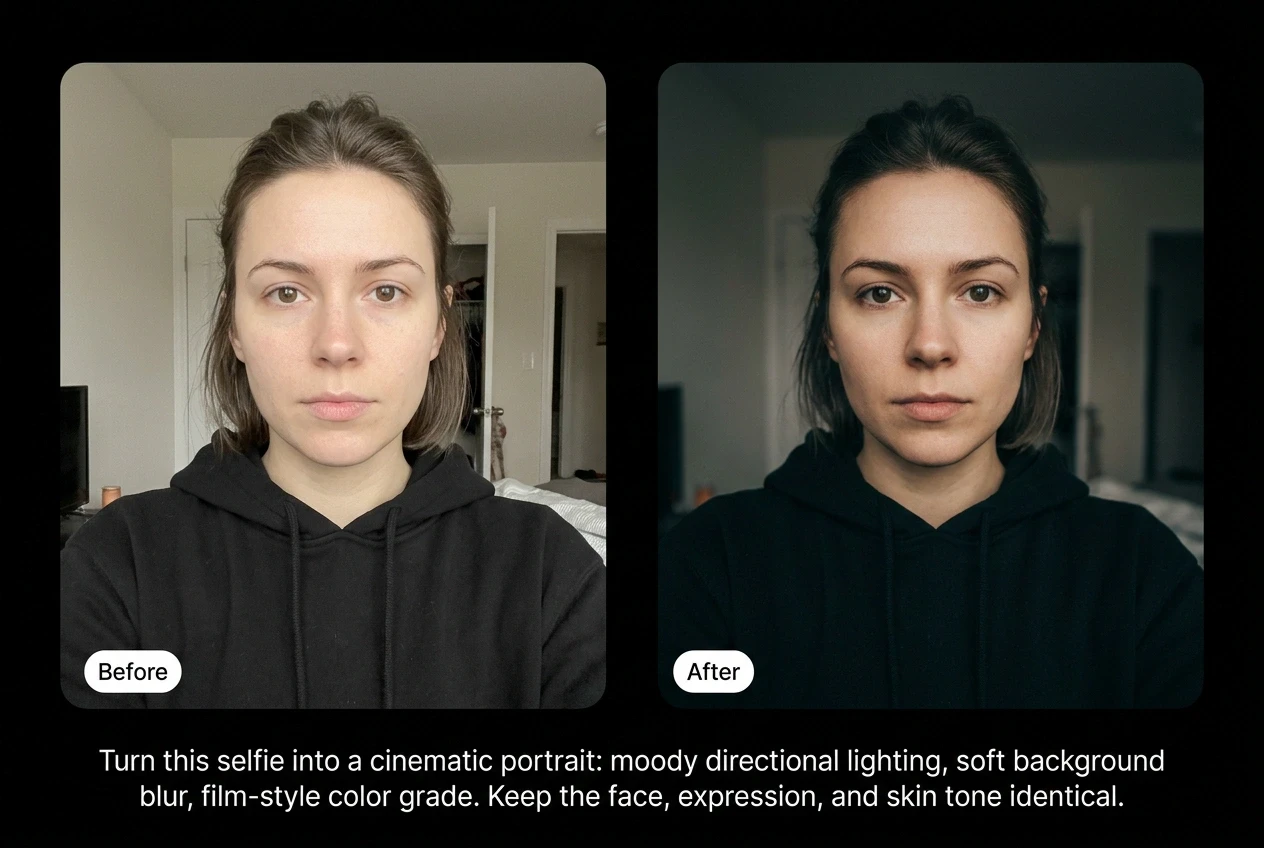
The cinematic selfie edit is everywhere right now: take an ordinary selfie and give it moody lighting and a film-style grade without changing who you are. Your face, expression, hairstyle, and skin tone stay exactly as they were – the prompt only upgrades the lighting, color, and mood. That maps perfectly onto the keep-the-subject-the-same formula, so here are prompts that get the look in one paste.
Cinematic selfie
Turn this selfie into a cinematic portrait: add moody directional lighting, a soft depth-of-field blur behind the subject, and a polished film-style color grade with deep contrast. Keep the face, expression, hairstyle, skin tone, and outfit identical to the original photo.
Moody low-key edit
Relight this selfie with dramatic low-key lighting and a single warm light source from the side, deepen the shadows, and add a subtle cinematic grain. Do not alter the face, features, or hairstyle – change only the lighting and mood.
Clean aesthetic profile picture
Give this selfie a clean, aesthetic profile-picture finish: bright even lighting, a soft neutral background, and a crisp natural color grade. Keep the subject’s face, expression, and outfit exactly the same.
Add “preserve the original facial identity and proportions exactly” to the end of the prompt and run it again if a result drifts and the face stops looking like you.
Swap backgrounds without touching the subject
Change the scene, leave the person alone. Describe the new scene’s lighting so the subject blends naturally instead of looking pasted in. Copy and paste any of these background prompts and drop in your own scene.

Replace the background with a clean, seamless studio backdrop, neutral warm gray, three-point lighting from the front. Keep the subject, pose, and outfit identical. Preserve skin tone and facial features.
Replace the background with a beach at golden hour, warm horizon light, soft bokeh, and long shadow stretching toward the camera. Match the rim light on the subject to the new direction. Keep the pose and outfit untouched.
Replace the background with a minimal pastel gradient, peach to lavender, with an editorial feel, and clean negative space on the right for copy. Keep facial features, pose, and outfit identical.
Add a soft glowing background light: a warm directional glow behind the subject with gentle falloff and a subtle haze. Keep the subject, pose, and outfit identical and leave the foreground lighting natural.
Retouch portraits without overdoing it
Retouching goes off the rails fast because most models default to over-smoothing skin until the subject looks plastic. The fix is one phrase: “keep skin texture natural.” Use the verb “enhance” instead of “fix,” since models read “enhance” as a lighter touch.

Enhance the skin: remove blemishes, soften under-eye shadows, and even tone slightly. Keep pores and natural skin texture intact. Preserve features and lighting exactly.
Brighten teeth naturally, remove the yellow cast, keep the natural tooth shape, and correct slight imperfections. No whitening that looks fake.
Editorial face polish: even skin, subtle contour, soft lip boost, a touch of warmth in the highlights. Keep facial features, hair, and lighting identical.
Upscale this photo to crisp 4K: sharpen fine detail, remove noise and compression artifacts, and boost overall clarity. Keep the face, natural skin texture, colors, and composition exactly the same – do not add detail that wasn’t there.
Transfer styles while keeping the subject recognizable
Style transfer alters faces more than any other edit, so the lock line matters most. Name a specific reference. “Cinematic” is vague. “Kodak Portra 400” is a color profile that a model can actually render.

Apply Kodak Portra 400 film aesthetic: warm skin tones, subtle grain, faded blacks, muted saturation. Keep the subject’s face and pose identical.
Restyle as an oil painting in an impressionist palette, with visible brushstrokes, soft edges, and painterly textures. Keep the subject recognizable and the composition unchanged.
Restyle in a Wes Anderson visual language: symmetrical composition, pastel color blocks (mustard, dusty pink, mint), flat front lighting, retro framing. Keep the subject’s face and pose unchanged.
Change outfits with surgical precision
Write outfit prompts like a stylist would: material, fit, color, detailing. Then lock everything else down.

Replace the outfit with a tailored charcoal wool suit, crisp white shirt, slim leather belt, and polished black oxfords. Professional fit, no creases. Keep the face, hairstyle, body proportions, and background identical.
Replace the outfit with an oversized cream hoodie, relaxed dark wash jeans, and clean white sneakers. Effortless streetwear feel. Keep the face, hairstyle, and pose unchanged.
Replace the outfit with a floor-length silk gown in deep emerald, subtle shimmer, subtle drape, red-carpet styling. Keep facial features, body proportions, and background identical.
Grade color like a film colorist
Color grading is mood, not a filter. Think in film looks. Lock composition before the model gets ideas.

Apply a warm cinematic grade: amber highlights, rich shadows, film-like contrast, slightly faded blacks. Do not change framing, subject, or expression.
Apply a teal and orange blockbuster grade: cool teal shadows, warm orange skin tones, high contrast, deep blacks. Keep composition and subject identical.
Apply a pastel fade: low contrast, muted pastels across the frame, lifted blacks, dreamy editorial feel. Do not change framing or subject.
Remove anything cleanly
Object removal lives or dies on the rebuild. Describe the object, its location in the frame, and what fills the space behind it.

Remove the bystander on the right edge of the frame. Reconstruct the natural background behind them, including the brick wall and continuing shadow. No distortion or repetition.
Remove the scattered papers and tangled cables from the desk. Keep the laptop, lamp, and coffee mug exactly where they are. Rebuild the wood grain underneath cleanly.
Remove the parked cars in the background. Extend the sidewalk and storefronts naturally so the scene reads as continuous. Keep the subject and foreground untouched.
Restore old photos without flattening them
Restoration is about respect. The era is part of the photo. Repair the damage, but don’t drag a 1962 portrait into 2026 by accident. Always close with: “Preserve the original grain, lighting, and period aesthetic.”

Repair physical damage on this vintage photo: remove scratches, creases, and tears. Rebuild missing details naturally. Preserve the original grain, lighting, and period aesthetic.
Colorize this black-and-white photo with period-accurate colors. Keep grain intact, keep contrast in the original range, no oversaturated modern palette.
Recover faded color in this photo: restore lost contrast, rebuild the original color range, keep the original era’s feel and softness.
Polish product photos for any platform
Product prompts need platform context. Amazon wants pure white. Instagram wants lifestyle. Pinterest wants flat lay. Specify which one.

Place this product on a pure white background, with a soft drop shadow underneath, and even studio lighting. Amazon-ready e-commerce shot. Do not change the product’s shape, color, logo, or proportions.
Place this product in a natural lifestyle setting: soft morning light through a window, neutral linen surface, a few unobtrusive props. Lifestyle ecommerce feel. Keep the product identical.
Style this product as a flat lay: top-down view on a walnut surface, complementary props (linen napkin, sprig of rosemary, ceramic dish), editorial ecommerce styling. Do not change the product itself.
Add creative effects that actually land
Creative effects fall apart when the prompt is vague. Describe direction, layer, and intensity. Lighting consistency sells the effect.

Apply a double exposure effect: blend the portrait with a misty pine forest, the forest visible inside the silhouette of the subject. Keep the face recognizable. Cool muted palette.
Add a rain effect to the scene: soft diagonal rain streaks, wet pavement reflections, atmospheric haze, moody overcast mood. Keep the subject and pose identical.
Add warm analog light leaks across the top-right corner, retro film feel, soft orange flare bleeding into the highlights. Keep the subject and composition unchanged.
Fix lighting without re-rendering the subject
Lighting prompts go wrong when they sound like brightness sliders. Describe the direction and quality of light instead.

Add a golden-hour glow: warm directional light from the left, soft rim light along the subject’s shoulder and hair, long shadow on the right. Keep composition and subject identical.
Soften harsh midday shadows on the face, rebuild detail in shaded areas, and keep skin tone natural. Do not re-render facial features.
Recover blown highlights in the sky and bright surfaces, restore detail, and balance overall exposure. Keep composition and subject identical.
Run these prompts inside Picsart
These prompts work across every AI photo editor surface in Picsart, and picking the right model is half the result. Nano Banana 2 and Nano Banana Pro are the safe defaults for portraits, backgrounds, outfits, and retouching. FLUX Kontext holds character and lighting beautifully for creative effects and color grading. Seedream 4.5 handles product photography up to 4K. GPT Image 1.5 – the same model behind ChatGPT’s image edits – is a standout for photo editing, especially multi-step edits where one part changes and another stays exactly the same. ChatGPT photo editing prompts run cleanly here too. Recraft V4 wins for products and in-image text. Ideogram 3.0 is the pick for typography-heavy edits.
Then choose the workspace. Picsart AI Playground puts 137+ models into a single prompt bar with side-by-side comparison. Picsart AI Image Generator is the focused full-screen workspace with 30+ models. Picsart Flow is the no-code workflow builder for batch edits at scale. Picsart Aura lets anyone chat their edit and iterate conversationally. Bonus: drop any photo into Picsart’s Image to Prompt tool for a ready-made prompt.
Frequently asked questions
Short text instructions that tell an AI model how to change an existing image. The prompt does the editing.
Frequently asked questions
Short text instructions that tell an AI model how to change an existing image. The prompt does the editing.
Try any prompt in Picsart
40+ copy-paste AI photo editing prompts, all built on the same formula, ready for backgrounds, retouching, style transfers, outfits, color grades, object removal, restoration, products, creative effects, and lighting. Pick one, paste it into Picsart AI Playground or Picsart Flow, and edit any photo in seconds.


