
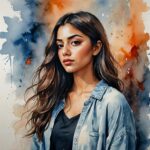

A still photo. Then a flash – one element lights up for a split second. Your necklace catches light. Your jacket glows. The neon sign behind you pulses. Then back to normal. Then it flashes again.
That’s the flickering effect. Two versions of the same image – one normal, one with boosted highlights on a single element – cut together into a rapid loop. Creator @martinactn_ posted a Picsart tutorial for this edit – 1.5M impressions and 43K likes. The edit takes five minutes. The output looks like motion graphics.
What is the flickering effect?
One photo, two versions. On the duplicate, boost the highlights and brightness on a single element – a face, an accessory, a light source. Erase everything except that element. Alternate the original and edited version in a short video with quick cuts.
The rapid switching creates a blinking illusion. The highlighted element appears to flash, glow, or glitch. Your brain reads it as motion even though nothing moved – just the exposure changed on one part of the image.
Why it works
Motion from nothing. Two still images trading places fast enough to simulate a flash. That’s enough to register as video in a feed full of static posts.
One focal point. Eyes go straight to the element that’s flashing. Built-in visual hierarchy.
It loops perfectly. No start or end point. Viewers watch it cycle three, four times before they realize they’re looping. That repeat watch time is what short-form algorithms reward.
Low effort, high perceived skill. Two adjustments and a video cut. The output looks like it required After Effects.
How to make it with Picsart
Open the Picsart app and upload your photo.
Boost the highlights. Go to Tools, then Adjust. Set Highlights to around 54 and Brightness to around 55.
Isolate the element. Tap the Eraser tool. Hit Invert. Switch to Restore and brush over the object you want to highlight – sunglasses, a jacket, a neon sign. Only the restored area keeps the boosted highlights.
Save the edited version. You now have two images: the original and the edited version where one element is brighter.
Build the flicker. Open the Picsart Video Editor (app or web). Add short clips of both versions – 0.1 to 0.3 seconds each. Alternate them: original, edited, original, edited. Four to six alternations for a clean loop.
Export and post. Trim so the last frame matches the first for a seamless loop. Post as a Reel, TikTok, or Story.
Tips: 0.1-0.2 seconds per frame for an aggressive flash, 0.3-0.5 for a slower glow. The effect works best when the highlighted element contrasts with its surroundings – bright jewelry on a dark outfit, a lit sign against a night sky.
Variations worth trying
- Portrait flash – boost the catchlight in your eyes. The flicker makes eye contact magnetic.
- Outfit spotlight – highlight one piece of clothing. A leather jacket, metallic shoes, a sequin top.
- Product glow – isolate the product in a flat lay. The flash draws attention without text overlay.
- Neon and night shots – highlight signs, string lights, or city glow. The flicker amplifies what’s already luminous.
- Accessory focus – jewelry, watches, sunglasses. Reflective objects flicker the most convincingly.
- Multi-element sequence – highlight different elements on alternating frames. Necklace flashes, then earrings, then bag.
Two versions. One flash. That’s the whole trick.
Pick your photo. Pick the element. Boost, erase, restore, cut. Post it.


