

Contents
To prompt GPT Image 2 well, structure prompts in a clear order (scene, subject, details, constraints), be specific about materials and lighting, quote any in-image text verbatim, and state what should stay the same when editing. The model rewards clarity. Vague poetry, on the other hand, gets vague results.
GPT Image 2 is OpenAI’s newest image generation model, launched in April 2026 and built for photorealism, reliable text rendering, identity preservation on edits, and flexible resolutions up to 2K. It’s available inside the Picsart AI Image Generator, the AI Playground, and as a node in Picsart Flow, so the same prompt can run anywhere the workflow needs it.
This guide covers the prompt rules that matter, 15 copy-paste prompts split between fresh generations and edits, the habits that quietly drag results down, and exactly where to run all of it inside Picsart.
Master GPT Image 2 prompt fundamentals
GPT Image 2 has a few standout strengths worth designing prompts around. It supports flexible resolution, with reliable output up to 2K (2560×1440) and an experimental 4K option. It renders in-image text cleanly when the text is quoted directly. It runs a distinct photorealism mode anytime the word “photorealistic” shows up in the prompt. It preserves identity, geometry, and layout across edits when invariants are restated. It composites multiple input images by index reference. And it exposes a quality-latency lever (quality = low, medium, or high) so speed-vs-fidelity stays under control.
A few rules turn that capability into consistently good output.
Write prompts in a consistent order: background or scene, subject, key details, constraints. Name the intended use up front (“pitch deck slide,” “product ad,” “infographic”) so the model sets the right polish level. Be specific about materials, shapes, textures, and medium (photo, watercolor, 3D render). Use the word “photorealistic” directly when realism is the goal, or swap in close cousins like “real photograph,” “taken on a real camera,” “professional photography,” or “iPhone photo.”
Specify framing (close-up, wide, top-down), viewpoint (eye-level, low-angle), and lighting (soft diffuse, golden hour, high-contrast). For people, describe scale, body framing, gaze direction, and object interactions, things like “full body visible” or “looking down at the book, not the camera.” Put literal in-image text in quotes or ALL CAPS, and treat typography as a constraint: font style, size, color, and placement. Spell out tricky words letter-by-letter when accuracy matters. State exclusions explicitly: “no watermark,” “no extra text,” “no logos.”
For edits, say “change only X” and “keep everything else the same,” then restate the preserve list on every follow-up to prevent drift. For multi-image prompts, reference each input by index (“apply Image 2’s style to Image 1″). Use quality=”low” for high-volume or latency-sensitive runs, and step up to medium or high for small text, dense infographics, close-up portraits, and identity-sensitive edits. And iterate with small single-change follow-ups instead of one giant rewrite. “Make lighting warmer” and “remove the extra tree” beat a from-scratch rebuild every time.
Create visuals from scratch with 8 GPT Image 2 prompts
Eight copy-paste prompts, one per use case. Drop them into the Picsart AI Image Generator and tweak from there.
Photorealistic 9:16 vertical photo. A ceramic cappuccino cup sits on a sunlit wooden cafe table by a window. Soft golden-hour light from camera-left, long warm shadow across the saucer, thin steam rising from the foam. Subtle 35mm film grain. No text, no watermark.

Shoot product photos for online shops
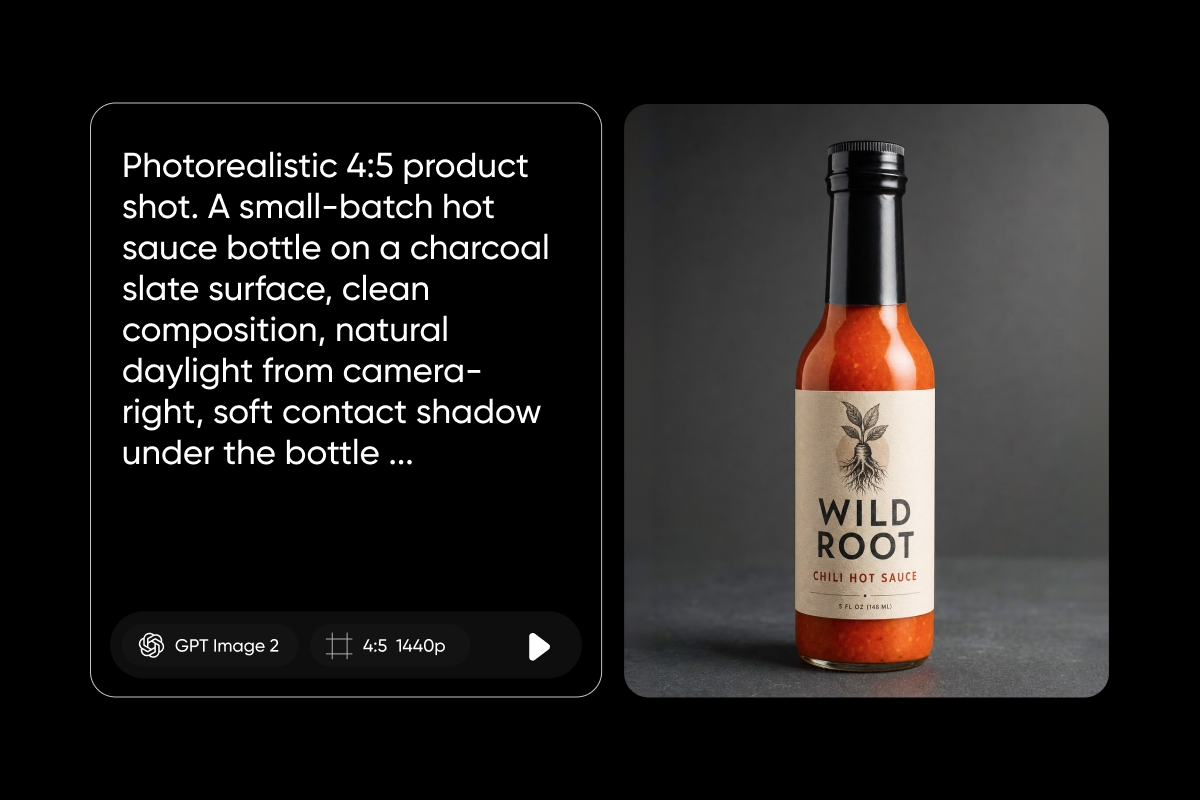
Photorealistic 4:5 product shot. A small-batch hot sauce bottle on a charcoal slate surface, clean composition, natural daylight from camera-right, soft contact shadow under the bottle. The label reads “WILD ROOT CHILI HOT SAUCE” in clean sans-serif type. Background fades to dark gray. No extra props, no watermark.
Design logos and brand marks
Original 1:1 logo for an invented specialty coffee subscription brand called “Drift Roasters.” Calm modern tone, motif of a single drifting coffee leaf curling into a cup, deep forest green on a warm cream background. Balanced negative space, no copyrighted references. Generate n=4 variations in one call to compare directions side by side.
Build ad creative with in-image text
4:5 photorealistic ad creative. A fresh slice of layered chocolate cake on a small ceramic plate, cozy cafe table in soft late-afternoon light from camera-right. Headline reads (EXACT TEXT): “BAKED THIS MORNING.” Place the headline along the top in a clean bold serif, deep brown on cream. Render the text once, legible, no duplicate text, no watermark.
Generate AI portraits and profile pictures
Photorealistic 4:5 professional portrait. A woman in her late 30s with shoulder-length dark wavy hair, calm warm expression, charcoal turtleneck. Soft diffuse window light from camera-left, gentle fall-off on the shadow side, neutral cream background. Natural skin texture with visible pores and subtle freckles, no heavy retouching. Eye-level framing.
Make greeting cards, invites, and holiday graphics
5×7 portrait greeting card. Centered vintage botanical illustration of pressed wildflowers in muted sage, dusty rose, and ivory. Handwritten-style script in deep ink reads: “Wishing you a slow, sunlit Sunday.” Generous white space around the message, soft cream paper background, subtle paper texture.
Render thumbnails and cover art
YouTube cover art, 16:9. A vintage typewriter on a desk under a single warm lamp at night, cinematic shadow falling to the right. Channel name in bold uppercase serif reads (EXACT TEXT): “THE WORD COUNT.” Cream type pinned to the top-left of the frame. Deep navy background mood, subtle film grain. Render the title once, legible.
Set aesthetic wallpapers and concept art
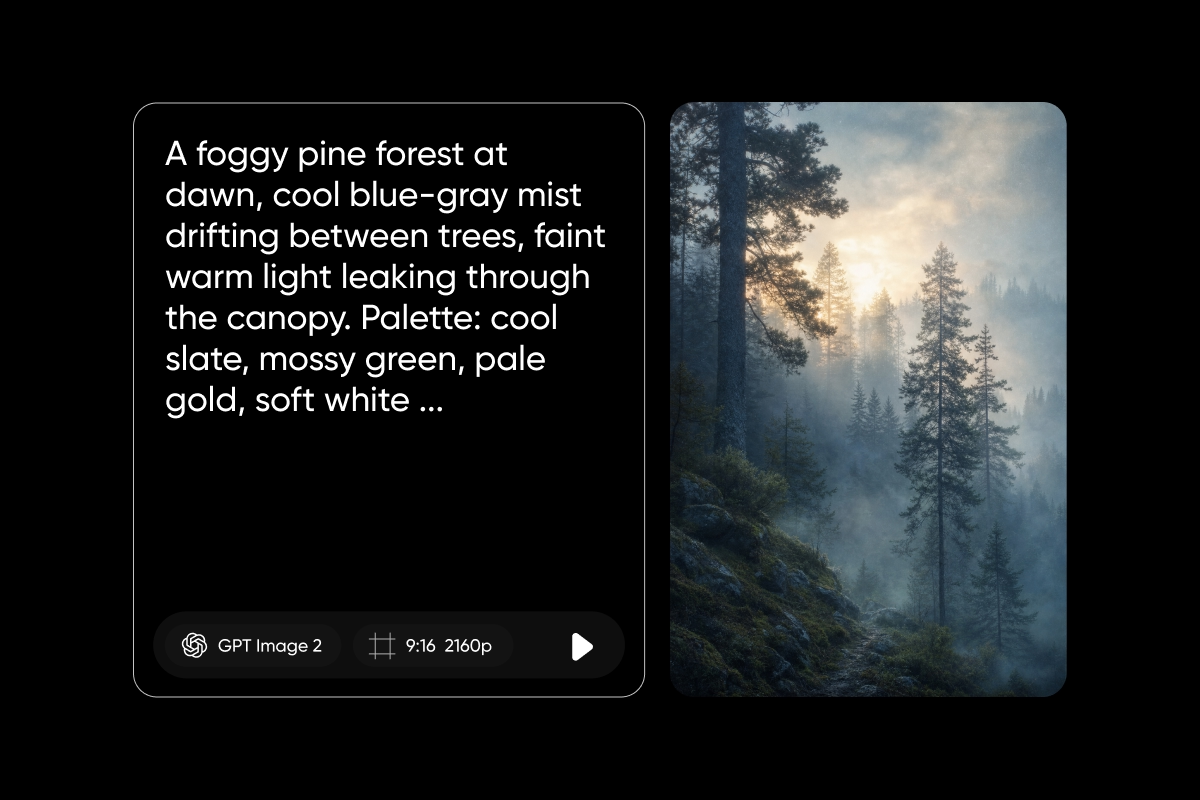
9:19.5 phone wallpaper. A foggy pine forest at dawn, cool blue-gray mist drifting between trees, faint warm light leaking through the canopy. Palette: cool slate, mossy green, pale gold, soft white. Light film grain, slightly painterly atmosphere. No text, no watermark.
Edit and remix photos with 7 GPT Image 2 prompts
For edits, the rule is the same on every prompt: name what changes, name what stays. Restate the preserve list on every follow-up to keep the model from drifting.
Swap the background on a photo
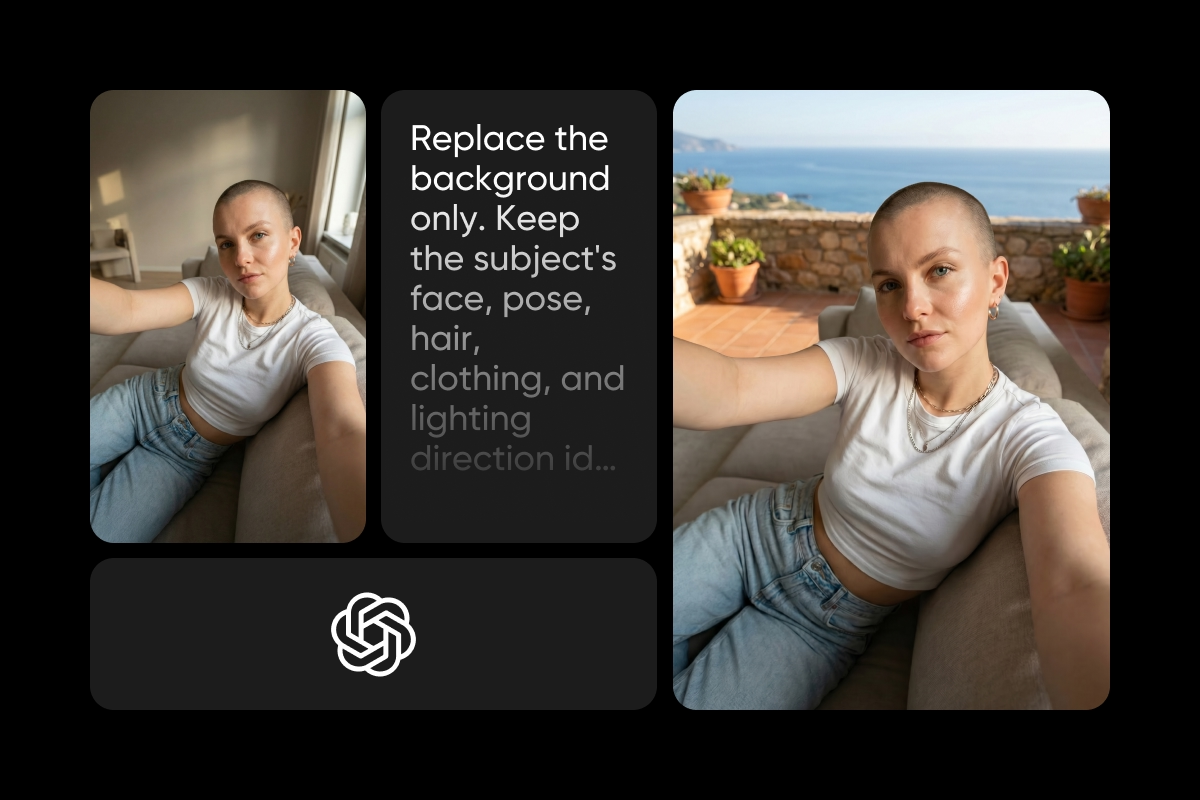
Replace the background only. Keep the subject’s face, pose, hair, clothing, and lighting direction identical. New background: a sunlit Mediterranean balcony with terracotta tiles and a soft horizon line. Match the original light direction and shadows on the subject. Photorealistic.
Change outfits, hair, or styling
Change only the outfit. Keep face, skin, body proportions, pose, background, framing, and lighting unchanged. New outfit: a tailored cream linen blazer over a plain white tee. Realistic fabric folds, clean stitching, soft contact shadow on the seated surface. Photorealistic.
Drop yourself or your subject into a new scene
Place the subject in a new scene. Keep face, body, clothing, and expression exactly the same. New scene: a Tokyo crosswalk at night with neon signs, light rain, and reflective wet pavement, ambient light from camera-right. Match the new scene’s lighting and perspective on the subject. Photorealistic, not cinematic.
Turn a photo into a new art style
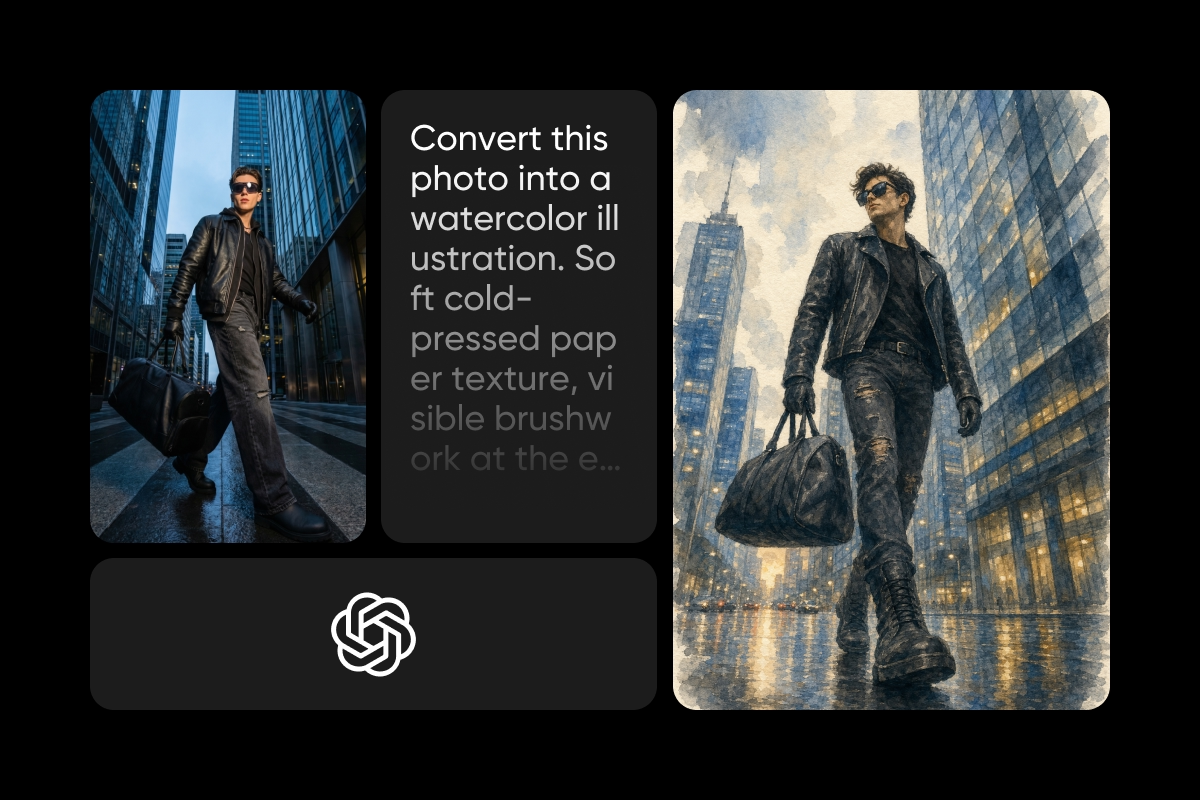
Convert this photo into a watercolor illustration. Soft cold-pressed paper texture, visible brushwork at the edges, muted palette of dusty blue, soft ochre, and ivory. Keep the subject’s pose, composition, and face recognizable. No hard outline, no digital gloss.
Remove objects, people, or background clutter
Remove the parked car and the road sign on the right side of the frame. Keep the main subject, the building behind, and the sidewalk untouched. Reconstruct the background naturally where the removed elements were, matching the existing lighting and shadows.
Change the lighting, weather, or time of day
Change the lighting and weather only. Keep the subject, composition, camera angle, and object placement exactly as is. Target: late autumn golden hour after rain, warm low light from camera-right, faint mist in the distance, soft wet reflections on the pavement.

Keep a character consistent across multiple images
Use the same character from the previous image. Lock these identity details: round face shape, copper short curls, warm hazel eyes, light freckles, navy hoodie with white drawstrings, slim build, calm half-smile. New scene: standing in a small bookshop aisle under warm reading-lamp light. Same illustration style as the previous image, keep every identity detail identical.
Drop the prompt habits hurting your results
A few common patterns quietly drag GPT Image 2 results down.
Overloading one prompt with every detail at once. Start with a clean base and iterate in small follow-ups instead of building a 200-word monolith. Vague mood words also hurt. “Soft diffuse golden-hour light from camera-right” beats “nice lighting” every time. On edits, forgetting to restate invariants lets the model drift, so keep “keep face, body, pose, background unchanged” pinned to every iteration.
Expecting tiny or dense text to render perfectly at quality=”low” is another quiet mistake. Step up to medium or high anytime small text matters. Detailed camera specs are useful for look, not for exact physics, so “85mm f/1.4” sets a vibe but won’t simulate optics. Skipping quotes around in-image text makes the rendering less reliable. And writing prompts as creative poetry instead of production specs reads beautifully but performs worse than a clean, specific brief. The model responds to clarity, not flourish.
Run your GPT Image 2 prompts in Picsart
GPT Image 2 lives in three spots inside Picsart, each built for a different kind of work.
The Picsart AI Image Generator is the fastest path for single-prompt runs and quick iterations. Open the workspace, pick GPT Image 2 from the model picker, paste a prompt, and generate.
The AI Playground is for side-by-side comparison. The same prompt can run through GPT Image 2 alongside Flux 2 Pro, Nano Banana Pro, Seedream, and Ideogram 3, with results landing on a shared board for easy review.
Picsart Flow is where the model becomes part of a bigger pipeline. Drop GPT Image 2 into a flow as a node, wire it up to background removal, resize, style transfer, and export, then rerun the whole workflow for batch creative or automated production.
The recipe is the same in all three: pick GPT Image 2 from the model picker, paste a prompt structured as scene, subject, details, and constraints, then set quality. Use low for fast exploration, medium for most work, and high for dense text and close-up photorealism. Set size and aspect ratio next: 1024×1536 portrait, 1536×1024 landscape, 1024×1024 square, or 2560×1440 widescreen, with 4K available but experimental. For edits, upload the result, name the single change, and restate what should stay the same. Then polish with Picsart’s built-in tools, background removal, object replacement, filters, and text editing, all work directly on the generated image.
Start creating with GPT Image 2 in Picsart
With the right structure, GPT Image 2 consistently delivers production-quality visuals on the first try. Open the Picsart AI Image Generator, select GPT Image 2 from the model picker, and paste any prompt from this guide to start.


