
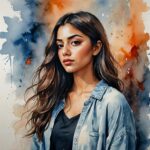

Seedream can generate striking visuals, but only when you give it something worth working with. Drop in a vague prompt, and you’ll get a generic image. Drop in a structured prompt with the right details, and you’ll get something you’d actually use on a landing page, in an ad, or across a campaign.
The good news: there’s a formula. Seedream reads prompts in a specific way, weighs certain elements over others, and rewards natural, descriptive language over keyword soup. Once you understand how it thinks, the quality of the output jumps.
This guide breaks down how Seedream interprets prompts, the structure that consistently delivers, and ready-to-adapt examples for portraits, product shots, text rendering, and stylized art. Whether you’re working with Seedream 4.5, 4.0, or 5.0 Lite, the principles apply across versions. Let’s get into it.
Master the Seedream prompt structure
Seedream runs on natural language understanding, which means it responds best to descriptive sentences, not comma-separated keyword tags. Write like you’re briefing a photographer, not tagging a stock image.
Word order carries weight. Seedream gives priority to elements that appear earlier in the prompt, so lead with the most important detail and layer context behind it. The sweet spot for length sits between 30 and 100 words. Go under 15, and you leave too much to interpretation. Push past 150, and you start stacking conflicting instructions.
Here’s the structure that works, in this order:
- Subject – who or what is in the image.
- Action – what the subject is doing.
- Setting – where the scene takes place.
- Composition – how elements are arranged (close-up, wide shot, top-down).
- Lighting – light source, mood, contrast.
- Camera – lens, film type, depth of field.
- Style – artistic direction (oil painting, editorial photography, 3D render).
- Constraints – what to exclude or emphasize.
Put it all together, and you get something like:
“A girl in a lavish dress walking under a parasol along a tree-lined path, soft afternoon light filtering through the canopy, medium shot, shallow depth of field, in the style of a Monet oil painting.”
Keep the language concise and precise. Stacking ornate vocabulary won’t improve the result; it just muddies the signal. And if you’re editing an existing image, stick to one or two changes per instruction. Multi-step runs produce more predictable results than cramming everything into one prompt.
Tailor Seedream prompts to every use case
Different image types ask for different prompt strategies. Here’s how to tune a Seedream prompt based on what you’re trying to create.
Nail portrait prompts
Seedream handles skin detail and lighting beautifully, so lean into that. Specify the lighting direction, the lens you’d use, and the skin texture you want.
“Close-up portrait, window-side light, 85mm lens, editorial photography, natural skin texture, soft contrast.”
Shoot sharper product photography prompts
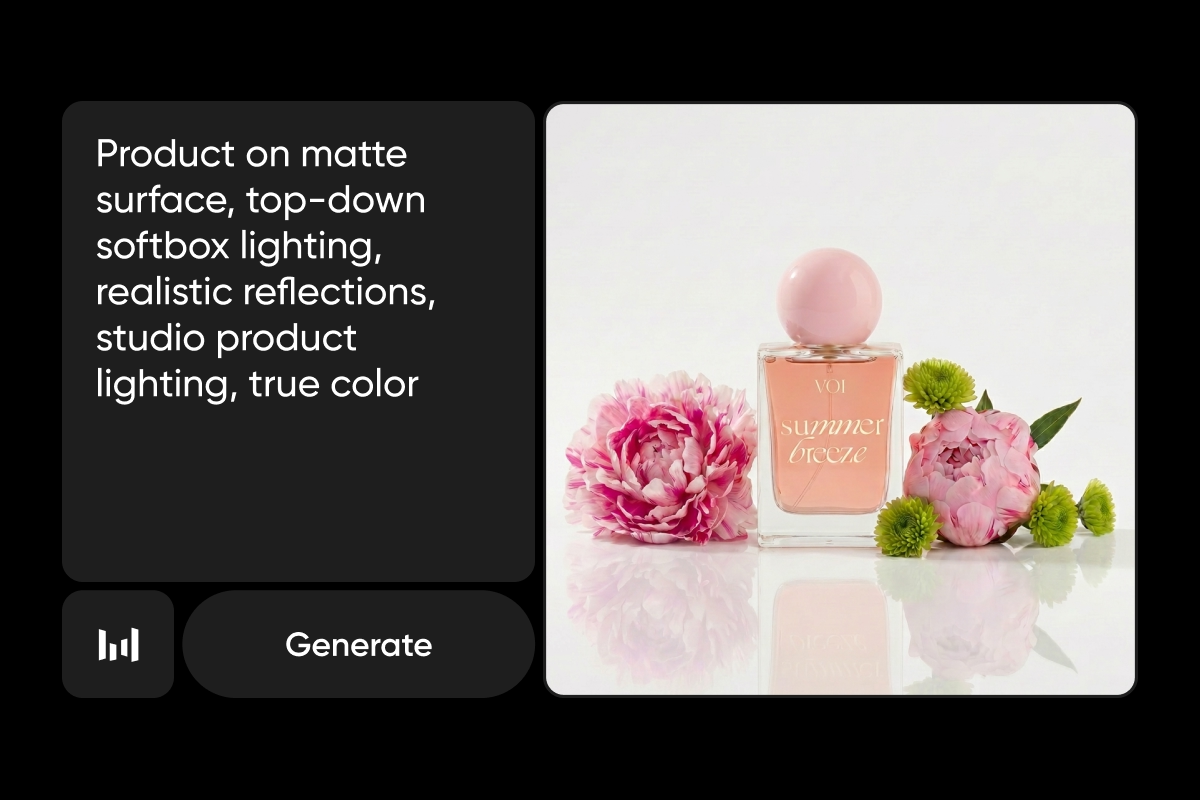
Hard surfaces, glass, and reflections are where Seedream shines. Call out the surface material, the lighting setup (softbox, rim light), and the camera angle. Keep fabric descriptions simple for soft goods.
“Product on matte surface, top-down softbox lighting, realistic reflections, studio product lighting, true color.”
Render clean text inside your images
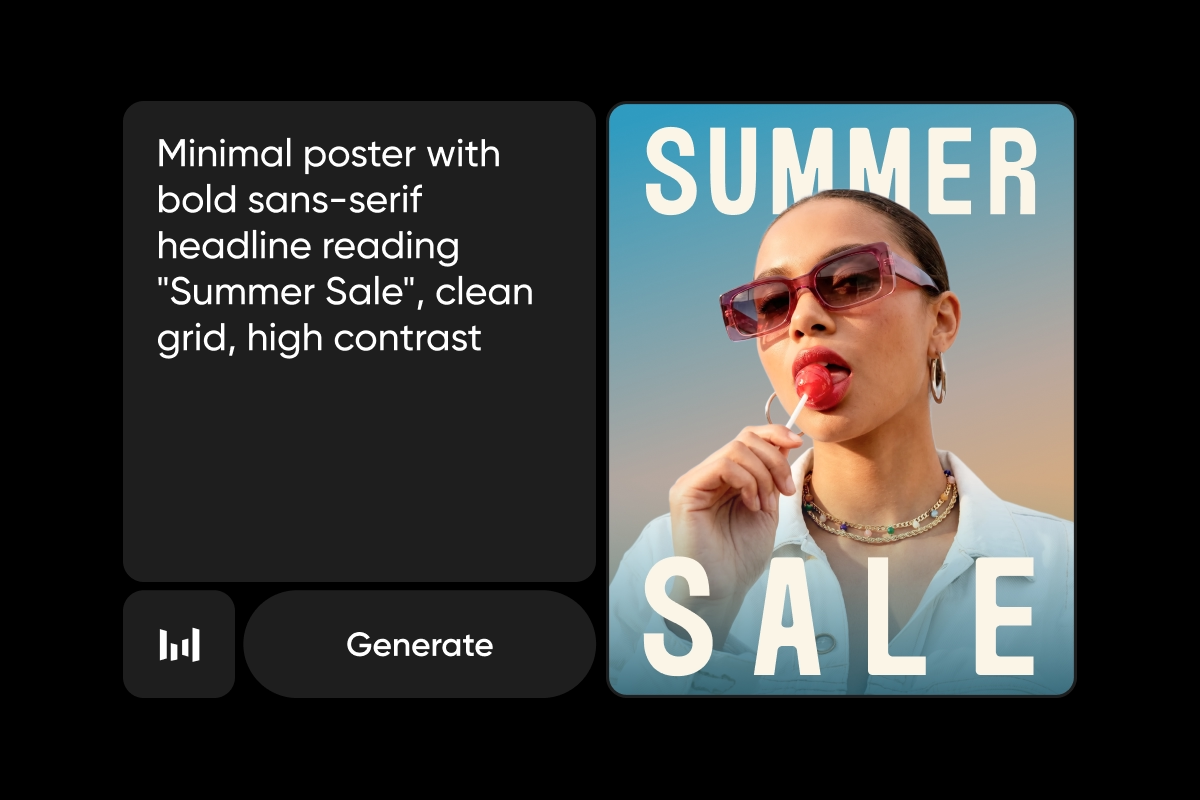
Text rendering is one of Seedream’s standout capabilities. Put the exact text in double quotes inside the prompt, specify the font style and placement, and keep it tight; 3 to 5 words work best. Bump up to 2K or 4K resolution for crisp output.
“Minimal poster with bold sans-serif headline reading “Summer Sale”, clean grid, high contrast.”
Go wild with artistic and stylized prompts
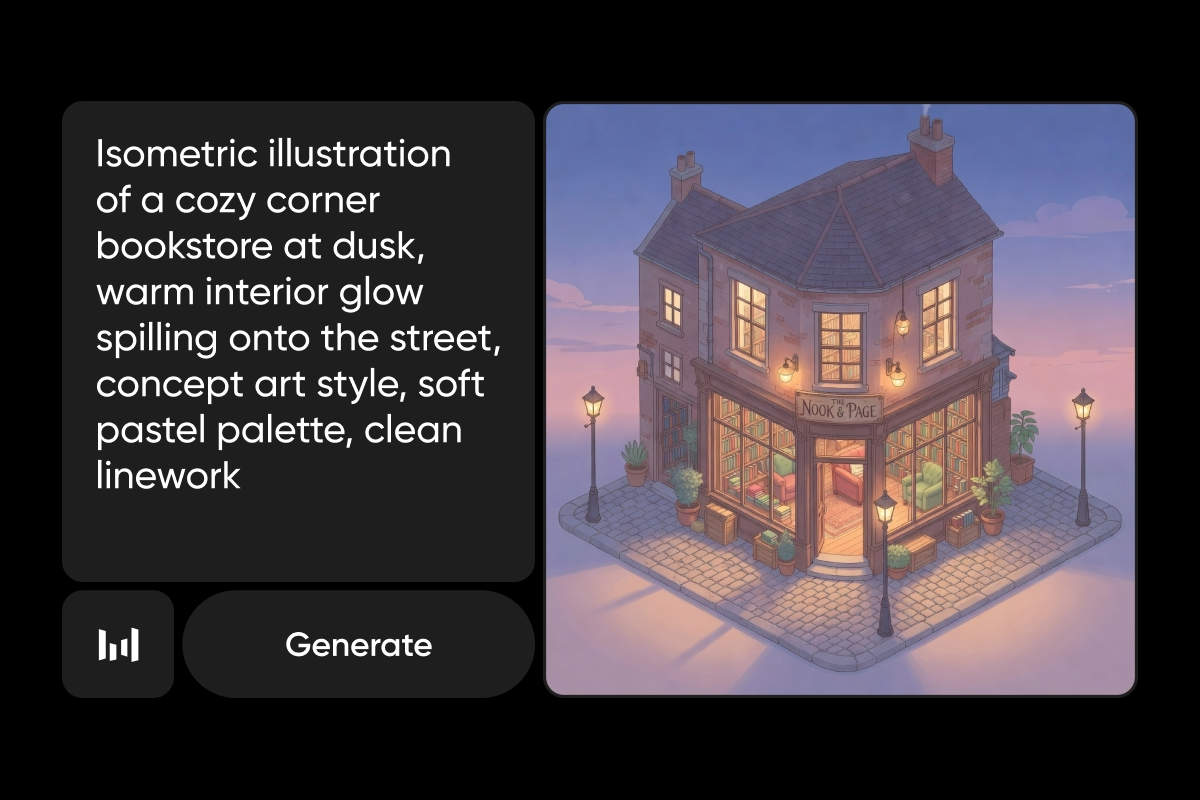
This is where Seedream outperforms most competitors. Use precise style keywords: picture book, watercolor, concept art, isometric, 3D render. Reference specific art movements or aesthetics for more targeted results. It’s a strong pick for illustration, concept art, and branded visuals.
“Isometric illustration of a cozy corner bookstore at dusk, warm interior glow spilling onto the street, concept art style, soft pastel palette, clean linework.”
Brief smarter marketing and brand content prompts
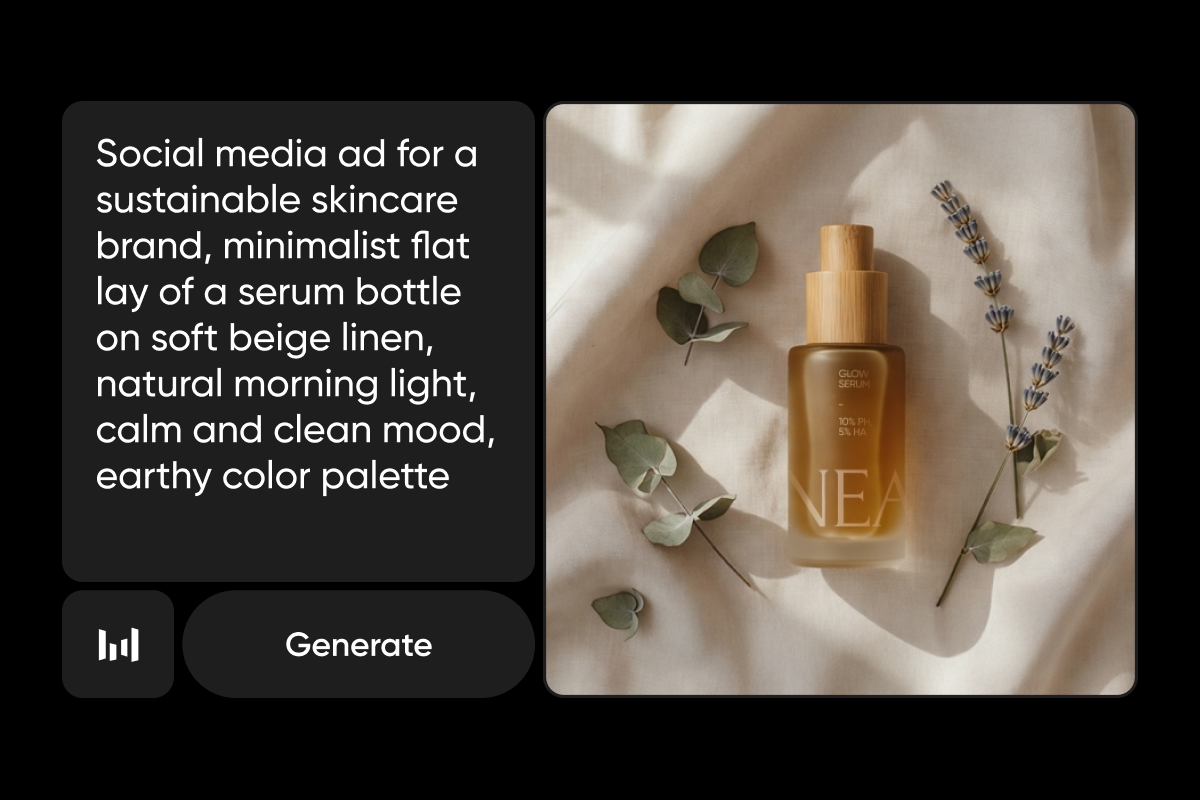
Tell Seedream the application scenario, a social media ad, a website banner, an email header, and pair it with brand-relevant cues like color palette, mood, and audience context. Stating the image’s purpose gets you sharper results than a purely descriptive prompt.
“Social media ad for a sustainable skincare brand, minimalist flat lay of a serum bottle on soft beige linen, natural morning light, calm and clean mood, earthy color palette.”
Try these 7 Seedream prompt tips that actually work
- Put the most important element first. Seedream weighs earlier words more heavily, so lead with the subject, not the style.
- Write sentences, not keyword lists. “A ceramic vase on a marble shelf in warm afternoon light” beats “vase, ceramic, marble, warm, light, afternoon” every time.
- Use quotes for any text in the image. Double quotes tell Seedream exactly what to render. Without them, text accuracy drops fast.
- Specify the purpose, not just the look. “Logo for a gaming company” gives Seedream more context than a vague visual description.
- Add negative prompts for polish. Tell Seedream what to avoid: artifacts, blur, extra fingers, and distorted text. Keep the list between 15 and 25 terms.
- Use reference images for consistency. Text alone struggles with character consistency across multiple images. Reference images lock identity, style, or product features.
- Match resolution to your content. Use 2K+ for text-heavy images and detailed compositions. 1K works fine for quick iterations and concept exploration.
Avoid these common Seedream prompt mistakes
Even solid prompts fall apart when they trip over the basics. Watch out for these:
- Too short. Prompts under 15 words leave too much to the model’s interpretation. Add a subject, a setting, and at least one style or lighting detail.
- Too long. Prompts over 150 words start stacking conflicting instructions. Edit down to the details that actually matter.
- Keyword stacking. Seedream’s natural language processing makes comma-separated tags unnecessary. Write descriptive sentences instead.
- Vague editing instructions. “Make it look better” is a dead end. Spell the change out: “Change the sky to stormy gray, keeping the foreground unchanged.”
- Too much text in one image. Text rendering works best with 3 to 5 words. Longer sentences or dense paragraphs will distort.
- Ignoring word order. Burying the subject after three lines of style description pushes it down Seedream’s priority list. Lead with what matters.
Generate Seedream images in Picsart
Picsart runs Seedream 4.5 across three surfaces, the AI Image Generator, AI Playground, and Flow, so you can pick whichever workflow fits what you’re making. No separate platform, no switching tools.
Here’s the quick path:
- Open the AI Image Generator, AI Playground, or Flow.
- Select Seedream 4.5 from the model options.
- Type a prompt using the structure from this guide, subject first, style last, 30 to 100 words.
- Choose your aspect ratio and resolution.
- Generate, review, and iterate.
Got a reference image but no idea how to describe it? Drop it into Image to Prompt, and the tool converts the photo into a ready-to-use text prompt. Flow takes it further by letting you chain Seedream into multi-step workflows like generate, enhance, and export, all in one sequence.
No design background required. Seedream works behind the scenes inside Picsart’s tools, and every image can be used for commercial projects like marketing, social media, and brand content, subject to Picsart’s terms.
Frequently asked questions
Between 30 and 100 words. Shorter prompts (under 15 words) return generic images, and longer prompts (over 150 words) introduce conflicting instructions. The 30 to 100 range balances detail with focus.
Better prompts, better images
Better prompts, better images, it’s that direct. Seedream responds to structure, specificity, and natural language, and now you’ve got the formula. Open Picsart, pick the surface that fits your workflow, and put it to work.
Start generating with Seedream


