
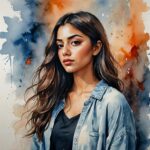

Half your face. Half a CD cover.
The Y2K album cover Story trend is a two-step Instagram Story edit. You run a selfie through Picsart Photo Editor with a black-and-white filter, HDR contrast, and heavy noise, crop it square, and layer it on top of the original full-color photo inside Instagram Stories so the features align across the seam. Half your face stays in color. The other half reads as a gritty, Parental Advisory-coded album cover. A music sticker sits underneath, mixtape style.
The whole edit takes under three minutes. The gritty look comes from one filter stack in Picsart – B&W, HDR 1, Noise at 90, 1:1 square crop. Instagram Stories handles the photo-sticker overlay and the music sticker. That’s the trend.
Creator @gyasi.editz walked through the full edit on Instagram and the tutorial cleared 327K likes. The full Picsart workflow is below.
What is the Y2K album cover Story trend?
Three ingredients:
- A selfie – the wider the better, the album-cover half crops in tight on one eye.
- A Picsart-edited version of that same selfie – black and white, HDR contrast, heavy noise, cropped square.
- An Instagram Story that layers the square album-cover sticker on top of the original full-color photo so the features align across the seam.
The full-color half keeps you human. The B&W square turns you into a cover. The music sticker tucked beside it sells the mixtape aesthetic. Half portrait, half product shoot.
View this post on Instagram
Why it’s hitting right now
- Y2K is the dominant aesthetic of 2026. Low-rise jeans, flip phones, butterfly clips, scanned-CD-jewel-case grain. The album cover Story is the IG-native version.
- The split-face format is a scroll-stopper. Two finishes of the same face on one frame breaks the feed pattern.
- Music is built in. The IG music sticker doubles as the “album credit.” One tap and viewers can save the track.
- Repeatable. Same edit, new selfie, new song. Weeks of Stories from one template.
- Brand-flexible. Product shot left, gritty B&W product cover right, brand playlist underneath. Same mechanic, any context.
How to make it with Picsart
You’re making the gritty B&W album-cover sticker in Picsart, then layering it on the original photo inside Instagram Stories. Two phases.
Phase 1: Build the album cover in Picsart
- Open Picsart Photo Editor and upload your selfie.
- Tap Fx in the bottom toolbar, scroll to B&W, and apply it. The color is gone.
- Stay in Fx, open HDR, and apply HDR 1. Deep shadows. Harsh highlights. The face starts reading like print, not skin.
- Back in Fx, open Noise and push the slider to 90. Heavy digital grain – the scanned-jewel-case look.
- Go to Tools – Crop, pick the 1:1 square ratio, and crop tight on the face. Frame one eye in the middle – that’s where the seam will land later.
- Export as a JPG to your camera roll.
Phase 2: Build the Story in Instagram
- Open Instagram Stories and upload the original, unedited, full-color selfie as the background.
- Tap the sticker icon at the top, pick the Photo sticker (the icon with the plus over two photos), and select the square B&W version you just saved.
- Use two fingers to resize, rotate, and drag the B&W square until the features line up across the seam – same eye position, same nose bridge, same mouth corner.
- Tap the Music sticker, search a Y2K-coded track (early 2000s rap and R&B both fit), and pick the album-art display style so the widget reads as cover art.
- Sit the music sticker right under or beside the B&W square, mixtape layout. Post.
Tip: if the B&W sticker is fighting the photo underneath, nudge it half a pixel at a time. Alignment is the entire trick.
Pro tips: the alignment trick
- Frame one eye. Crop the B&W square tight enough that one eye sits dead center of the square. That eye is your anchor when you overlay – line it up first, the rest falls in place.
- Same selfie, two finishes. Use the same source photo for both halves. Different selfies under and over will never align cleanly.
- HDR before noise. Push HDR first so the shadows are baked in, then add noise on top. Reverse the order and the grain washes out the contrast.
- Noise at 90, not 100. 100 destroys the face. 90 keeps the features readable and still sells the gritty CD-grain look.
- Square crop, tight. Loose crops kill the album-cover read. Tight on the face, one eye centered, jawline trimmed.
- Music sticker style matters. Pick the player view that shows album art – the cover-on-cover layering is the visual punchline.
- Track choice. Trending IG audio tagged Y2K, early-2000s rap, or 2000s R&B from the in-app library reads instantly. Don’t rip a commercial track from outside the app.
Variations worth trying
- Full split. Crop the B&W version as a vertical half-rectangle instead of a square. Slice the face straight down the middle, one half color, one half cover.
- Group cover. Three friends in the original, one becomes the album cover – the gritty B&W sticker over just one face in the group shot.
- Brand drop. Product shot underneath, gritty B&W product cover sticker on top, brand playlist as the music sticker.
- Pet edition. Dog or cat selfie, B&W square cropped on the snout, lo-fi instrumental as the track.
- Tour poster spin. Add city + date text to the B&W square in Picsart Photo Editor before exporting – fake tour-stop sticker. For more design control, build the sticker in Sticker Maker first.
- Carousel album. Four square covers in one carousel, one song per slide. The whole Story reads as a four-track EP.
Drop the cover. Press play.
Black and white. HDR cranked. Noise at 90. Square crop. Drop it on top of the original, line up the eye, music sticker underneath. That’s the cover.


