


Contents
Picsart Media Studio is now live in Claude, so you can turn your clips into finished videos right in the chat where you planned them. Add it as a connector, sign in with your Picsart account, and ask Claude in plain words. You get an editable video built from clips in your Picsart Drive, text and built-in templates, rendered to MP4 or GIF and saved to Picsart Drive.
So, can Claude edit videos? With Media Studio connected, yes. Claude can plan a video and write the script, but on its own it can’t produce the file. The captions, cuts, transitions and the resize to 9:16 used to happen in a separate editor. Now Claude video editing happens in the same chat.
Media Studio is built for people who already work in Claude and need short videos made from their own material: social media managers, small-business owners making promos, and creators adding word-by-word captions to talking-head clips.
What Picsart Media Studio does in Claude
Picsart Media Studio is where your clips become a finished video, without leaving Claude. It builds from what you bring, plus its own templates, effects and fonts. It isn’t for making images or video from a text prompt alone.
You ask once and get a finished file in the same chat. Claude picks the template, lays out the scene, shows a preview, renders, and saves it to Picsart Drive, with no editor to open.
Every render opens in a player inside the chat, with Download and Fullscreen, and is saved to your Picsart Drive, so work done in Claude shows up in your Picsart account.
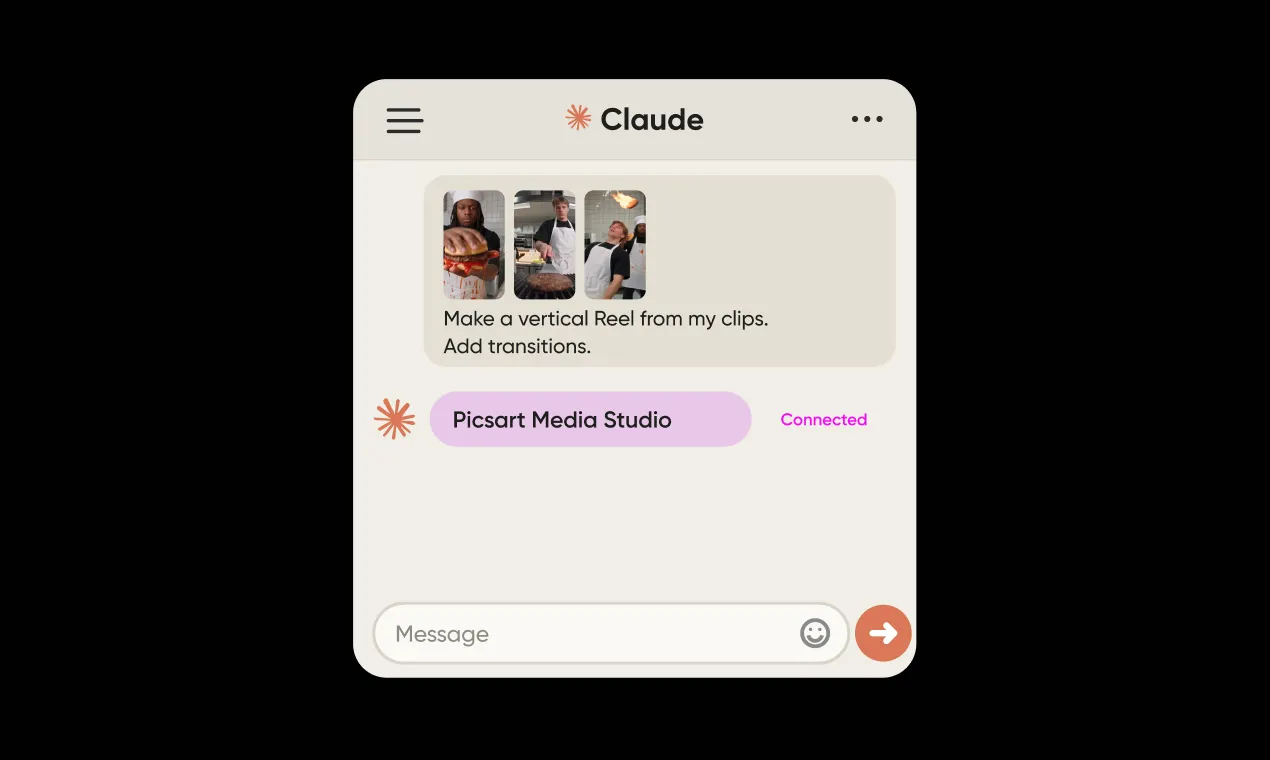
What you can ask for: full video editing in a chat
Media Studio works like a Claude video editor you talk to. Each request below is typed as is.

Start from a template
Ask for a vertical end card with your own copy and a “Shop now” button. Media Studio adapts a built-in 16:9 template to vertical.
Template end card
Use an end-card template to make a spring sale outro with a ‘Shop now’ button, 9:16.
Captions that highlight each word
Claude transcribes the clip and burns in captions that highlight each word as it’s spoken. The spoken word turns yellow, and your original audio is kept.
Word-by-word captions
Transcribe it and add captions that highlight each word as it’s spoken.
Join clips with transitions
Join clips with transitions into one vertical video. Every cut gets a transition, and each clip keeps its audio.
Join three clips into one 9:16 video with a transition on every cut.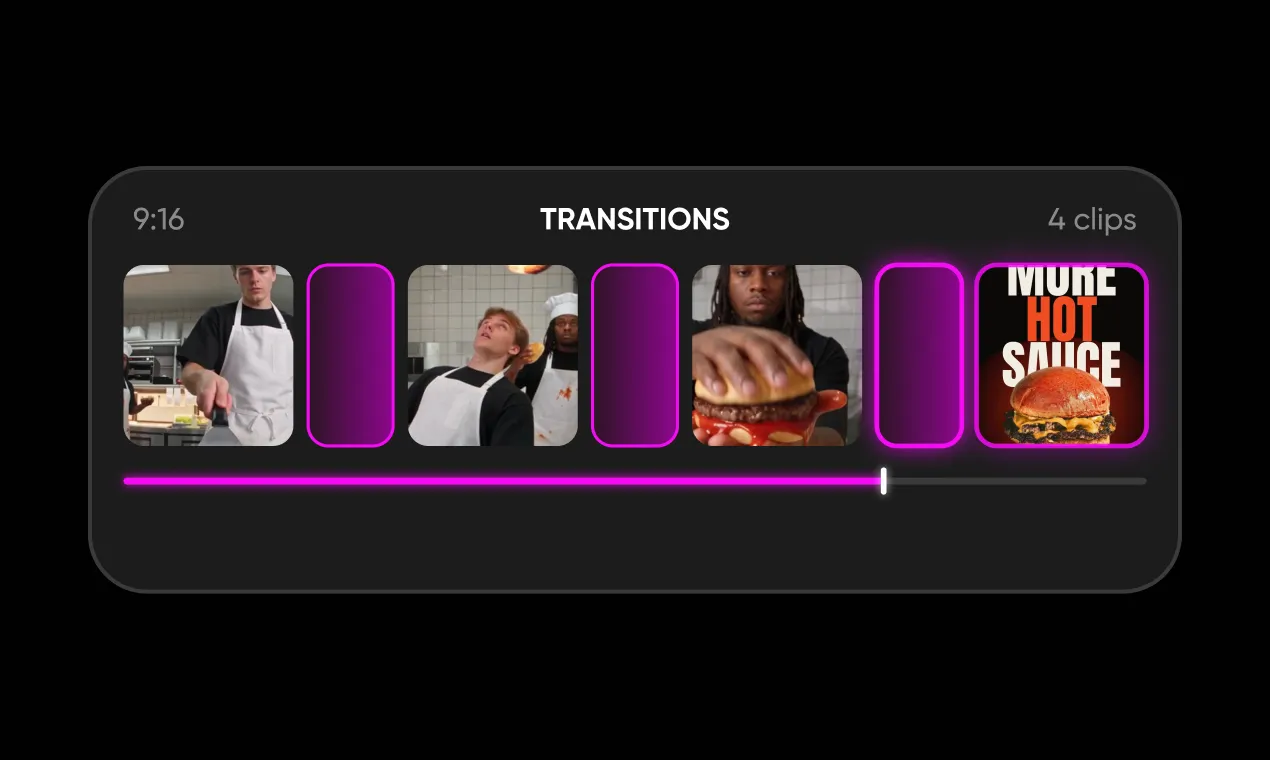
Join clips
Preview your frames before anything renders
Ask for a contact sheet first. You get a strip of frames at set times, right in the chat, before any final render.
Contact sheet
Show me a contact sheet first.
Change it by simply asking
Want a new headline or a rounder button? Ask for it, and Claude edits the same scene and renders it again.
Refine and re-render
Change the headline and round the button, re-render the MP4.
Use the videos in your Picsart Drive
Claude can list the videos in your Picsart Drive with their sizes, then check the length, resolution, fps and codec of the one you pick.
Picsart Drive files
List the videos in my Picsart Drive and probe the newest.
From one sentence to a finished promo
On the live connector, one Claude chat took a single sentence to a finished promo. The spring sale request started from a built-in end-card template, and a contact sheet came before anything rendered. The render gave an MP4 at 1080×1920 and 30 fps, plus a GIF at 540×960 and 15 fps.
One follow-up changed the headline to “Spring Drop” and rounded the button. Claude rendered the 5-second end card again, in the same chat.
Three clips from a Picsart Drive became one 20-second vertical video, with a 0.6-second blur-dissolve on each cut.
Picsart Media Studio and Picsart MCP: two connectors, two jobs
One edits, the other generates.
| Picsart Media Studio | Picsart MCP | |
|---|---|---|
| Starts from | Your clips, text and built-in templates | A prompt |
| Job | Assemble, caption, resize to vertical, render and save | Generate media |
You can add both, and each signs in separately. To make images or video from a prompt, use the separate Picsart MCP connector.
How to add Picsart Media Studio to Claude
Picsart Media Studio is live now in the Claude directory. Three moves get it running:
1.
Find Picsart Media Studio Find Picsart Media Studio in the Claude directory.
2.
Add it as a connector Add Picsart Media Studio to Claude as a connector.
3.
Sign in Sign in with your Picsart account. With Picsart Media Studio connected, yes. Claude builds an editable video from clips in your Picsart Drive, text and built-in templates, then renders it to MP4 or GIF.
Get answers to common questions
Turn your clips into finished videos in Claude
Claude video editing now starts and ends in one chat. Add Picsart Media Studio to Claude and turn your clips into finished videos right in the chat where you planned them.


