


Ever wondered how to make a picture collage on iPhone without the hassle of juggling multiple apps? Collaging photos on an iPhone has never been easier, especially with powerful tools like Picsart. If you’re capturing memories from a vacation, celebrating a special moment or creating eye-catching content for social media, knowing how to collage photos on iPhone can make your visuals truly pop.
How to make a photo collage on iPhone using Picsart

Picsart makes it easy for anyone to create stunning photo collages right from your iPhone. Here’s a simple, step-by-step guide on how to collage pictures using the Picsart app or web tool:
1. Get started with Picsart
Download the Picsart app or use the online Collage Maker if you prefer working from a browser. Both options offer intuitive controls and creative freedom.
2. Tap on “Create”
Once you’ve opened the app or tool, hit the “+” button or click “Create” to start a new project. You’ll be guided to choose what kind of collage layout you want to use.
3. Choose your grid type
Picsart offers several grid and freestyle collage templates. Select the one that fits your vision – grids are great for clean, symmetrical looks, while freestyle lets your creativity roam.
4. Add your photos
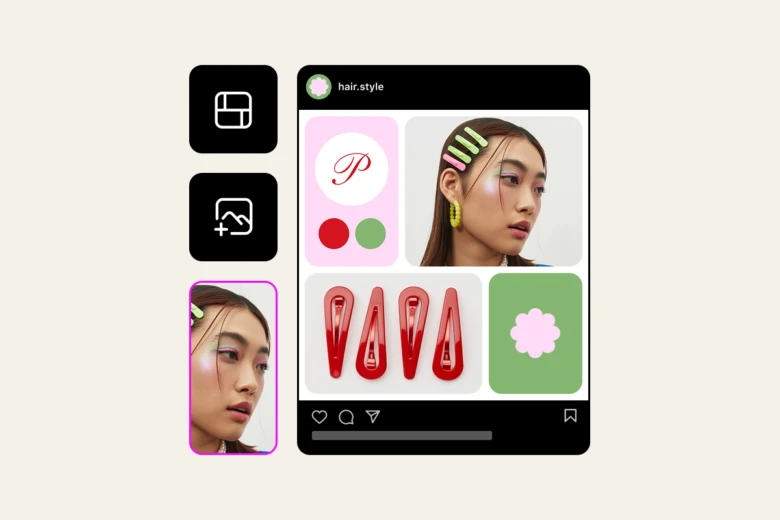
Click on each placeholder image in your selected grid, then tap the “Add Image” icon to upload photos from your iPhone. Mix and match different shots to tell a compelling visual story.
5. Customize your collage
You can tweak the background, borders, spacing, and even add text, stickers or filters to make your collage stand out. With Picsart’s editing tools, your collage can be as minimal or as vibrant as you like.
6. Save and share
Once you’re happy with your creation, save it to your iPhone and quickly share it on Instagram, Snapchat or your favorite platform.
6 reasons to make a photo collage on iPhone
1. Perfect for storytelling
When a single photo isn’t enough, a collage lets you weave multiple images into a cohesive visual narrative. It’s a powerful way to showcase before-and-after shots, a day in the life or event highlights.
2. Boosts social media appeal
A well-made collage grabs attention and encourages more engagement. It stands out in crowded feeds and adds depth to your content strategy.
3. Saves time and effort
No need to use complicated design software. With mobile tools like Picsart, creating a photo collage takes just a few taps – ideal for users on the go.
4. Organizes memories beautifully
If it’s a weekend getaway, birthday bash, or just a fun day with friends, collaging your images helps keep memories organized and easy to revisit.
5. Encourages creativity
Playing with layouts, filters and stickers opens up endless creative possibilities. You can express yourself in unique ways that a single photo might not capture.
6. Makes digital scrapbooking simple
Collages are the modern version of scrapbooks. They’re easy to update, share and print if you want to create physical keepsakes.
Additional tips on how to put two photos together on iPhone

If you’re just starting and wondering how to put two photos together on iPhone, try using a basic grid layout in Picsart. Choose a two-photo grid, upload your images, adjust spacing and background, then save. It’s that quick and user-friendly.
Need even more inspiration? Check out the full suite of tools available on Picsart’s Photo Editor for editing, filters and advanced effects.
Final thoughts
Understanding how to make a collage on iPhone opens the door to visual storytelling, better content and more engaging ways to share your world. Thanks to user-friendly apps like Picsart, you can easily collage photos on iPhone, from simple two-image mashups to intricate multi-photo masterpieces.
Ready to create? Jump into the Collage Maker and start turning your photo collections into works of art today!


