


Contents
Grok Imagine is xAI’s image model, built to turn a text prompt into photorealistic, creatively diverse images. It handles accurate lighting, detailed textures, and complex, multi-element scenes, across styles from photoreal to fully artistic. The easiest way to use Grok Imagine is on Picsart, with no install and no API setup: open the Picsart AI Image Generator, select Grok Imagine, describe what you want, and generate.
Where some models are built for precision, Grok Imagine is built for exploration: every prompt returns a batch of options, and the same model ranges from photoreal to fully stylized. This guide covers what Grok Imagine is, how to make your first image step by step, how to work the batch to refine and compare, and how to explore its style range. By the end, you will be generating in under a minute.
What is Grok Imagine?
Grok Imagine is xAI’s text-to-image model, known for a creative edge on top of strong photorealism. It reads a detailed prompt and returns high-fidelity images with accurate lighting, natural shadows, and believable textures, and it holds up on complex compositions with several elements in one scene.
Two things make it easy to work with:
- A batch every time. Grok Imagine can return up to 10 images from a single prompt, so you get a set of options to choose from rather than one fixed result.
- A wide style range. The same model swings from photoreal portraits and product shots to stylized, artistic looks, guided entirely by the prompt.
On Picsart, Grok Imagine runs in the AI Image Generator and AI Playground alongside more than 130 other image models, so you can put it head to head with any of them on the same prompt.
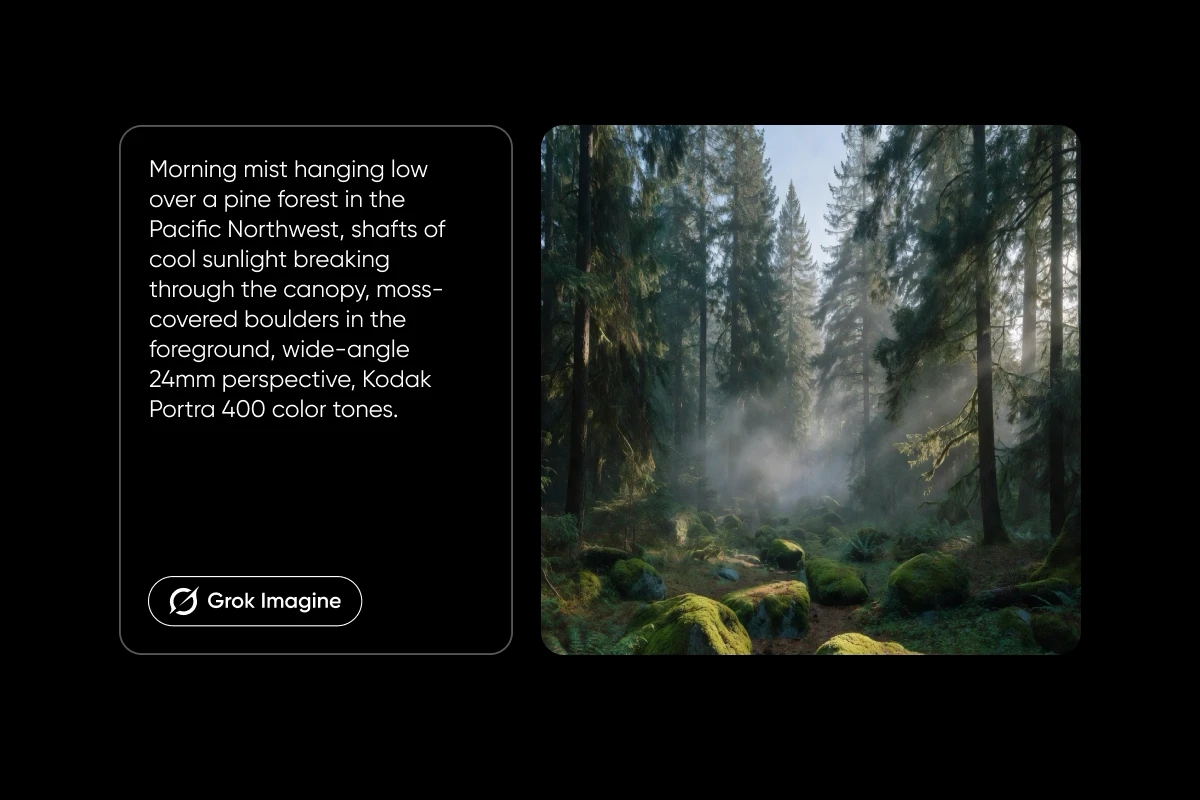
Grok Imagine at a glance
| Feature | Detail |
|---|---|
| Developer | xAI |
| Output | Photorealistic and creative images from text |
| Images per prompt | Up to 10 |
| Aspect ratio and resolution | Configurable |
| Styles | Photoreal to artistic |
| Strengths | Accurate lighting, detailed textures, complex compositions |
| Best for | Portraits, products, landscapes, and stylized art |
How to use Grok Imagine on Picsart, step by step
You can generate a Grok Imagine image in under a minute, with no account juggling or setup. Here is the full flow:
How to use Grok Imagine on Picsart, step by step
1. Open the AI Image Generator
Open the Picsart AI Image Generator or AI Playground.
2. Select Grok Imagine
Select Grok Imagine as the model.
3. Write your prompt
Type a prompt describing the subject, scene, lighting, and style.
4. Set aspect ratio and resolution
Set the aspect ratio and resolution for your format.
5. Generate and review the batch
Generate, then review the batch of options.
6. Refine or download
Refine the prompt and regenerate, or open the image in Picsart to edit and download.
Everything runs on one credit balance, and it is free to try, so you can experiment before committing.
Try Grok Imagine: a creative walkthrough
The fastest way to learn Grok Imagine is to make something and explore from there. Say you want a natural, editorial portrait. Start with a prompt that names the subject, the setting, the lighting, and the style:
“A photorealistic portrait of a woman reading by a tall window, soft natural light on her face, a loose-knit sweater, plants blurred in the background, shot on an 85mm lens, shallow depth of field.”
Select Grok Imagine, set the aspect ratio to portrait, and generate. Grok returns a batch of options, so instead of judging one result, you compare a spread and pick the strongest frame. Now explore. Push the same subject into a new look by swapping the style: photoreal becomes “soft watercolor,” then “bold pop-art poster,” then “moody film noir.” Grok holds the subject while the whole mood changes, and each generation hands back a fresh batch. That is the core loop: generate a set, pick a direction, and push the style until it lands.
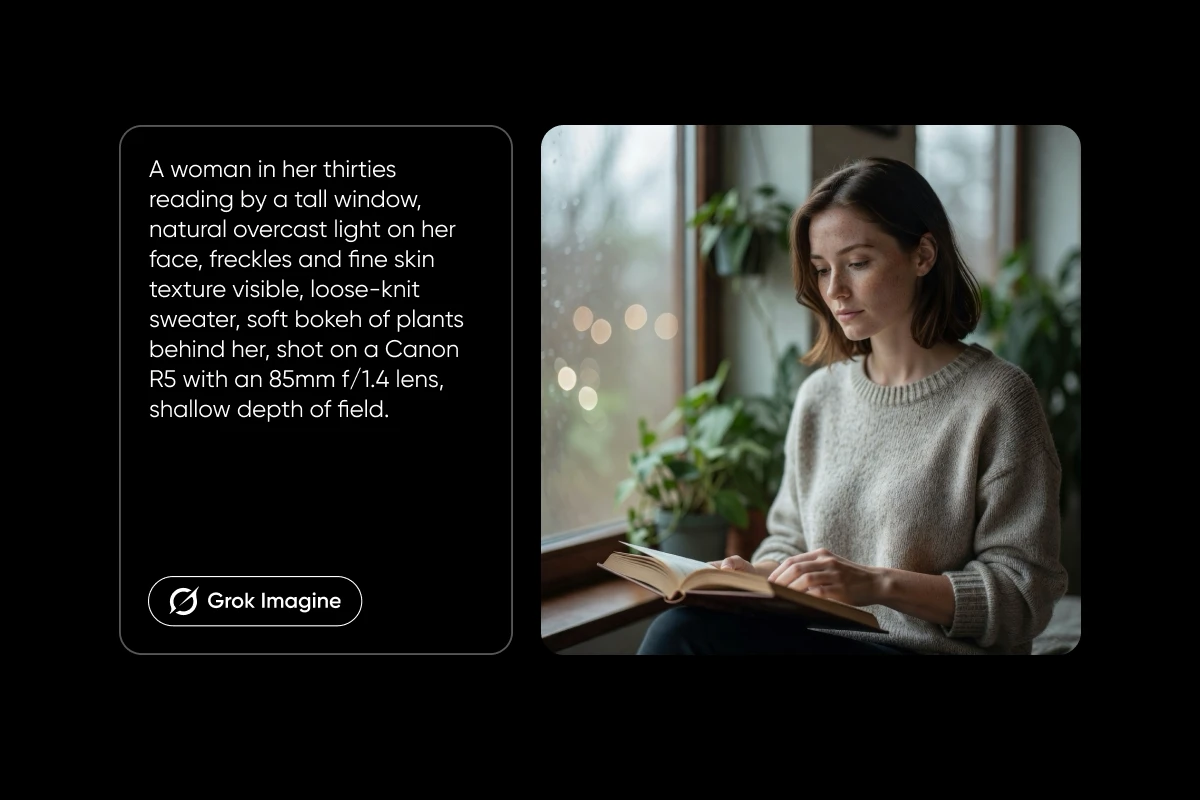
Refine and compare your results
Grok Imagine rewards a short feedback loop, and this is where most of the quality comes from:
- Work the batch. Generate, pick the closest result, and build the next prompt from what you liked about it.
- Change one thing at a time. Adjust the lighting, keep the composition. Swap the style, keep the subject. Single changes show you exactly what moved the image.
- Compare models on the same prompt. Run the same idea through Grok Imagine and another model in the AI Playground to see which look you prefer. Grok often brings a more creative, characterful result, while other models lean cleaner or flatter. See a side-by-side in Grok Imagine vs Nano Banana.
This loop, generate, compare, refine, is what turns a decent first result into a finished image.
The payoff compounds. A first batch surfaces a direction, a second refines it, and a third locks the look, often in a few minutes. Because you are choosing from a set each time rather than gambling on a single result, the hit rate climbs fast, and you rarely have to start a prompt over from scratch.
Explore Grok Imagine’s style range
Grok Imagine’s real edge is range: one model covers the whole spectrum from photoreal to fully imagined, and the prompt decides where you land. It helps to think in three zones:
- Photoreal. Portraits with natural skin and accurate light, food and product shots with real texture, and landscapes with believable atmosphere. Name the lens, the lighting, and the mood, and Grok leans into realism.
- Stylized. Illustration, comic, pop-art, watercolor, 3D render, and more. Call out the style directly and Grok shifts the whole look while keeping the subject readable.
- Surreal and conceptual. Dreamlike scenes, impossible compositions, and bold concept art, where the creative edge shows most. This is where multi-element prompts and unexpected combinations pay off.
The fastest way to find a look is to run the same subject through all three and compare the batches side by side.
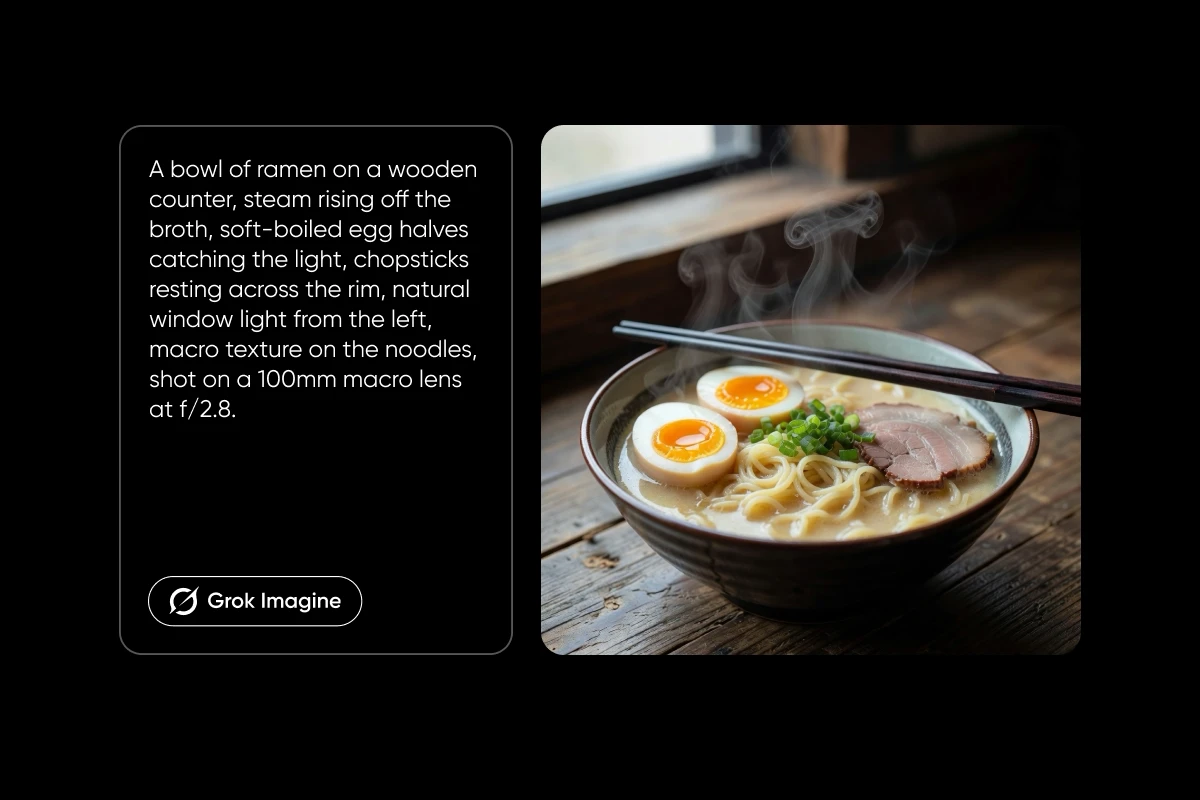
When to reach for Grok Imagine
Grok Imagine is the model to pick when you are exploring rather than executing a fixed brief. A few moments where it fits especially well:
- Early concepting. When you do not yet know the look, the batch gives you several directions to react to from a single generation.
- Moodboards and style tests. Run one subject through photoreal, stylized, and surreal takes to find the feel before you commit.
- Social and content creation. Fast, characterful images with a creative edge, ready to post or drop into a design.
- Campaign variations. Because every prompt returns a set, you can build a spread of options for a campaign without re-prompting from scratch each time.
If you need locked, repeatable output or pixel-exact text, a more precision-focused model may suit that job better. For open-ended, creative work, Grok Imagine is the faster path.
Writing a good Grok Imagine prompt
A solid Grok Imagine prompt names the subject, the environment, the lighting, and the style, and it stays specific rather than piling on competing adjectives. Think of it like briefing a photographer: say what is in the shot, how it is lit, and the look you want.
That is enough to get started. For the full prompt formula, plus a library of copy-paste prompts by category, see the guide to Grok Imagine prompts.
Tips for the best results
A few habits get more out of every generation:
With up to 10 images per prompt, generate a set and compare before you refine. Portrait for people, landscape for scenes, square for social. Naming the lighting does more for realism than any other single detail. It is the fastest way to learn what moves the result. Run the idea through several image models in the AI Playground and keep the strongest output. Grok Imagine is xAI’s text-to-image model, built for photorealistic and creatively diverse images. It handles accurate lighting, detailed textures, and complex compositions, across styles from photoreal to artistic.Tips for the best results
Use the batch
Match the aspect ratio to the format
Describe the light
Iterate one variable at a time
Compare models on the same prompt
Get answers to common questions
Start creating with Grok Imagine on Picsart
Using Grok Imagine is as simple as writing a prompt, then working the batch to refine your favorite. Open the Picsart AI Image Generator, select Grok Imagine, and make your first image in under a minute.


