


Contents
Created the perfect Facebook post and want your Instagram followers to see it too without duplicating effort? You’re not alone. Since Facebook and Instagram are both owned by Meta, cross-posting between them is surprisingly simple once you’ve got the setup right. If you manage a personal profile or a business page, knowing how to share Facebook posts to Instagram can streamline your content strategy and boost visibility.
This guide will walk you through everything from connecting your accounts to smart posting techniques. Plus, we’ll share how tools like the Facebook Post Maker and Instagram Post Creator help elevate your content along the way.
How to connect Instagram and Facebook accounts
Before you can cross-post, your accounts need to be linked. Here’s how to connect your Facebook and Instagram accounts:
- Open Facebook (mobile app or desktop).
- Go to your Page (if you’re a business) or your profile.
- Navigate to Settings > Linked Accounts (or “Accounts Center”).
- Select Instagram, then log in with your Instagram credentials.
- Grant permissions and confirm the connection.
If you’re managing a Facebook Page, make sure your Instagram is set up as a business or creator account. This unlocks more features, including post insights and scheduling options.
Once connected, you’re ready to share content across platforms seamlessly.
Why should you cross-post from Facebook to Instagram?
Still wondering, how do I share a Facebook post to Instagram, and more importantly, why should I? Here are three strong reasons:
1. Save time on content creation
Creating unique content for every platform is ideal, but not always realistic. Cross-posting allows you to get more mileage out of your best-performing posts.
2. Consistent brand messaging
Your audience might follow you on both platforms, or only one. Sharing the same message ensures consistency in your visual and verbal brand identity.
3. Increased reach
Instagram’s algorithm might favor visuals while Facebook prioritizes engagement. Cross-posting maximizes your chances of being seen, especially when your content hits both notes.
Want even more polished visuals for your Facebook content? Try the Facebook Post Templates to create scroll-stopping posts in minutes.
How to cross-post from your Facebook Page to your Instagram
Here’s how to share a post from Facebook to Instagram directly when publishing from a Page:
- Go to your Facebook Page on desktop or mobile.
- Click Create Post.
- Add your text, image, or video.
- Below the post, you’ll see a toggle for Instagram – click it to enable cross-posting.
- Click Post.
Your post will automatically be published on both Facebook and Instagram – image, caption, hashtags, and all.
Pro Tip: This feature only works with image or video posts. Link-only posts or Facebook-exclusive formats like polls won’t be shareable to Instagram.
So, how can I share a post from Facebook to Instagram if I’ve already published it? Here’s the catch: Facebook doesn’t support retroactive sharing of posts to Instagram. But don’t worry, you’ve got options:
Option 1: Recreate and repost manually
If your post included a photo or video, download it from Facebook and re-upload it to Instagram manually. You can copy the caption and paste it, too.
Need to recreate your post with a fresh twist for Instagram? The Instagram Post Creator offers aesthetic tools, filters, and design options tailored for Instagram’s visual-first style.
Option 2: Use Meta Business Suite
Meta’s centralized dashboard lets you plan, create, and publish to both platforms at once. You can’t share a past post to Instagram, but you can schedule future ones with ease.
Option 3: Screenshot and reshare
For quote posts or short status updates, a screenshot can work, just make sure it aligns with your grid’s aesthetic and doesn’t look too recycled.
Best practices for cross-posting content
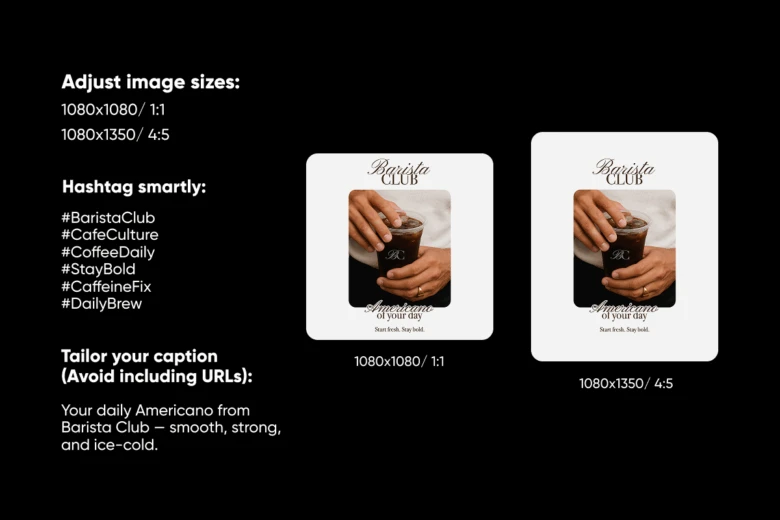
Just because you can share the same post on both platforms doesn’t mean you always should. Here’s how to do it the right way:
- Adjust image sizes: Instagram crops differently than Facebook. Use square (1:1) or portrait (4:5) ratios for best results.
- Tailor your caption: Instagram doesn’t allow clickable links in captions. Avoid including URLs unless they’re in your bio.
- Hashtag smartly: Hashtags perform better on Instagram than on Facebook. Don’t forget to add a few relevant ones when cross-posting.
Want to level up your visuals before cross-posting? Tools like the Facebook Post Maker and Instagram Post Creator help you design like a pro – no experience needed.
Final thoughts: Make cross-posting work for you
So next time you ask, How do I share a Facebook post to Instagram or How can I share a post from Facebook to Instagram, remember: the magic is in the setup. By linking your accounts, using the right content formats, and leveraging creative tools, you can maintain a strong presence across platforms without doubling your workload.
Consistency meets creativity, and your content wins.


