


Contents
GPT Image 2 is OpenAI’s state-of-the-art image model, built for fast, high-quality generation and editing. It produces photorealistic detail, renders accurate in-image text, and hands back a finished image in seconds. The easiest way to use GPT Image 2 is on Picsart, with no install and no API setup: open the Picsart AI Image Generator, select GPT Image 2, describe what you want, and generate.
This guide covers what GPT Image 2 is, how to make your first image step by step, how to write GPT Image 2 prompts, and the mistakes to avoid. By the end, you will be generating in under a minute.
What is GPT Image 2?
GPT Image 2 is OpenAI’s state-of-the-art image generation model, built for fast, high-quality generation and editing. It takes both text and image inputs and returns a finished image. Its headline feature is text: it renders words with 99% character-level accuracy, across scripts including Latin, Chinese, Japanese, Korean, Arabic, and Hebrew, and it handles headlines, fine print, and even curved text.
Beyond text, GPT Image 2 brings:
- Photorealism. True-to-life color, realistic skin textures, and cinematic lighting, without the warm cast or plastic look of earlier models.
- High resolution. Native 2K output up to 2048 by 2048, with 4K in beta.
- Fast generation. Results in around 3 seconds, several times faster than the previous model.
- Flexible aspect ratios. Anything from 3:1 to 1:3, including 16:9 widescreen.
- Image editing. Inpainting, outpainting, object removal, background replacement, and style transfer, all through plain-language instructions.
- Reference images. Up to 8 images per prompt to keep a character, product, or style consistent.
On Picsart, GPT Image 2 runs in the AI Image Generator and AI Playground alongside more than 130 other image models, so you can compare it on the same prompt.
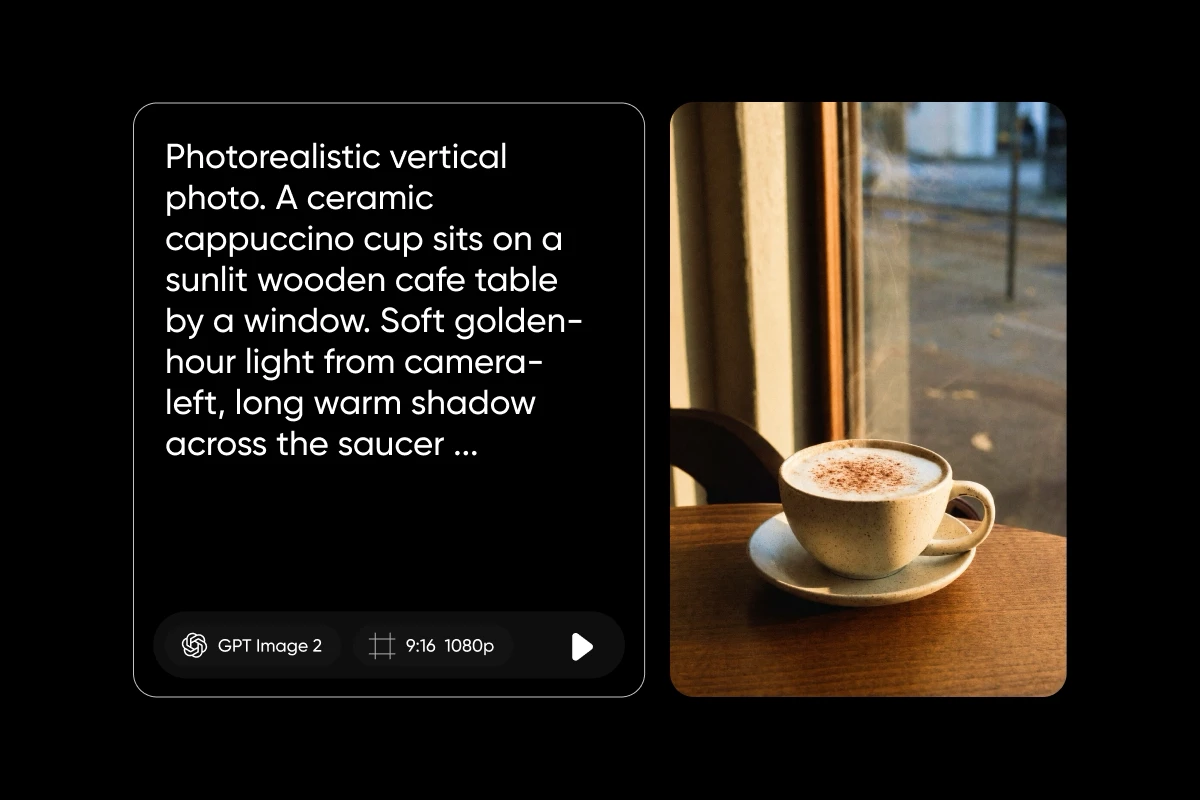
GPT Image 2 at a glance
| Feature | Detail |
|---|---|
| Developer | OpenAI |
| Text accuracy | 99% character-level, multilingual, curved text |
| Resolution | Native 2K, up to 4K in beta |
| Aspect ratios | 3:1 to 1:3, including 16:9 |
| Speed | Around 3 seconds |
| Editing | Inpainting, outpainting, object removal, background, style transfer |
| Reference images | Up to 8 for consistency |
| Best for | Posters, product shots, signage, brand and packaging |
How to use GPT Image 2 on Picsart, step by step
You can generate a GPT Image 2 image in under a minute, with no account juggling or setup. Here is the full flow:
How to use GPT Image 2 on Picsart, step by step
1. Open the AI Image Generator
Open the Picsart AI Image Generator or AI Playground.
2. Select GPT Image 2
Select GPT Image 2 as the model.
3. Write your prompt
Type a prompt describing the subject, style, composition, and any text you want on the image.
4. Set aspect ratio and references
Set the aspect ratio, and add reference images if you want to keep a subject consistent.
5. Generate and refine
Generate, then compare the result and refine the prompt.
6. Edit or download
Edit the image in Picsart, or download it.
Everything runs on one credit balance, and it is free to try, so you can experiment before committing.
Generate your first GPT Image 2 image: a worked example
The fastest way to learn GPT Image 2 is to make something with text, since that is where it shines. Say you want an event poster. Start with a clear prompt that spells out the exact words:
“A minimalist event poster that reads ‘SUMMER SESSIONS’ in bold condensed type, with ‘Live every Friday’ below, warm sunset gradient, clean modern layout, portrait.”
Select GPT Image 2, set the aspect ratio to portrait, and generate. In about 3 seconds you get a poster with the headline set cleanly and legibly, not garbled. From there, refine in small steps. Want a specific look? Name the style. Want a matching set? Add a reference image so the layout stays consistent. Want to swap a word? Use plain-language editing to change just that text. Each pass gets you closer without starting over.
Writing a good GPT Image 2 prompt
A solid prompt names the subject and scene, the style, the layout, and the colors, and it puts any words you want on the image in quotes so they render exactly. Keep it specific, and avoid piling on competing adjectives.
That is enough to get started. For the full prompt formula, plus a library of copy-paste prompts for both generating and editing, see the guide to GPT Image 2 prompts.
What you can create with GPT Image 2
GPT Image 2 is built for work where text and realism matter:
- Posters and flyers with clean, legible headlines.
- Product and packaging shots with sharp, on-pack text.
- Multilingual signage and labels, thanks to broad script support.
- Brand assets and social graphics with consistent type and color.
- Infographics that combine data, labels, and layout.
- Photorealistic scenes with natural lighting and true-to-life color.
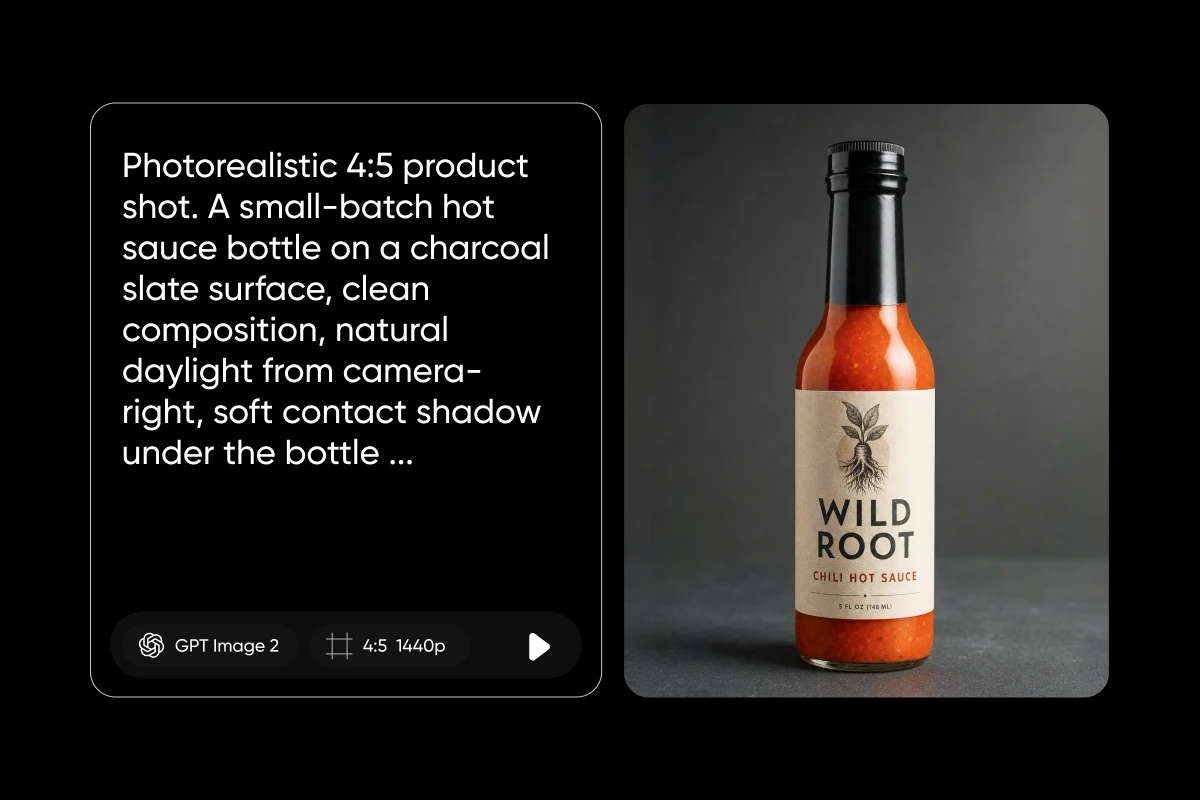
How to edit images with GPT Image 2
GPT Image 2 is not only for generating from scratch. Upload an image, describe the change in plain language, and it handles:
- Background replacement to drop a subject into a new scene.
- Object removal to erase people, clutter, or distractions.
- Inpainting and outpainting to fix part of an image or extend the frame.
- Style transfer to restyle a photo while keeping the subject intact.
On Picsart, an edited result drops straight into the editor, so you can layer, refine, and export without switching tools. Add up to 8 reference images when a product or character has to stay consistent across a set.
Tips for the best results
A few habits get more out of every generation:
Portrait for posters, landscape for banners, square for social. Draft at 2K to move fast, then render the final at 4K where it is available. Add up to 8 to hold a product, character, or style steady. For a small change, use plain-language editing rather than starting a whole new prompt. Run the idea through several image models in the AI Playground and keep the strongest result. GPT Image 2 is OpenAI’s image generation model, built for precise, production-ready visuals. It is best known for rendering accurate in-image text, with 99% character-level accuracy across multiple scripts, plus photorealism and fast generation.Tips for the best results
Match the aspect ratio to the format
Choose the right resolution
Use reference images for consistency
Edit instead of regenerating
Compare models on the same prompt
Get answers to common questions
Start creating with GPT Image 2 on Picsart
Using GPT Image 2 is as simple as writing a prompt, then guiding it with exact text, references, and the right aspect ratio. Open the Picsart AI Image Generator, select GPT Image 2, and make your first image in under a minute.


