


Contents
Collages are one of the most creative ways to showcase multiple images in a single Instagram post, whether you’re telling a story, capturing a mood, or curating a themed visual moment. They work beautifully across the platform, from feed posts and Reels covers to full-screen Stories and aesthetic moodboards.
You can build simple layouts using Instagram’s built-in tools, or unlock far more customizable designs with free creative options like the Picsart Collage Maker available both mobile and web – giving you flexibility no matter where you prefer to create. If you want a head start with professionally designed layouts, you can also explore ready-to-use Templates to jump right into editing without starting from scratch.
Why create collages for Instagram
Collages are one of the most engaging ways to tell a story on Instagram because they let you combine multiple photos into one cohesive visual moment. Instead of choosing just a single shot, you can highlight different angles, moods, or details all at once, making your content more dynamic and scroll-stopping.
They also adapt easily to every format on Instagram. Whether you’re designing for the square or portrait feed, or the vertical full-screen Stories layout, collages help you tailor your visuals to the platform while still keeping them cohesive.
Collages naturally boost creativity, too. You can play with clean grids, scrapbook-inspired layering, magazine-style arrangements, or completely freestyle designs, depending on your aesthetic. And if you want your images to look their best before assembling them, you can quickly enhance them using tools like the AI Photo Editor or sharpen details and clarity with the AI Image Enhancer.
Because collages work equally well for personal content, creator posts, and marketing visuals, they’ve become a go-to format for anyone who wants to communicate more in a single image.
Popular collage styles
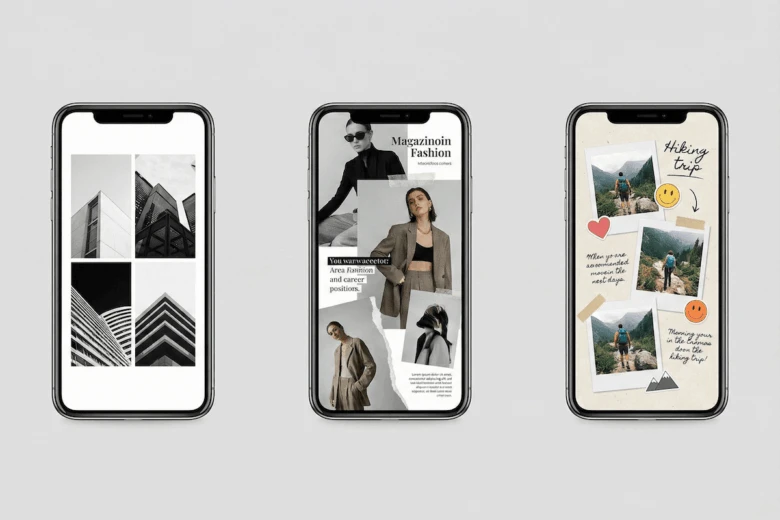
Collages come in all shapes and aesthetics, and choosing the right style can completely transform the vibe of your post. Here are some of the most popular collage formats creators use on Instagram, plus the tools that help you bring each one to life.
Grid/minimalist grid
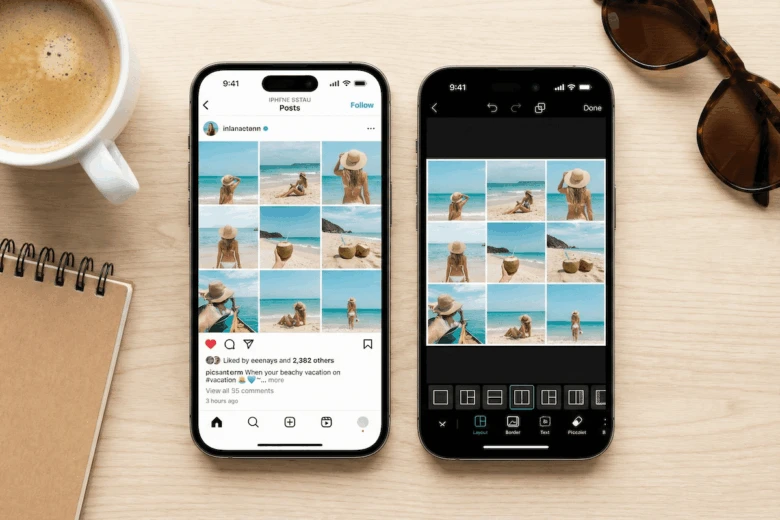
Classic and clean, grid collages use simple 2×2, 3×3, or evenly spaced layouts that give your images a balanced, structured look. They’re perfect for product displays, travel moments, or any content where you want visual order and symmetry. You can start experimenting with layouts using Photo Collage Templates to make the process even easier.
Asymmetrical/magazine-style
If you want something more dynamic, asymmetrical collage designs mix photo sizes and placements to create an editorial, magazine-like feel. These layouts look curated, artsy, and high-energy, great for fashion, lifestyle, or creative storytelling posts.
Scrapbook/Polaroid style
Layered frames, borders, stickers, and handwritten text give scrapbook collages a warm, analog feel. You can add handwritten headlines or notes using the Text Editor and enhance your aesthetic with unique Fonts that match your theme. This style is perfect for moodboards, personal storytelling, and nostalgic content.
Freestyle collage
Freestyle collages let you resize, rotate, overlap, and arrange images without rules. Think taped photos, stacked layers, floating cutouts, or mixed textures; anything goes. It’s the ideal choice when you want to build a collage that feels personal, expressive, or experimental.
Tools & methods to create collages
Creating a standout Instagram collage starts with choosing the right tools. Whether you want a quick grid or a fully customized design, you can combine Instagram’s built-in features with more advanced editing apps to get the look you want.
Instagram built-in tools
Layout tool
Instagram’s Layout feature gives you simple, grid-based collage options directly within the app. It’s perfect for fast posts when you want a clean, structured design without any extra steps.
Sticker/freestyle method
In Instagram Stories, you can tap the sticker icon and add multiple images as layered stickers. This freestyle approach lets you rotate, resize, overlap, and arrange photos however you like, great for scrapbook-style storytelling.
Third-party apps
For creators who want more flexibility, free editing apps offer far more customization options than Instagram alone.
Apps like Picsart give you access to:
- A wide range of collage templates
- Adjustable borders and spacing
- A library of stickers, frames, and effects
- Creative tools for text, cutouts, overlays, and filters
You can also enhance your collage with features such as the Background Changer to swap or clean up the space behind your images, or explore curated Colors palettes to build a cohesive aesthetic. Together, these tools make it easy to design collages that look polished, branded, and completely unique.
Step-by-step guide for Instagram collages
Creating a collage for Instagram can be as simple or as creative as you want it to be. Whether you’re posting to your feed or crafting a Story, here’s exactly how to do it.
Feed Posts
- Select multiple photos (up to 20)
Open Instagram and choose the Select multiple option when uploading. You can add anywhere from 2 to 20 images depending on the story you want to tell. - Choose Instagram’s auto-generated layouts or use an external app
Instagram may suggest layout options, but they’re limited. For more freedom, design your collage first using a tool like Picsart collage maker, then upload the finished design as a single image. - Add text, stickers, or filters
Before posting, customize your collage with filters, captions, tags, or stickers. A cohesive filter across all images helps keep everything visually balanced. - Publish to your feed
Write your caption, add your hashtags, and post your collage in square or portrait format for the best visibility.
Stories
- Open Stories and tap the Layout icon
Swipe right to open Instagram Stories, then select the Layout tool. This gives you a set of grid options to work with. - Add photos from your gallery
Tap each grid space to insert a photo. You can mix selfies, screenshots, product shots, and anything that fits your collage theme. - Customize your design
Add extra personality with:
- Stickers
- Text
- GIFs
- Music
- Filters
- Drawings
These elements help your collage feel more dynamic and interactive.
- Publish your vertical, full-screen collage
Once you’re happy with the design, tap Your Story to share it. Because Stories are fullscreen (9:16), your collage will fill the screen beautifully.
Tips for creating eye-catching collages
Making a collage that stands out on Instagram isn’t just about choosing great photos; it’s about arranging them in a way that feels intentional, balanced, and visually engaging. Here are a few creator-approved tips to help your collage look polished every time:
- Use the right aspect ratio
For clean feed posts, stick to a 1:1 square ratio. For Instagram Stories or Reels covers, go vertical with 9:16. Each format highlights your images differently, so choose the one that best matches where you’ll post. - Use 2-6 photos per collage for clarity
Less is almost always more. Using too many images can overwhelm viewers, especially on mobile. A curated set of 2-6 photos keeps your collage clear, aesthetic, and easy to engage with. - Match lighting and color tones
Cohesive colors make a collage feel instantly more professional. Try using photos with similar lighting, contrast, and tones, or apply the same filter across all images to tie everything together. - Align focal images to guide attention
Place your strongest or most eye-catching photo in a central or top-left position. This naturally draws the viewer’s eye and creates a clear visual hierarchy across your layout. - Export in high resolution
Save your collage as a high-resolution PNG or JPG to avoid compression when uploading to Instagram. This keeps your colors sharp, your lines crisp, and your overall design looking professional.
Benefits of using built-in tools & free apps
Using a mix of Instagram’s built-in collage tools and free editing apps gives you the best of both speed and creativity. Each option offers unique advantages depending on how much control you want over your final design.
- Accessibility
Instagram’s built-in tools require no downloads and work instantly inside the app, which makes them perfect for quick, simple collages when you’re already posting on the platform. - Cost-effective creativity
Free collage apps offer far more flexibility than Instagram alone. You get access to extra layouts, stickers, borders, filters, and templates – all without paying for premium editing software. - Flexible layout options
Choose from clean grid layouts, scrapbook-inspired designs, polaroid-style frames, moodboards, or full freestyle collages. Free creative apps give you more aesthetic directions than Instagram’s limited grid options. - Creative freedom
Combine manual edits with optional extras like filters, text overlays, AI enhancements, or background changes. It’s the easiest way to turn a simple set of photos into a polished, story-driven collage that feels uniquely yours.
How to Create a Collage on Picsart Web
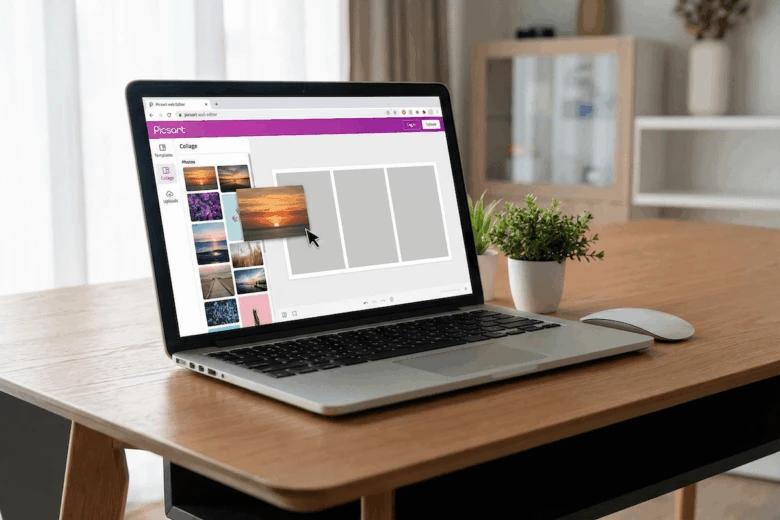
Creating a collage on Picsart Web is fast, intuitive, and totally beginner-friendly. Whether you’re designing for social media, a presentation, or a creative project, the online editor gives you full control over layouts, photos, and design elements. Here’s how to make a collage on the web, following the exact flow from your screenshots.
1. Open the Picsart Photo Editor
Start by opening the Picsart Photo Editor in your browser.
From the editor, browse the available collage grids to find the layout that best matches your idea. Each grid gives you a different arrangement of photo boxes, so you can experiment until you find your perfect structure.
2. Upload your photos
Once you’ve chosen a grid, click into each photo box to upload your images.
The editor lets you:
- Upload photos from your device
- Drag and drop images directly into the grid
- Adjust and reposition each image inside its box
You’ll see your collage start coming together instantly.
3. Customize your collage
Now it’s time to make it yours.
Add personal touches using Picsart’s editing tools:
- Apply photo effects
- Change colors or backgrounds
- Add text or stickers
- Adjust spacing between photos
- Refine image placement inside each frame
The customization layer is where your collage becomes your collage.
4. Download your design
When your collage looks exactly how you want, simply download it.
Choose your file name and download format. Your design is now ready to share on social media, send to friends, or use anywhere you like.
How to Create a Collage with Picsart on Mobile
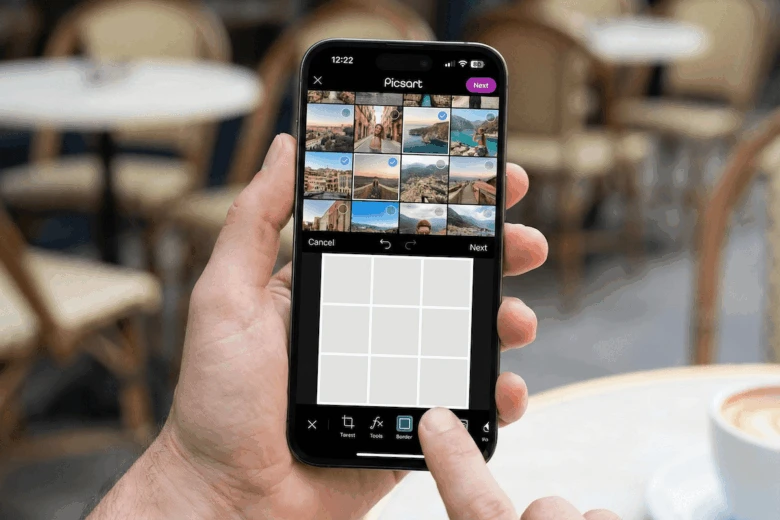
Creating a collage with Picsart on mobile is quick, intuitive, and perfect for combining your favorite moments into one aesthetic layout. Here’s how to do it based on the screenshots you shared.
1. Open Picsart and choose “Collage”
Open the Picsart app and go straight to the Collage option on the Create screen.
This immediately starts your collage workflow, so you can jump right into building your layout.
2. Browse your camera roll
After tapping Collage, you’ll see your photo library with options like Recent, Search, Camera, Background. Choose the folder or section where your photos are saved.
3. Select your photos
Tap on the images you want to include in your collage.
Picsart will automatically pull them into a layout preview.
You can select:
- 2-10 photos, depending on the style you want
- Vertical or horizontal shots
- A mix of selfies, backgrounds, or textures
When you’re done selecting, Picsart generates the collage for you.
4. Choose your layout and ratio
You’ll land on the collage editor, where you can customize:
- Ratio (Square, 3:4, 16:9, Portrait, Story)
- Layout (grid variations)
- Color (solid background tones)
- Background (textures or images)
- Border (spacing and corner rounding)
Adjust the layout until it matches your style.
5. Customize your collage
Use the editing tools to refine your design:
- Resize or reposition photos
- Swap images within the grid
- Change spacing with the Border tool
- Switch the layout style
- Add effects or enhancements at the top of the screen
Everything updates in real time, so you see your collage evolve instantly.
6. Tap “Apply”
Once your collage looks perfect, hit Apply in the top-right corner to finalize the edits.
7. Save or share your collage
Tap the Download icon to save the collage to your phone, or share it directly to:
- TikTok
- Messages
- Any app on your device
Your collage is ready to post!
FAQ
How do I make a photo collage for Instagram?
You can make a collage directly inside Instagram using its Layout feature, or create a more customizable design with the Picsart collage maker. Just choose a layout, add your photos, personalize it, and export in the right Instagram size.
What is the best collage maker for Instagram?
Picsart is one of the most popular options thanks to its free grid layouts, scrapbook styles, creative tools, and mobile-friendly workflow. It gives beginners and creators more flexibility than Instagram’s built-in tools.
How do I make a collage look professional even if I’m a beginner?
Stick to consistent lighting, colors, and spacing. Use 2-6 photos to avoid clutter, choose a clean grid layout, and enhance your images before arranging them. Balanced borders and cohesive tones always elevate the final look.
Can I add music or interactive elements to collages on Instagram?
Yes! After you upload your collage to Instagram Stories, you can add music, GIFs, polls, stickers, links, and more. These interactive elements aren’t added in Picsart but inside Instagram itself.
Are there free templates for collages?
Absolutely. Picsart offers free collage templates you can customize with your photos, text, borders, and colors. They’re ideal when you want a polished design fast.
What file format is best for Instagram collages?
JPG is the best format for feed posts because it uploads cleanly with minimal compression. PNG works well for designs with text or graphics that need crisp edges.
Can I combine photos from different sources in one collage?
Yes! You can upload images from your camera roll, downloads, screenshots, or any folder on your device. Picsart lets you mix and match freely.
Is it possible to create collages for multiple platforms at once?
Definitely. After creating your collage, you can resize it for Instagram, TikTok, Pinterest, YouTube covers, and more. Picsart’s ratio presets make multi-platform design simple.


