


Posting to Picsart on the web lets creators publish photos, stickers, and edits directly from the editor in one guided flow. Instead of exporting files, re-uploading assets, or switching tools, creators can go from finished edit to live post in seconds.
The Post to Picsart web flow removes friction from sharing, so creative momentum doesn’t stop once the edit is done.
What the Post to Picsart web flow does
The Post to Picsart flow is a built-in publishing workflow inside the Picsart web editor. It guides creators through selecting the right asset, previewing how it will appear, adding a caption, and publishing – without leaving the workspace.
Every step is structured to reduce errors and make publishing predictable, especially for creators who post often.
How does posting to Picsart on web works
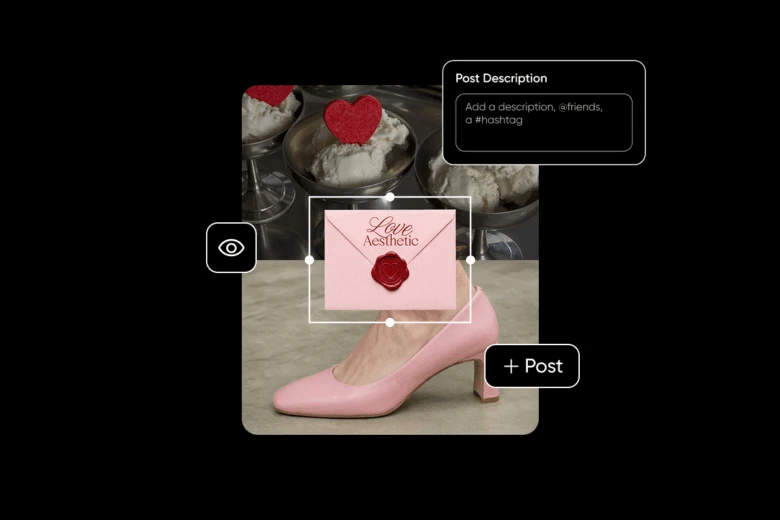
The flow follows a clear, linear path that adapts based on what’s being shared. Photos, stickers, and supported edits each follow the same core logic, with small adjustments where needed.
1. Start from a finished edit
Posting begins once an edit is complete in the Picsart Web Editor. The flow automatically detects the asset type and prepares it for publishing. Creators don’t need to export or prepare files manually – the editor already knows what’s ready to post.
2. Choose what you’re posting
The flow supports different post types, including:
- Photos
- Stickers
Each option routes through the correct preview and validation path so the post appears exactly as intended in the Picsart feed.
3. Preview the post before publishing
Before anything goes live, the flow shows a clear preview state. This step confirms:
- The selected asset
- How it will appear once published
- That all required elements are present
- Previewing helps prevent accidental posts and gives creators confidence before publishing.
4. Add caption and post details
- Creators can add a caption to describe the edit, explain creative choices, or provide context. Captions improve discoverability and engagement inside the Picsart community.
- This step stays intentionally lightweight – no extra fields or complex formatting – so posting stays fast.
5. Publish directly to Picsart
Once confirmed, the post is published directly from the editor. There’s no file download, no re-upload, and no tool switching. Clear success feedback confirms when the post is live.
Posting photos vs. stickers on Picsart web
The flow adapts based on the asset type to ensure each post is displayed correctly.
Posting a photo
Photos are published using the final edited canvas. The flow preserves composition and visual quality so the post looks exactly like the finished edit.
Posting a sticker
Stickers can be shared as reusable assets only when the edit includes a transparent background. Transparency enables the option to post as a sticker, ensuring the asset is published correctly for reuse within the Picsart community.
What happens if something goes wrong
Publishing isn’t always perfect, so the Post to Picsart web flow includes clear error handling.
Uploading error states
If an upload fails due to a connection or system issue, the flow shows an explicit error message. Creators can retry the upload without restarting the process or losing progress.
Unsupported or unavailable content
Some content types, such as replays, may not be available on the web in certain cases. When this happens, the flow explains the limitation clearly instead of failing silently.
Why this workflow matters for creators
Creating is only half the journey – sharing is what connects your work to the community. When posting feels slow or disconnected, great edits often never get seen.
By publishing directly from the editor, Post to Picsart turns a finished edit into a community post in seconds. Each post becomes part of a global creative feed, where edits can be discovered, saved, and reused by millions of creators. Creation and sharing become one continuous flow, making it easier to put work out into the world while inspiration is still fresh.
Best practices for posting to Picsart on web
- Post from the final version of your edit
- Use captions to add context or highlight creative intent
- Always review the preview before publishing
- Retry uploads instead of restarting if an error appears
Small habits make posting faster and more reliable.
FAQs
Q: Can you post to Picsart directly from the web editor?
A: Yes. Post to Picsart lets creators publish directly from the Picsart web editor without exporting files or switching tools.
Q: What types of content can be shared with Post to Picsart?
A: Post to Picsart supports photos, stickers, and supported edits, with previews tailored to each content type before publishing.
Q: What happens if an upload fails when using Post to Picsart?
A: If an upload fails, Post to Picsart shows a clear error state and allows creators to retry without losing progress.
Q: Is Post to Picsart available for all edits?
A: Post to Picsart supports most single-page edits on the web. Multi-page edits aren’t supported at this time, and the flow clearly explains any limitations before publishing.
Ready to turn finished edits into community posts seen by millions of creators? Open the Picsart Web Editor to start creating, then use Post to Picsart to share your work directly with the community – no exports, no extra steps.
Get started in the Picsart Editor.


