


The best YouTube thumbnail ideas pair one clear focal point, usually a face or the payoff, with a few bold words that promise what the video delivers. Below are 8 of them, one look each for reaction, food, fitness, skincare, travel, career, kids and podcast channels.
Each idea links to a ready-made Picsart Flow workflow that builds that look from your own photo or a prompt.
What is a YouTube thumbnail?
A YouTube thumbnail is the image that represents a video before anyone presses play. It works as a preview and a teaser, and it is often the difference between a click and a scroll, so it has to be interesting and honest about the video behind it.
Thumbnail ideas by niche
Open the workflow closest to your video, replace the sample photos with yours, and run it. Tweak any step and rerun until it suits your channel.
Reaction face for big reveals

A wide-eyed reaction promises a surprise before anyone reads a word. The Create Dynamic YouTube Thumbnails with Shock Factor workflow turns a simple portrait into a vivid expression of surprise, then adds a background, a headline and strong contrast.
Food review with a teaser clip

Put your honest reaction and the dish in one frame, under a question like "Best ramen ever?!" The Create Engaging Food Review Thumbnails with Real Reactions workflow returns three 16:9 layouts with sticker-style cutouts, plus short 720p animated teaser clips.
Before-and-after split for fitness transformations
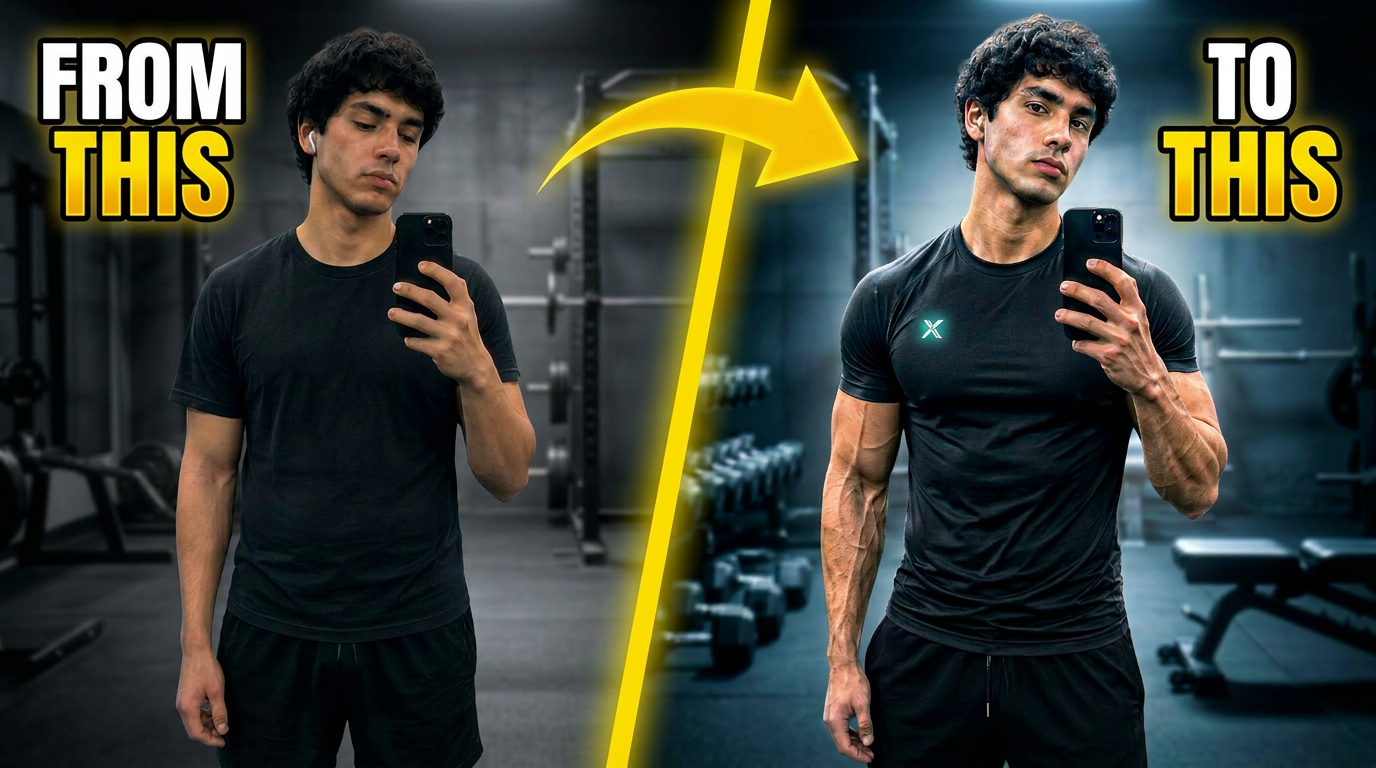
Two photos side by side explain a transformation instantly. The Create a Stunning Fitness Transformation Thumbnail workflow arranges your images with a dividing line, a fitness-oriented background, dramatic lighting and clear text labels.
Scrapbook collage for skincare routines
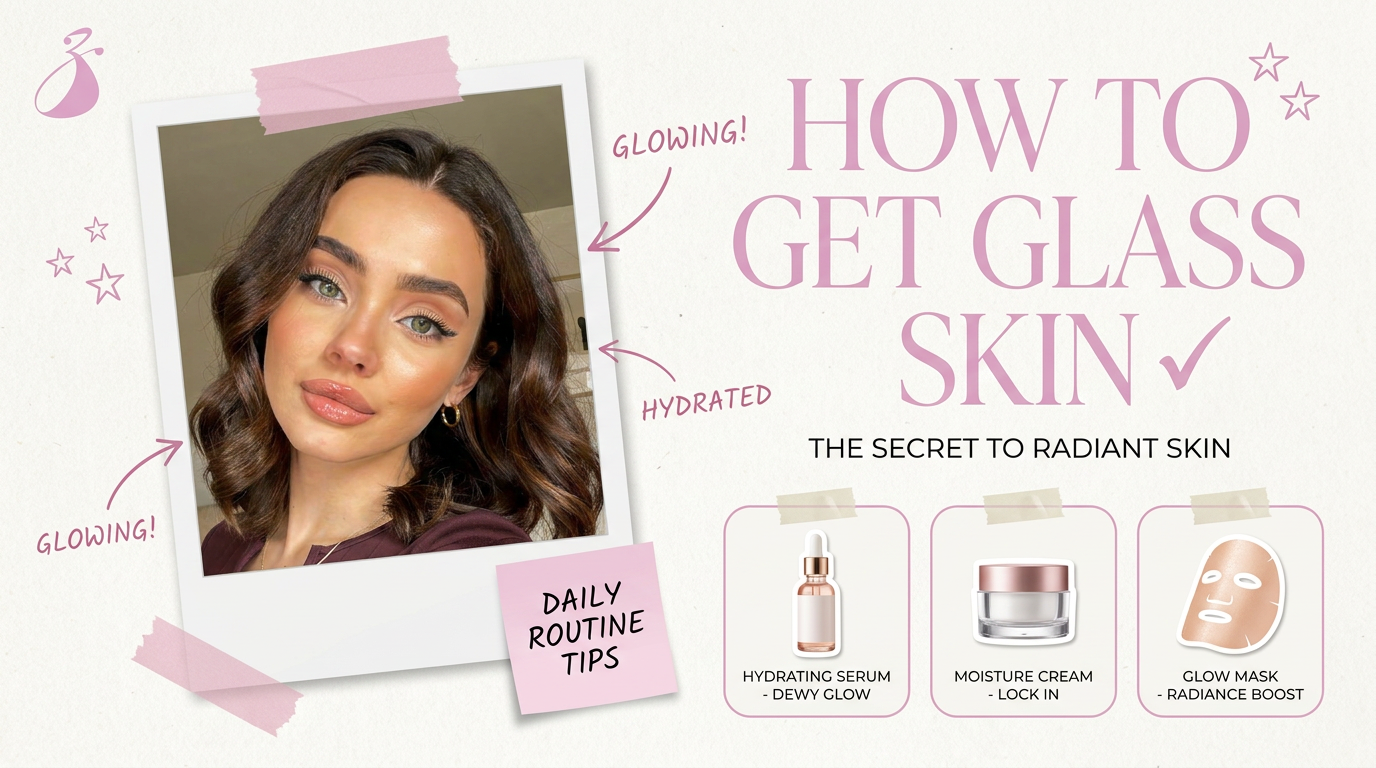
A scrapbook layout gives every product its own spot. The Stunning YouTube Thumbnails for Skincare Content workflow takes a portrait and your logo and returns a polaroid collage with doodles, product cards and a bold headline.
Expressive face and destination for travel vlogs
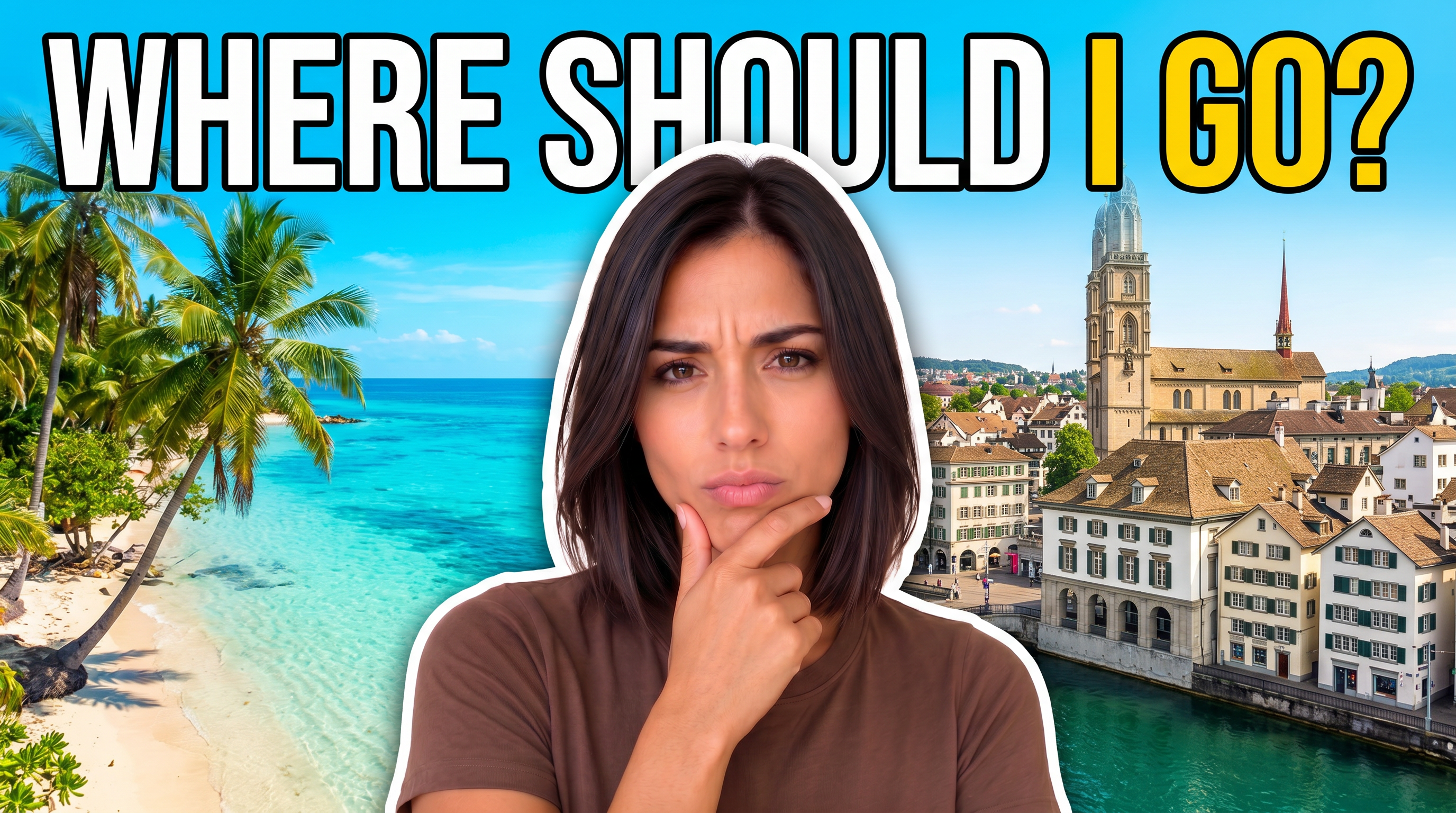
Let the place and the feeling share the frame, under a question like "Where should I go?" The Create Engaging Travel YouTube Thumbnails workflow enhances your facial expression, inserts a vibrant background and adds a bold headline.
Clean cover for career and tutorial videos

Educational videos win with clarity, not shock. The Create Professional Resume Writing YouTube Thumbnail workflow builds a tidy 16:9 cover combining heavy type, one neon accent and an office portrait, ready to export as a PNG.
Comic-book hero for kids and cartoon channels

Kids content needs energy and a character to love. The Create Bold Cartoon Superhero YouTube Thumbnails workflow turns a hero reference and a story beat into three comic-book thumbnails, an 8-second teaser video, and a YouTube title, description and tags.
3D studio scene for podcast episodes
A podcast thumbnail has to say "conversation" at a glance, so a studio scene with mics and the episode topic does the work. The Create a Lion Podcast Video Frame Extractor workflow renders a 15-second 3D animated studio scene from a prompt, then exports its last frame as a 1920 x 1080 PNG thumbnail, so the promo clip and the cover come from one run.
From idea to finished thumbnail in Picsart Flow
Every idea above can start on the Picsart Flow canvas, from your own photo, a written description, or one of the prebuilt workflows in the Flow templates library. Swap in a fresh photo or headline to reuse the same workflow for every upload. Picsart's YouTube thumbnail maker is Picsart Flow, so every workflow above opens on the same canvas.
Every change Flow makes shows up as a separate node beside the source, so nothing gets overwritten. Download the finished thumbnail, then add it to your video through YouTube Studio.
Tips for designing YouTube thumbnails
Write the words into the prompt
Put the exact headline and the font style you want, such as bold block letters, in the image node's prompt.
Swap one detail with Inpaint
Brush over the headline, logo or background to change it, and the rest of the thumbnail stays pixel-identical.
Reframe with Outpaint
Drag the handles or pick an aspect chip to extend the shot to 16:9, or to 9:16 for Shorts, matching the YouTube sizes.
Keep your look across uploads
Use an earlier thumbnail as a reference image, and store your face in Picsart Drive as an asset, which the Asset node then pulls into any workflow.
Check it at phone size
Generate several versions, compare them next to each other, and pick whichever stays legible on a small screen.
Pick the idea closest to your next upload
The thumbnail is often a viewer's first impression, so it has to stand out and represent the video accurately. Start with the niche idea that matches your channel, run its workflow, and keep testing until one reads clearly in the feed.
Get answers to common questions
One clear focal point, a few bold words and enough contrast to read at phone size. It should also match the video honestly.


