

AI image generation now delivers polished, high-quality visuals in seconds. What once felt like a party trick – type a prompt, get something close, then fix it for an hour – is a thing of the past. The quality gap between AI-generated visuals and human-made ones has nearly closed, and photorealistic portraits, illustrated characters, branded graphics, and product shots are just a few clicks away.
To create AI images, type a text description of what you want into an AI image generator, choose a model and style, and hit generate. No design skills, software experience, or artistic background required. The trickier part is not the generator itself. It is knowing which AI model fits the job and how to write a prompt that actually gets you there.
The Picsart AI Image Generator bundles 30+ AI models, 48 style presets, and a full editing suite into one place, so picking a model, tweaking the output, and exporting a finished visual all happen without jumping between tabs. This guide covers which AI model to pick for each type of image, how to create one step by step in Picsart, and the prompting tricks that separate good output from great.
Match your image to the right AI model
Different AI models are built for different jobs. Some nail photorealism. Others handle typography like a seasoned designer. A few keep the same character recognizable across an entire campaign. Picking the right one is the fastest shortcut to a better image, and every AI Image model below lives inside Picsart.
Flux 2 Max: highest-quality generation with real-time context
Flux 2 Max is the most capable variant in the Flux 2 family, with the strongest prompt following and the most consistent editing in the lineup. Its standout feature is grounded generation, which pulls real-time web information (trending products, current events, latest styles) into the creation process. Add retexturing, which swaps surfaces and materials while keeping shape and lighting intact, plus character consistency across scenes, and you get a model built for product marketing photography, cinematic visuals, and logo design.
Flux Kontext Max: precise editing with typography and design taste
Flux Kontext Max is the flagship Kontext variant, tuned for prompt adherence, typography precision, and editing consistency. In-context editing lets you modify images with text instructions while keeping characters and scenes cohesive. Balanced composition, cohesive color palettes, and art-directed detail make it the pick for professional editing workflows, graphics with accurate typography, and design-quality output.
Nano Banana Pro: the same character across every style
Nano Banana Pro keeps recurring characters recognizable across any visual style you throw at it, whether that is Pixar, Cyberpunk, photorealistic, or toy-style. It supports up to 5-person consistency, 14-image blending, 4K resolution, and multilingual text rendering. Best for character-driven campaigns, branded mascots, and series content that needs to feel like it belongs together.
Runway Gen4 Image: consistent characters and objects across scenes
Runway Gen4 Image nails character and object consistency across lighting conditions, locations, and treatments, all from a single reference image. No fine-tuning, no training. Its Coverage mode generates every angle of a scene from reference images plus a shot description. Ideal for visual storytelling, product photography across environments, and building multiple angles of one scene.
Reve: artistic images you can edit and remix
Reve leans into creative and artistic generation, with a distinctive aesthetic, strong color palettes, and intentional compositions. It runs three workflows: generate from text, edit existing images, and remix by blending references with new prompts. Test time scaling lets you dial compute per image from 1 to 15 for higher quality without a speed penalty. Use it for editorial visuals, remixes, and creative projects.
Seedream 4.5: text rendering and editing in one model
Seedream 4.5 is the go-to for typography. Advanced text rendering handles headlines, small fonts, multilingual labels, UI elements, posters, and charts. It unifies generation and editing, so you can describe changes in natural language, and it edits the image directly. Up to 14 reference inputs, character consistency across styles, and 1K to 4K resolution make it a top performer on both generation and editing benchmarks. Perfect for graphics with readable text, product photo edits, posters, and branded content with typography.
Recraft V4: multiple visual directions at once
Recraft V4 is built for exploration. Its Exploration Mode spins out 8 visual directions from a single prompt, so you can compare and refine without starting over. It produces true editable SVG vector files and exports to PNG, JPG, PDF, TIFF, and Lottie. Four variants, V4 and V4 Vector at 1024×1024 plus V4 Pro and V4 Pro Vector at 2048×2048, are all included on the Free plan. Best for creative exploration, comparing design directions, and vector assets like logos, icons, and brand kits.
Pro tip: run the same prompt through 2-3 models in Picsart and compare the results. You will spot the differences in seconds, and you will start to build intuition for which model fits which brief.
Generate your first AI image in Picsart
Ready to create? Here is the full walkthrough on AI Image Generator.
1. Step 1: Click Start Generating
This is the entry point for every AI workflow inside Picsart. One tap and you are in.
2. Step 2: Pick your starting point
Open Discover to build something new from text, or open My Images to upload an existing photo and transform it. Discover lets you explore AI-generated images and create new ones from prompts or examples. My Images is where you can view and edit images you've already generated or uploaded.
3. Step 3: Write your prompt
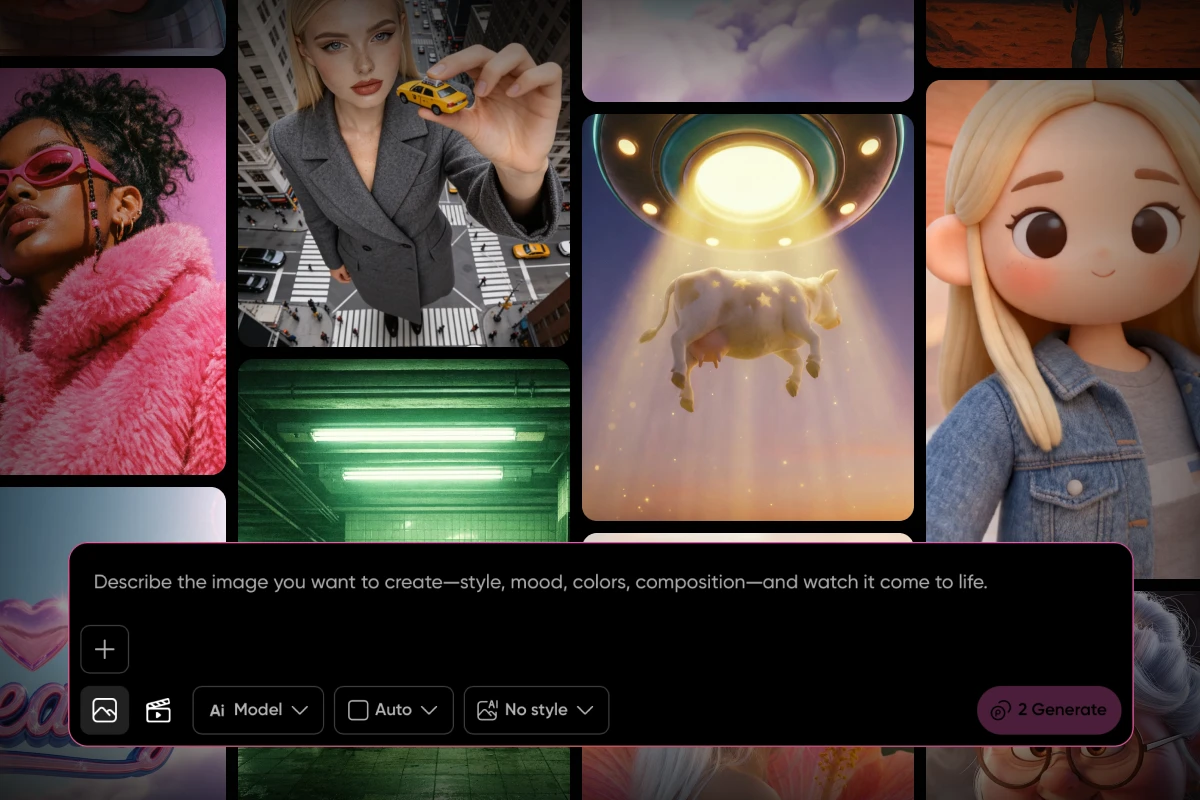
Describe the subject, mood, colors, and composition. If you uploaded an image, describe the transformation you want, like swapping the background, changing the lighting, adding an element, or cleaning up a distraction.
4. Step 4: Choose your AI model and style
Tap the model dropdown and pick from 30+ Image models . Set the aspect ratio, then apply a style filter if you want a specific aesthetic dialed in without extra prompt work.
5. Step 5: Hit generate
Results land in seconds. The same workflow applies across Discover, where you explore and generate from prompts or examples, and My Images, where you edit and refine visuals you've already created or uploaded, so your muscle memory carries across every project.
If the first result is not quite right, adjust one thing (the prompt, the model, the style, or the aspect ratio) and regenerate.
Write prompts that get results
A good Image prompt is the single biggest factor in output quality. Here is how to push yours from generic to great.
- Be specific, not vague. “A cat” gives you a cat. “A tabby cat curled up on a velvet armchair, warm afternoon light through a window, shallow depth of field” gives you a photograph.
- Include style and mood. Phrases like cinematic lighting, minimalist, watercolor, 35mm film grain, or editorial photography steer the model toward the look you are picturing.
- Describe composition. Camera angle (close-up, overhead, wide shot), framing, and background details tell the model how to arrange the scene.
- Specify what you do not want. Negative prompts like “no text,” “no watermark,” or “no extra fingers” cut down on cleanup work later.
- Iterate. Regenerate the same prompt a few times and adjust one variable at a time. Tweaking in rounds beats rewriting from scratch.
- Use style presets as a shortcut. Picsart’s 48 filters (Oil Painting, Anime, Cyberpunk, and more) stand in for long style descriptions and save a whole paragraph of prompt real estate.
- Start simple, add detail in rounds. Building up from a clean base beats overloading the model out of the gate.
Start creating AI images today
The right tool plus the right model equals better AI images, every time. Picsart brings 30+ AI models, 48 style presets, and a full editing suite into one place, so the path from idea to finished visual is short and the possibilities stay wide open.
Ready to dive in? Create AI images for free with Picsart.


