

Enhance video quality instantly with AI video enhancer

What you'll learn
What is AI video enhancement?
Common use cases
Enhance your video step by step
STEP 1: Upload your video
- On web: Go to picsart.com/video-enhancer → Upload your video file
- On mobile: Open Picsart → "+" → Select video → Enhance Video
STEP 2: Select enhancement options
Choose which improvements to apply:
- Auto enhance: Let AI decide optimal improvements for your footage
- Sharpness boost: Increase clarity and detail visibility
- Noise reduction: Remove grain, compression artifacts, and visual noise
- Resolution upscale: Increase pixel dimensions while maintaining quality
- Color correction: Balance exposure and enhance color accuracy
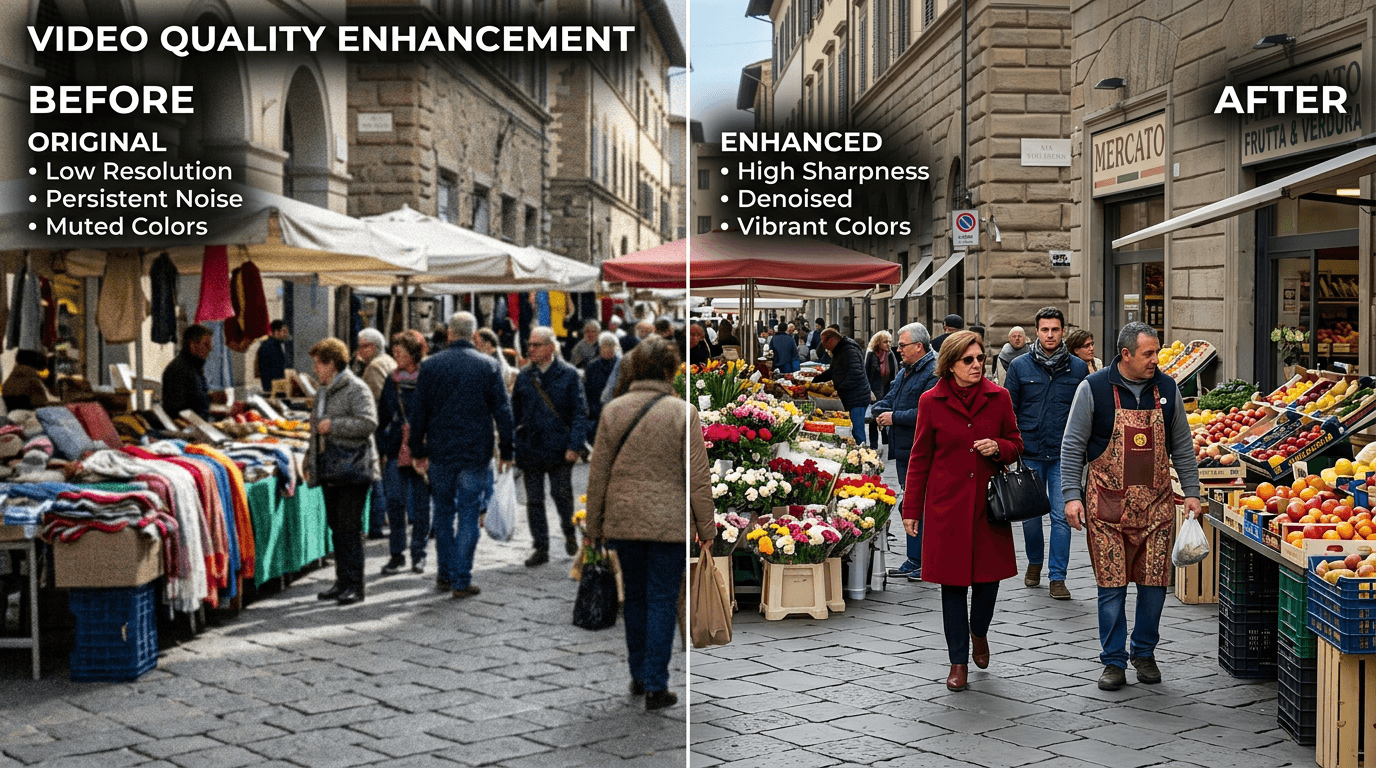
STEP 3: Process enhancement
Click "Enhance" and wait while AI processes your video. Each frame will be analyzed and improved individually, then reassembled into smooth enhanced footage.
STEP 4: Compare and export
Use the before/after slider to check improvements: Want different results? Adjust individual enhancement settings and reprocess for a customized output.
- Check that details are sharper without looking artificial
- Verify noise reduction didn't remove important texture
- Confirm colors look natural and not over-processed
Tips for best results
💡 Set realistic expectations
AI enhancement improves existing footage but can't create detail that never existed. Extremely poor quality sources have limits to how much can be recovered.
💡 Process in stages
For heavily degraded footage, try multiple light enhancement passes rather than one extreme correction. This often produces more natural results.
💡 Watch for over-sharpening
Too much sharpness creates unnatural halos and edges. If the enhanced version looks harsh or artificial, reduce the sharpness setting.
💡 Keep original files
Always save your source video before enhancement. You may want to reprocess with different settings later or need the original for comparison.

Ready for better quality?
Transform low-quality footage into sharp, professional video with AI-powered enhancement technology.
Enhance video now