How to add cinematic camera motion to images with AI
What you'll learn
What is AI camera motion?
Common use cases
Add camera motion step by step
STEP 1: Upload your image
- On web: Go to picsart.com/ai-video-generator → Select "Image to Video" → Upload photo
- On mobile: Open Picsart → "+" → Select photo → AI Generate → Camera Motion
STEP 2: Choose camera movement type
Select the motion that fits your image composition:
- Zoom in/out: Camera pushes toward or pulls away from subject (good for portraits, close-ups)
- Pan left/right: Camera slides horizontally across scene (works for landscapes, cityscapes)
- Tilt up/down: Camera moves vertically (ideal for tall buildings, full-body shots)
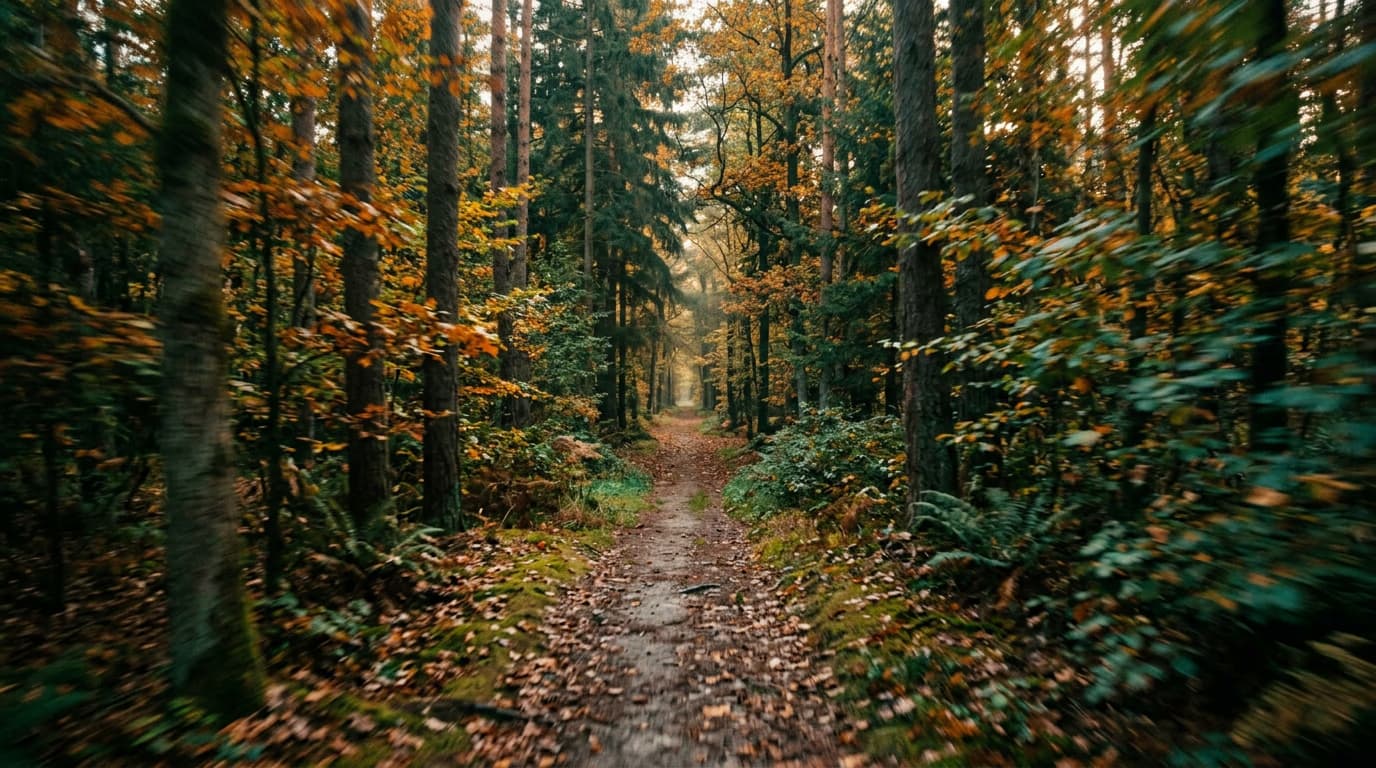
- Dolly: Camera moves forward through scene with depth (forest paths, hallways, anything with layers)
- Orbit: Camera circles around a central subject (products, architecture, 3D objects)
STEP 3: Generate animated video
Click "Apply" or "Generate" and wait 30-45 seconds. The AI creates depth maps from your image and simulates camera movement through 3D space. More complex movements like orbits take slightly longer than simple zooms or pans.
STEP 4: Review and export
Check that the camera motion enhances your image: Not right? Try a different movement type that matches your composition better. Some images work with multiple motion styles—test a few and pick the most cinematic result.
- Motion feels smooth and natural, not jerky or abrupt
- Depth layers separate correctly (foreground doesn't warp into background)
- Movement direction makes sense for the scene (zoom into subject, not away)
Tips for best results
💡 Match movement to composition
Horizontal images suit pans, vertical images suit tilts, and images with depth (leading lines, layered objects) work best for dolly or zoom movements. Fighting against your composition creates awkward results. Look at your photo and ask what a real camera would do with this scene.
💡 Start with subtle movements
Slow, gentle camera motion looks professional. Fast, dramatic movements expose AI limitations and create warping. Think of camera motion as adding polish, not spectacle. A 10% zoom over 3 seconds beats a 50% zoom that breaks the illusion.
💡 Use dolly for maximum depth effect
Dolly movements (pushing forward into the scene) create the most dramatic parallax and depth separation. They work especially well on photos with clear foreground, middle ground, and background layers—like forest paths, city streets, or architectural interiors.
💡 Combine with other effects carefully
Camera motion works alongside parallax or element animation, but too many effects at once looks chaotic. Pick one primary movement type and keep secondary effects subtle. Your goal is cinematic polish, not a demo reel of every feature.
Camera movement guide
Frequently asked questions
