

How to create a cinematic movie with AI Playground

What you'll learn
What is AI cinematic production?
Common use cases
Create your cinematic movie step by step
STEP 1: Open AI Playground and plan your scenes
- On web: Go to picsart.com/ai-playground → Log in → Click Video mode
- On mobile: Open Picsart → AI Playground → Select Video generation
STEP 2: Generate scenes with specialized models
Create each scene using the model that handles it best:
- Establishing shots: Use Sora 2 Pro or VEO for wide cinematic camera movements
- Character close-ups: Use Kling Avatar to maintain consistent actors across scenes
- Action sequences: Use Runway Gen4 for complex motion and dynamic camera work
- Transition shots: Use Pika Scenes for creative scene transitions and effects
- Atmosphere clips: Generate environmental B-roll with VEO or Gemini for setting mood
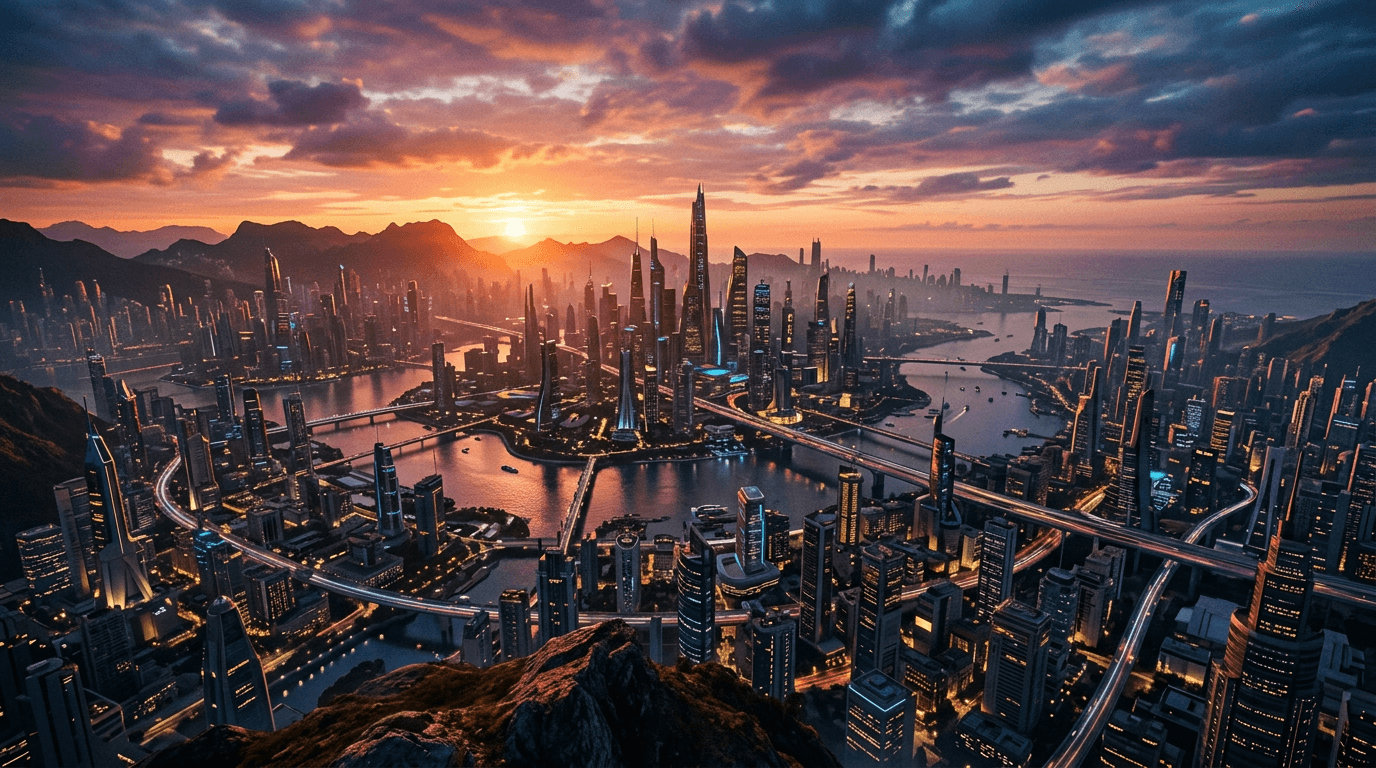
STEP 3: Maintain visual consistency
Keep similar prompts across your scenes to ensure cohesive style. Include consistent details like lighting direction, color palette, time of day, and weather conditions in each prompt. Download all your generated clips and organize them by scene order before editing.
STEP 4: Review and export your film
Watch your complete sequence and check for consistency: Need to replace a scene? Generate alternative versions of specific shots using different models or refined prompts.
- Verify smooth transitions between AI-generated scenes
- Check that lighting and color tone remain consistent throughout
- Confirm the narrative flows logically from scene to scene
Tips for best results
💡 Write a shot list before generating
Plan your 2-minute film with 8-12 scenes, each 10-15 seconds. Write down the shot type, action, and mood for each scene. This gives you a clear generation roadmap.
💡 Use consistent prompt templates
Create a base prompt with your film's style, then modify it for each scene. For example: "cinematic, moody blue color grade, film grain" stays in every prompt while the subject changes.
💡 Generate multiple options for key scenes
For your opening and closing shots, generate 3-4 versions using different models. Pick the strongest one to anchor your film with impact.
💡 Match aspect ratio across all scenes
Generate all clips in the same aspect ratio (16:9 for landscape, 9:16 for vertical). Mixing ratios creates jarring transitions that break cinematic immersion.
Scene type model guide

Ready to direct with AI?
Create professional cinematic videos using 93 specialized AI models.
Start filming