logo

How to create AI art in any style with model selection
IMAGE GENERATION4 minIntermediate

Generate images across oil painting, watercolor, pixel art, photorealism, and vector styles using prompts and models.

How to create AI art in any style with model selection

What you'll learn

  • Match AI models to specific art styles
  • Write prompts that control artistic direction
  • Generate consistent results in your chosen style
  • Switch between styles for the same subject

What are AI art styles?

AI art styles are different visual approaches the generator can apply to your images. The same subject can look like a watercolor painting, a photorealistic photo, or a pixel art sprite depending on which model you choose and how you write your prompt. It's like having multiple artists with different specialties working for you.

Common use cases

  • Brand design: Create consistent visual identity across different media
  • Portfolio work: Show range by rendering concepts in multiple styles
  • Gaming assets: Generate pixel art sprites and vector icons
  • Book illustrations: Match specific artistic periods or techniques
  • Print products: Create painterly art for posters and merchandise
  • Social media: Stand out with distinctive artistic styles

Create styled AI art step by step

STEP 1: Open the AI generator

  • On web: Go to picsart.com → AI Image Generator
  • On mobile: Open Picsart → "+" → AI Image
Open AI generator

STEP 2: Choose your style and model

Pick the model that matches your desired art style:

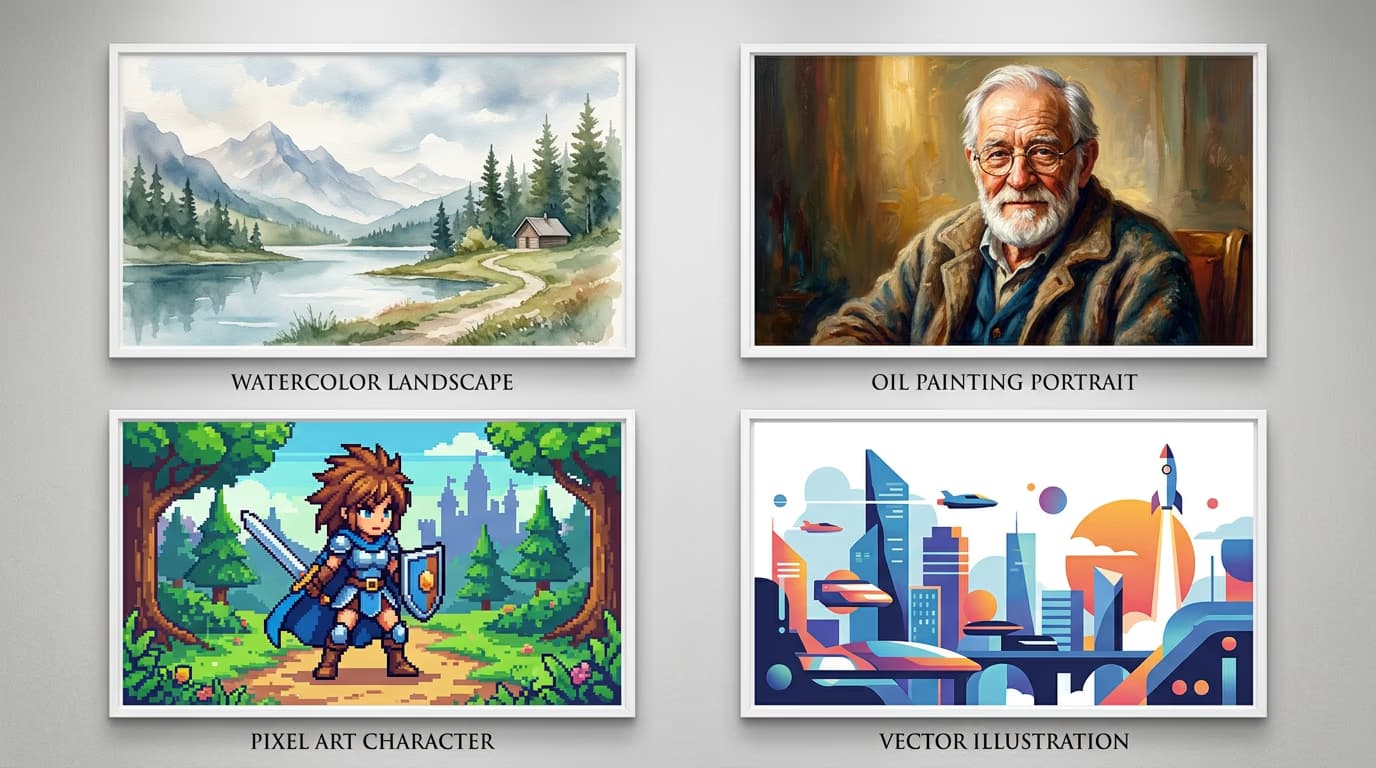
  • Photorealistic: Use Flux, add "4K photograph" or "professional photo" to prompts
  • Oil painting: Use SDXL, add "oil painting, impressionist, textured brushstrokes"
  • Watercolor: Use SDXL, add "watercolor painting, soft edges, paper texture"
  • Pixel art: Use SDXL, add "pixel art, 8-bit, retro game style, low resolution"
  • Vector: Use SDXL, add "vector illustration, flat design, clean lines, geometric"
  • Anime: Use Anime model, no style keywords needed
STEP 3: Generate and compare variations

Click "Generate" to create four variations. Review how well each matches your intended style. If results are inconsistent, adjust your style keywords and regenerate.

STEP 4: Refine and download

Check that your chosen style came through clearly: Not perfect? Strengthen your style keywords (add "highly detailed oil painting" instead of just "oil painting") or try a different model.

  • Verify the art style matches your reference or vision
  • Check that style-specific details appear (brushstrokes, pixels, clean vectors)
  • Look for consistency across all elements in the image
Create styled art

Tips for best results

💡 Stack style keywords for stronger effects

Instead of just "watercolor," try "watercolor painting, soft washes, wet-on-wet technique, paper texture." More specific style language gives clearer direction.

💡 Match artist names to styles

Reference specific artists for their signature look: "in the style of Van Gogh" for post-impressionism, "Studio Ghibli style" for soft anime backgrounds.

💡 Use negative prompts to avoid style mixing

If you want pure watercolor, add "not photorealistic, not digital art" to prevent the AI from blending styles unintentionally.

💡 Test the same subject across models

Generate "mountain landscape" with Flux, SDXL, and Anime to see how each model interprets style. This helps you learn which model handles which styles best.

Frequently asked questions

Flux produces the most photorealistic results, especially for portraits, nature scenes, and complex lighting. Include "4K photograph," "professional photography," or "DSLR" in your prompt for the strongest realistic effect. SDXL can do realism but tends toward slight stylization.

Yes, use SDXL with prompts like "pixel art, 8-bit style, retro game sprite, low resolution." The results work well for icons and simple characters, but complex scenes may need manual pixel-level cleanup in an editor afterward.

Use SDXL and include painting-specific keywords: "oil painting, canvas texture, visible brushstrokes" for oils, or "watercolor, soft edges, color bleeding" for watercolors. Reference specific artists or movements like "impressionist style" or "in the style of Monet" for authentic looks.

This happens when your prompt has realistic subject descriptions but artistic style keywords. Separate them clearly: start with the style ("watercolor painting of..."), then describe the subject. Use negative prompts to exclude "photorealistic, photograph, realistic" if the mixing persists.

Ready to explore styles?

Create stunning art in any visual style you can imagine.

Generate styled art