How to create AI videos using the gen-ai-video skill
What you'll learn
What is the gen-ai-video skill?
Common use cases
Generate your video step by step
STEP 1: Download and import the skill
- On web: Go to picsart.com/cli/#skills-starter → Download gen-ai-video → Extract to your agent's skills directory
- On mobile: Use desktop — video generation requires a development environment with sufficient compute
STEP 2: Choose your generation method
Select how you want to create your video:
- Text-to-video: Describe the scene and let the model generate from scratch
- Image-to-video: Upload a still image and animate it with motion prompts
- Video-to-video: Transform existing footage with style or content changes
- Extend mode: Chain multiple 5-7 second clips into longer sequences
- With soundtrack: Attach AI-generated music or voiceover in the same command
STEP 3: Generate and process
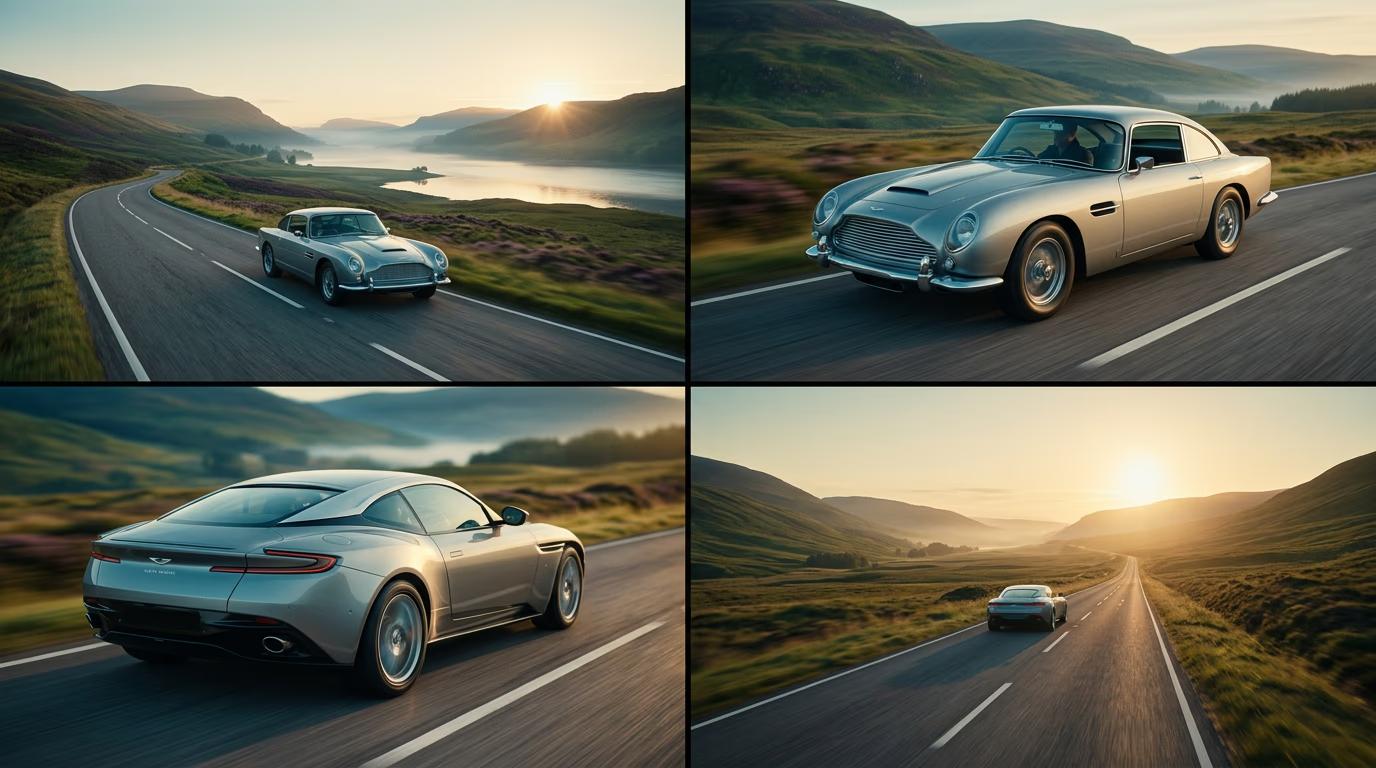
Your agent sends the request to the selected model. Video generation takes 30 seconds to several minutes depending on length and model. Progress updates appear in your terminal. The final video saves to your project folder automatically.
STEP 4: Review and extend
Check your video output for quality and coherence: Need more length? Use extend mode to chain additional segments. Want different motion? Regenerate with adjusted prompt guidance.
- Watch for smooth motion without jitter or sudden cuts
- Verify character or object consistency across frames
- Check that the pacing matches your intended use case
Tips for best results
💡 Start with image-to-video for more control
Generate a still image first using the gen-ai-images skill or provide your own. Animating from a known starting frame gives you more predictable results than pure text-to-video, especially for specific subjects or compositions.
💡 Use extend chains for longer videos
Most models generate 5-7 seconds per clip. To create 30-second or 1-minute videos, ask your agent to chain multiple extensions. The skill handles continuity between segments and can apply consistent motion or camera movement across the full sequence.
💡 Choose your model based on style needs
Kling excels at smooth, cinematic motion. Sora handles complex scenes with multiple elements. Runway is fast for quick iterations. Luma offers strong camera control. Match the model to your aesthetic and timing requirements.
💡 Add soundtracks in the same workflow
Instead of generating video and audio separately, ask your agent to "create a 10-second product demo with an upbeat soundtrack." The skill orchestrates both and syncs them automatically, saving you manual editing steps.
Frequently asked questions

Ready to bring your visuals to life?
Import the gen-ai-video skill and start generating professional video content with frontier AI models.
Download skill