How to create consistent AI characters across multiple images
What you'll learn
What is character consistency?
Common use cases
Create consistent characters step by step
STEP 1: Generate your base character
- On web: Go to picsart.com → AI Image Generator → Create detailed character description
- On mobile: Open Picsart → "+" → AI Image → Enter character prompt and generate
STEP 2: Build your character reference kit
Save the best version of your character and create a detailed prompt template:
- Copy the seed number from your base character image
- Write a locked description: age, gender, hair (color, style, length), eye color, face shape, distinctive features (glasses, scars, freckles)
- Save this description as your character template — never change these words
- Add clothing and scene details only after the locked description
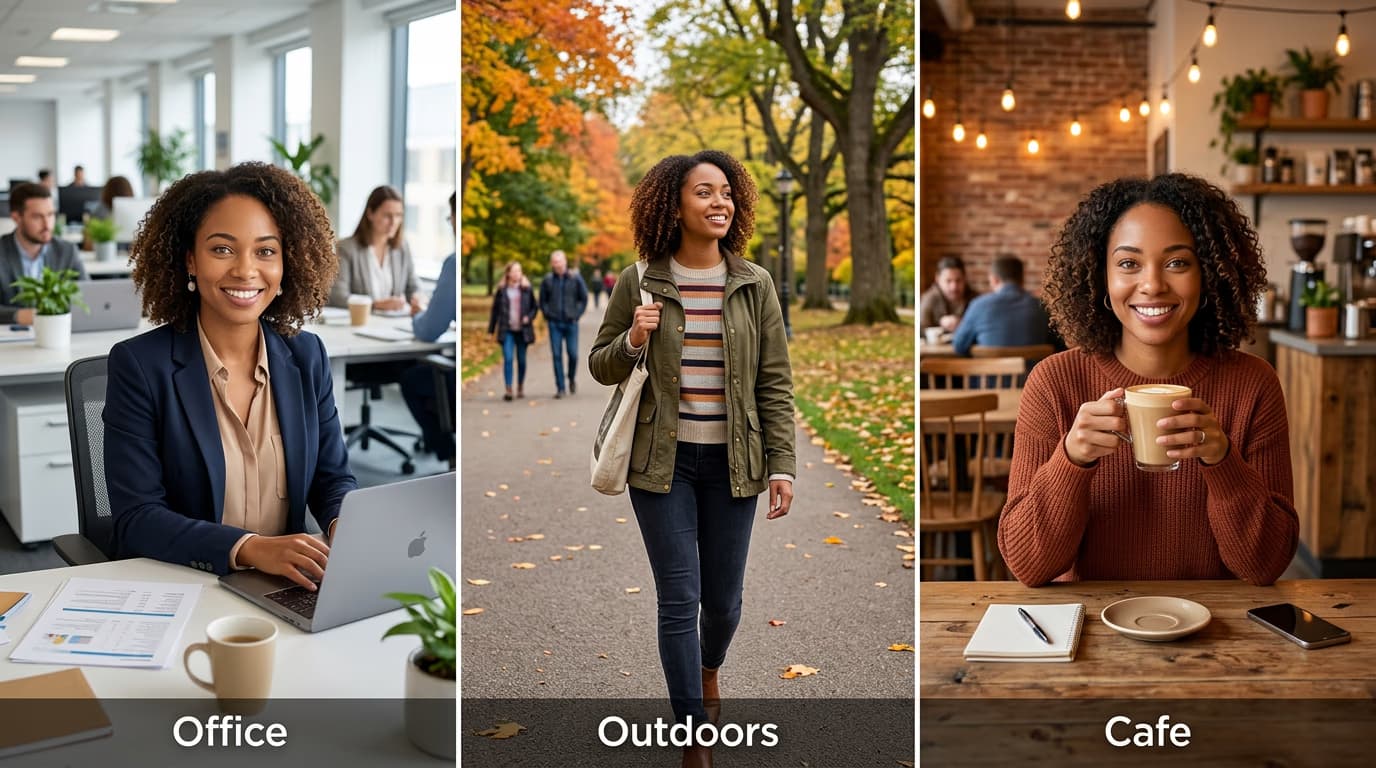
STEP 3: Generate new scenes with locked features
Paste your character template at the start of every new prompt. Add scene-specific details after the character description. Use the same seed when possible, though scene changes may require seed variation. Generate and check that facial features match your reference.
STEP 4: Compare and refine consistency
Place all your character images side by side and check for matching features: Not perfect? Strengthen distinctive feature keywords ("shoulder-length curly red hair" → "distinctive shoulder-length curly bright red hair"), or use img2img with your reference image for tighter control.
- Verify hair color and style match exactly across all images
- Check that face shape, eye color, and skin tone stay consistent
- Look for any distinctive features (glasses, jewelry, facial hair) appearing or disappearing randomly
Tips for best results
💡 Start with a detailed character sheet
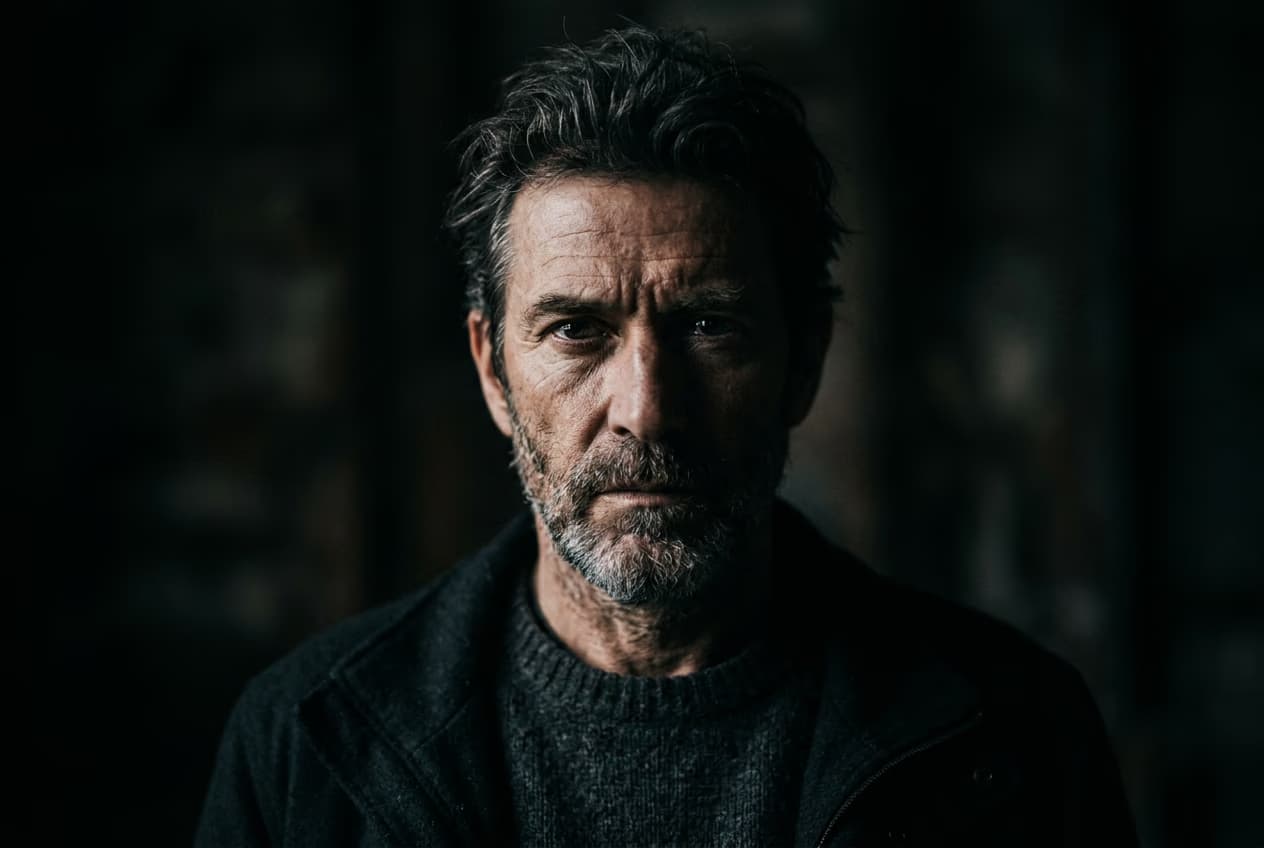
Generate a front-facing, well-lit portrait first. This becomes your reference for all future images. Describe every visible feature in detail and save that exact description as your template.
💡 Keep character description at the front of prompts
AI generators weight the first part of prompts more heavily. Always start with your locked character description, then add scene details after. "Woman with curly red hair, green eyes... sitting in a cafe" works better than "cafe scene with a woman who has curly red hair."
💡 Use img2img for difficult angles
Profile views, back angles, or extreme poses often break consistency. Upload your reference image and use img2img mode to generate the new angle while keeping facial features intact.
💡 Avoid changing too many variables at once
If you change scene, lighting, clothing, and pose all at once, the AI struggles to maintain character consistency. Change one or two elements per generation for better control.
Frequently asked questions

Ready to build characters?
Create consistent characters across unlimited scenes and stories.
Generate character