

How to create realistic images with GPT Image 1.5

What you'll learn
What is GPT Image 1.5?
Common use cases
Generate images with GPT Image 1.5 step by step
STEP 1: Access GPT Image 1.5
- On web: Visit picsart.com/ai-image-generator → Choose GPT Image 1.5 from the model menu
- On mobile: Open Picsart → "+" → AI Generate → Select GPT Image 1.5
STEP 2: Write your prompt
Describe your image in natural language:
- Start with the main subject or focus
- Add context about the setting or environment
- Include mood and lighting descriptions
- Mention any specific style or aesthetic preferences
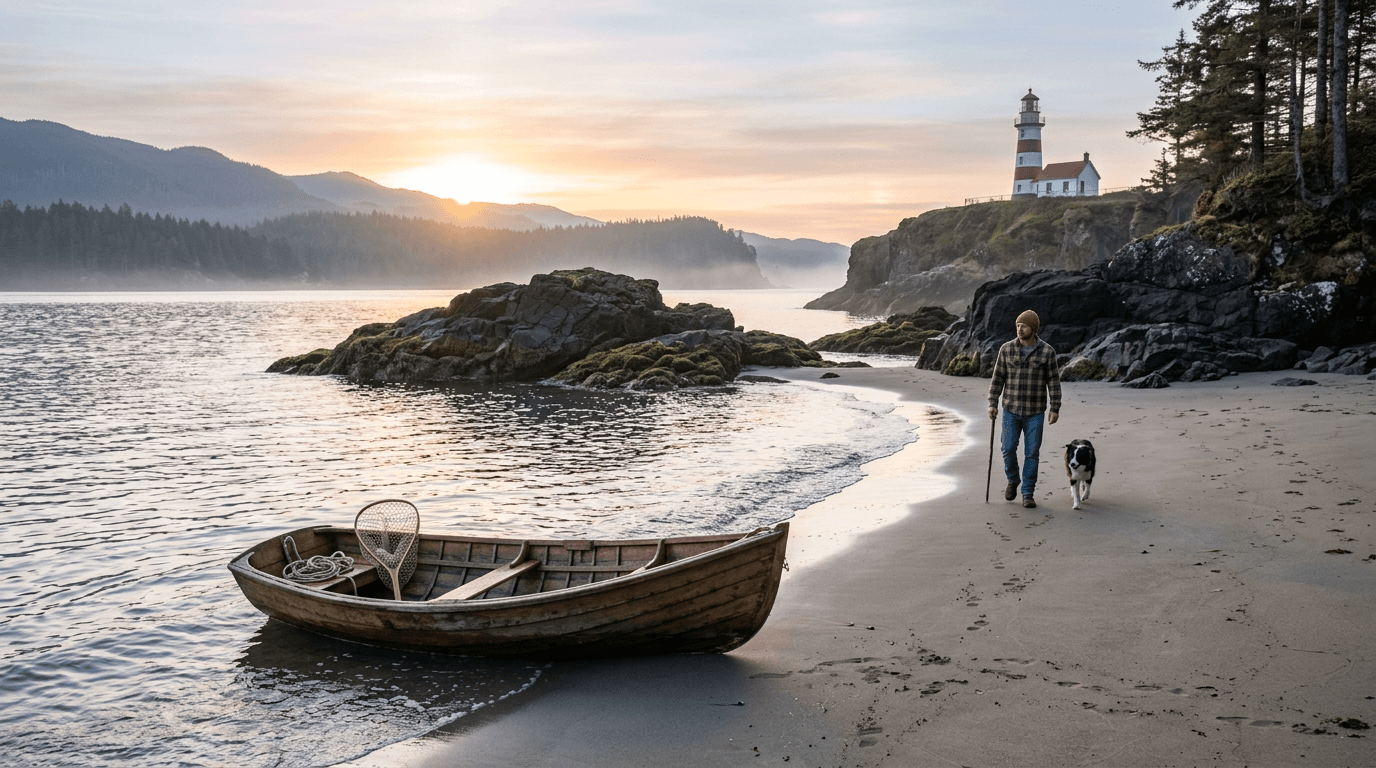
STEP 3: Generate your image
Click "Generate" and wait a few seconds. GPT Image 1.5 will create images that closely match your description, with good attention to realism and detail.
STEP 4: Review and save
Check that your generated image meets your needs: Want something different? Rephrase your prompt with more specific details or try a different angle on the same concept.
- Verify the subject looks realistic and well-formed
- Check that the composition works for your intended use
- Look for any unusual artifacts or inconsistencies
Tips for best results
💡 Write prompts like you're talking to someone
GPT Image 1.5 understands natural language well. You don't need keyword-stuffed prompts — just describe what you want clearly and conversationally.
💡 Start broad, then get specific
Begin with a general concept to see how the model interprets it, then add details in follow-up generations based on what works.
💡 Mention what you don't want
GPT Image responds well to negative prompts. Try adding "without [unwanted element]" to your description to avoid specific features.
💡 Use everyday descriptive language
Instead of technical photography terms, use common descriptions: "bright and cheerful", "mysterious and dark", "clean and minimal".

Ready to create realistic images?
Generate professional visuals with OpenAI's GPT Image 1.5.
Start creating