

How to create visuals with Nano Banana 2 AI model
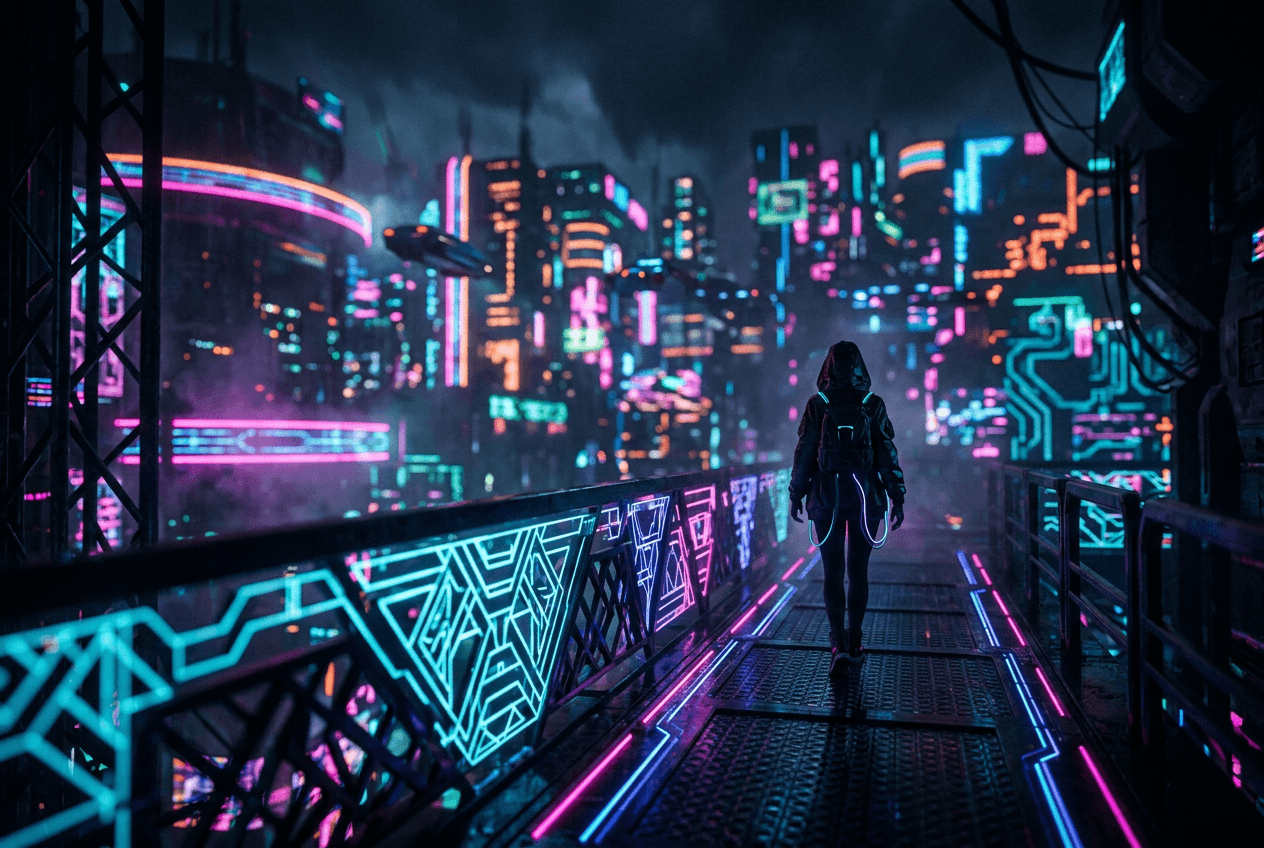
What you'll learn
What is Nano Banana 2?
Common use cases
Create images with Nano Banana 2 step by step
STEP 1: Launch Nano Banana 2
- On web: Visit picsart.com/ai-image-generator → Select Nano Banana 2 from the model dropdown
- On mobile: Open Picsart → "+" → AI Generate → Tap model selector → Choose Nano Banana 2
STEP 2: Configure your generation
Set up your image parameters:
- Prompt: Write a detailed description of your desired image
- Style: Choose from preset styles or leave blank for model interpretation
- Aspect ratio: Select portrait (9:16), landscape (16:9), or square (1:1)
- Number of results: Generate 1-4 variations at once
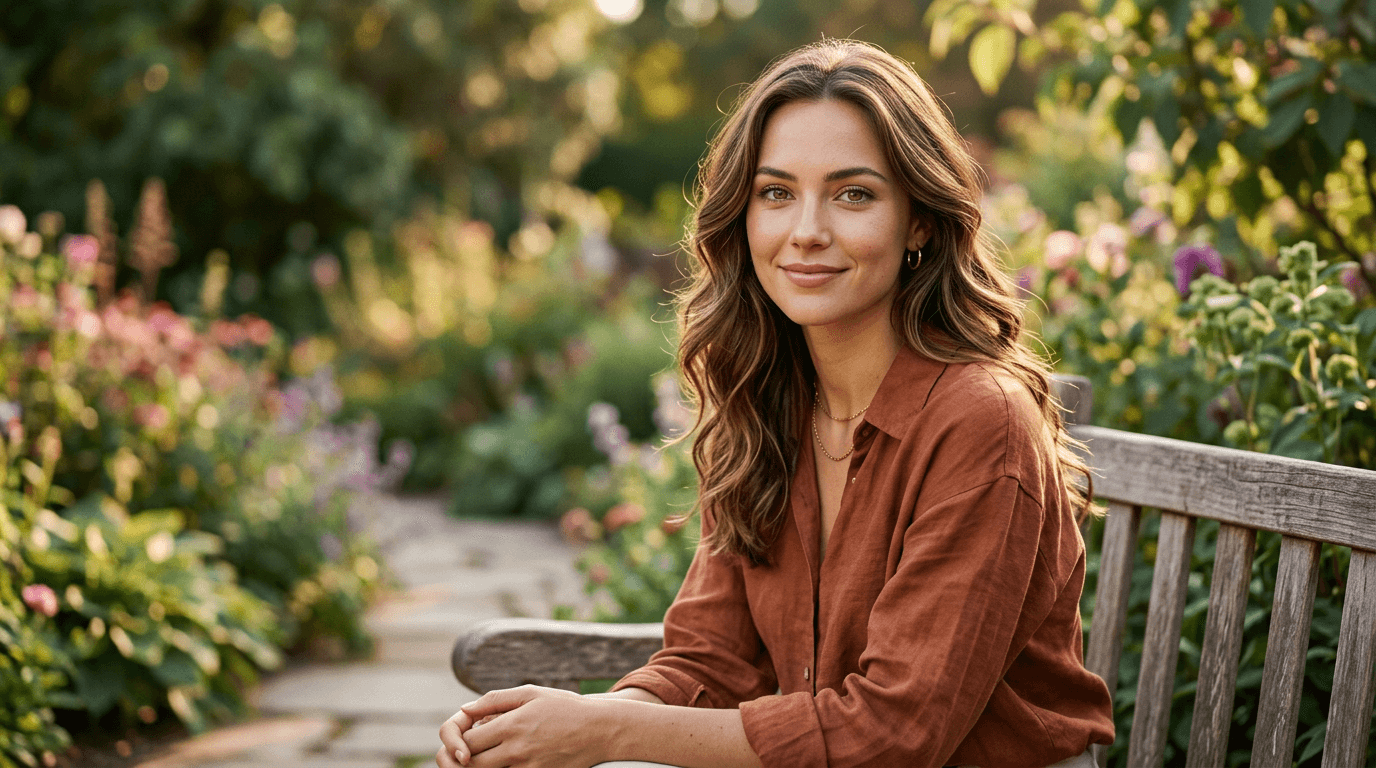
STEP 3: Generate and review
Click "Generate" and wait a few seconds. Nano Banana 2 will create your images with enhanced detail and quality. Browse the results and select the one that best matches your vision.
STEP 4: Download or edit further
Check the quality of your generated image: Want adjustments? Regenerate with a modified prompt, or use Picsart's editing tools to fine-tune colors, lighting, and details.
- Examine fine details and textures for quality
- Verify the composition matches your needs
- Check that colors and lighting create the right mood
Tips for best results
💡 Layer your descriptions
Structure prompts with subject first, then environment, then style. For example: "red sports car, mountain road at dusk, cinematic photography".
💡 Use specific lighting terms
Nano Banana 2 responds well to lighting descriptions like "golden hour", "rim lighting", "soft diffused light", or "dramatic side lighting".
💡 Reference art movements or photographers
Try adding "in the style of [artist]" or "[art movement] aesthetic" to guide the model toward specific visual approaches.
💡 Iterate on successful results
When you get a great image, create variations by keeping most of your prompt the same and changing just one or two elements.
