

How to enhance blurry photos and increase resolution with AI

What you'll learn
What is AI photo enhancement?
Common use cases
Enhance your photos step by step
STEP 1: Upload your image
- On web: Go to picsart.com/ai-image-enhancer → Upload your image
- On mobile: Open Picsart → "+" → Select photo → AI Enhance
STEP 2: Choose enhancement level
Select how much you want to enhance:
- 2x enhancement: Doubles resolution while maintaining file size balance
- 4x enhancement: Maximum upscaling for prints and large displays
- Auto fix: Let AI automatically improve lighting, color, and sharpness
- Custom settings: Adjust sharpness, noise reduction, and color intensity manually
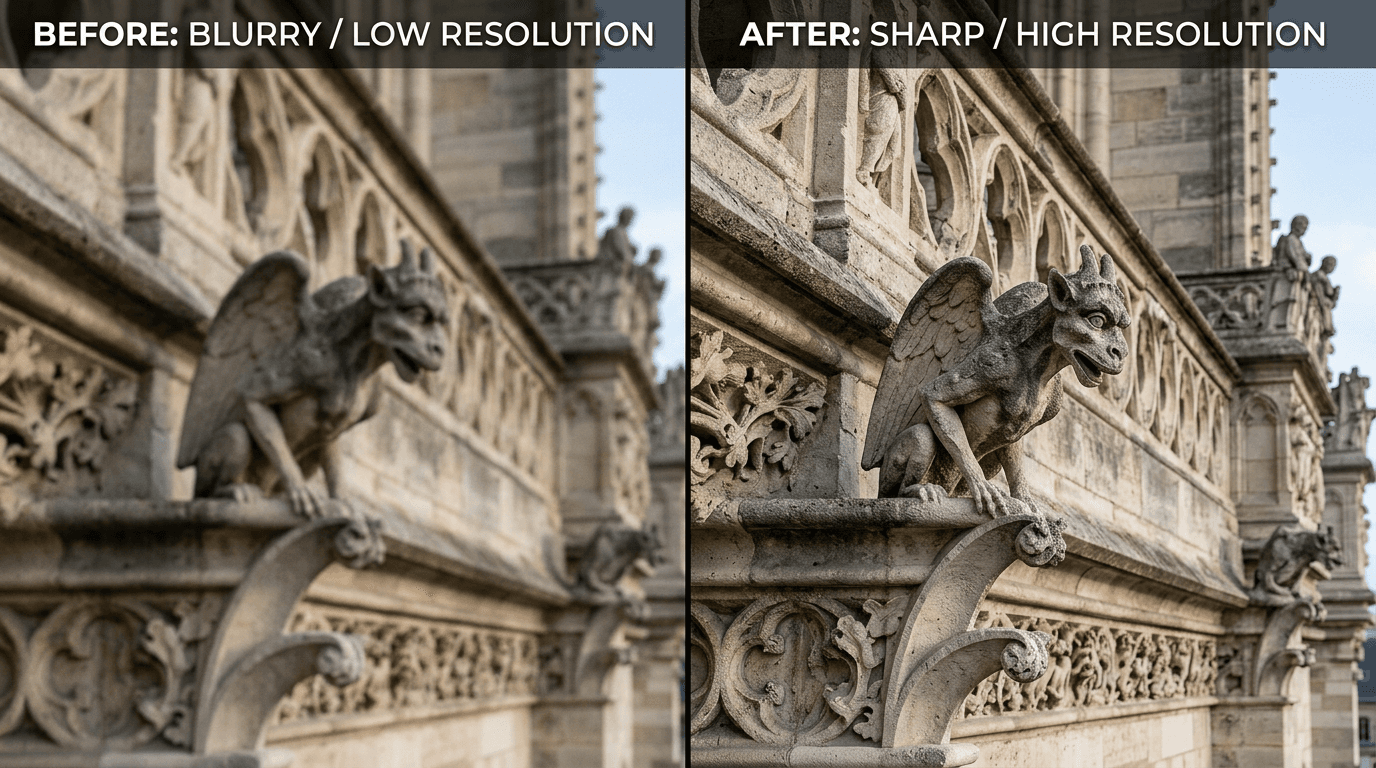
STEP 3: Process the enhancement
Click "Enhance" and wait while the AI analyzes your image. The AI reconstructs details, sharpens edges, improves colors, and upscales resolution. Processing takes 10-30 seconds depending on image size and enhancement level.
STEP 4: Review and export
Check that the enhancement looks natural: Not perfect? Try a different enhancement level, or manually adjust sharpness and color settings for better results.
- Compare before/after to see clarity improvement
- Check for over-sharpening or artificial-looking edges
- Verify colors look natural and not oversaturated
Tips for best results
💡 Start with the highest quality source
The AI works best when the original image has some detail to work with. Extremely pixelated or heavily compressed images have limits to how much they can be improved.
💡 Use 2x for web, 4x for print
For social media and websites, 2x enhancement is usually enough. Save 4x enhancement for images you'll print or display on large screens where extra resolution matters.
💡 Watch for over-sharpening
Too much sharpening creates harsh edges and halos around objects. If the enhanced image looks artificial, dial back the sharpness or try auto mode instead.
💡 Process portraits carefully
AI enhancement can sometimes make skin texture too sharp. For portraits, use lower enhancement levels or manually reduce sharpness after processing to keep skin looking natural.

Ready to enhance?
Transform blurry photos into sharp, high-quality images in seconds with AI.
Enhance images now