

How to generate images fast with Ideogram 3.0 Flash
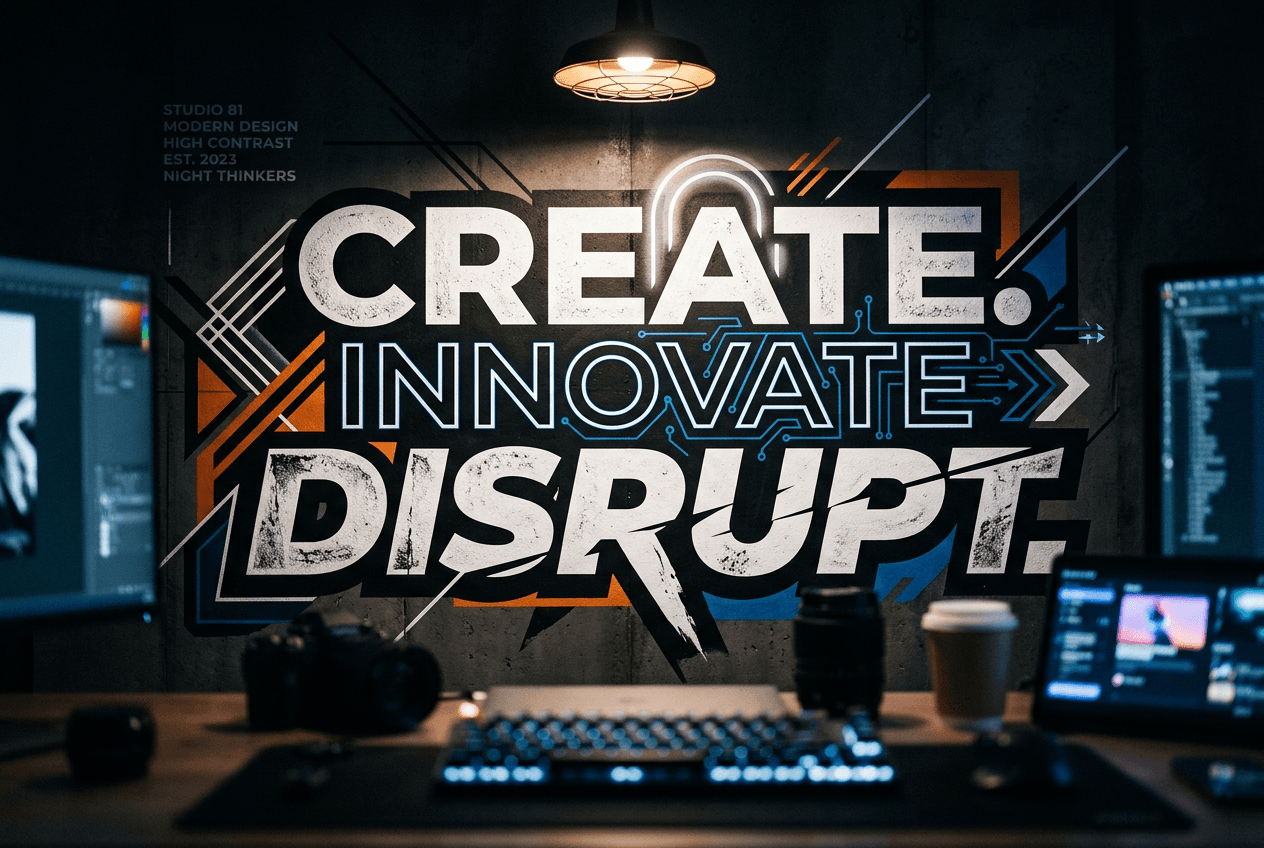
What you'll learn
What is Ideogram 3.0 Flash?
Common use cases
Generate images with Ideogram 3.0 Flash step by step
STEP 1: Launch Ideogram 3.0 Flash
- On web: Visit picsart.com/ai-image-generator → Choose Ideogram 3.0 Flash from models
- On mobile: Open Picsart → "+" → AI Generate → Select Ideogram 3.0 Flash
STEP 2: Write your prompt
Describe your image, including any text you want:
- Specify text content: Put exact words in quotes (e.g., "Summer Sale", "Welcome")
- Describe the design: Mention style, colors, and layout
- Add context: Explain the purpose or setting of the image
- Include typography notes: Mention font styles if needed (bold, elegant, modern)

STEP 3: Generate at lightning speed
Click "Generate" and wait just 3-5 seconds. Ideogram 3.0 Flash creates your image almost instantly, with accurate text rendering and clean results perfect for rapid iteration.
STEP 4: Review and iterate
Check your generated image quickly: Need changes? The fast generation time means you can try multiple variations in minutes. Adjust your prompt and regenerate until you get exactly what you need.
- Verify text is readable and spelled correctly
- Check that the overall design works for your purpose
- Look for clean composition and visual balance
Tips for best results
💡 Put text in quotation marks
Always put the exact text you want in quotes within your prompt. This tells Ideogram exactly what words to render: "Create a poster with the text 'Grand Opening'".
💡 Keep designs relatively simple
Ideogram Flash works best with clear, focused designs. Avoid overly complex compositions when you need accurate text rendering.
💡 Use the speed for rapid testing
Take advantage of fast generation to try multiple variations. Test different colors, layouts, or text placements in just a few minutes.
💡 Specify text placement
Mention where text should appear: "centered text", "text at the top", "text overlay on the bottom third" for better control over layout.
