

How to generate product mockups with AI
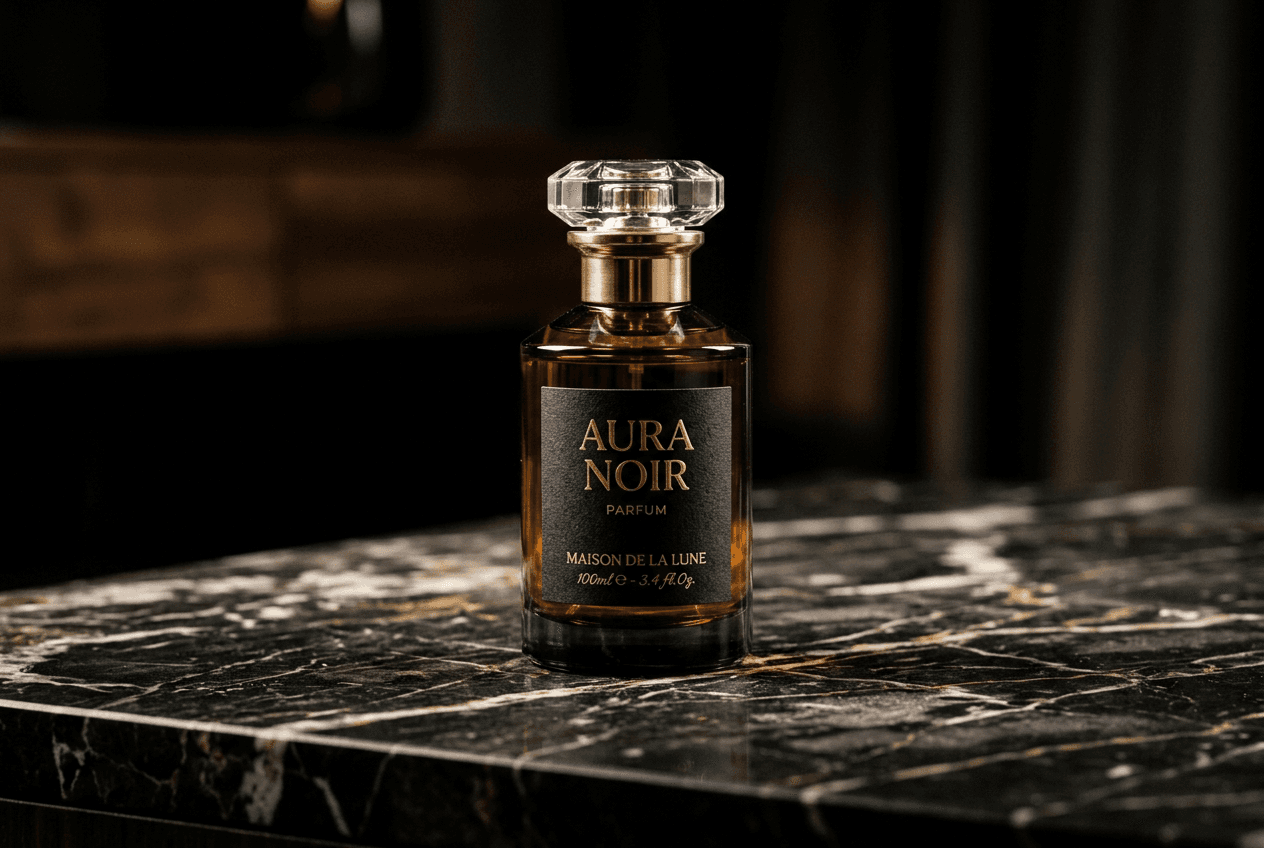
What you'll learn
What are AI product mockups?
Common use cases
Generate product mockups step by step
STEP 1: Open Aura
- On web: Go to picsart.com/aura → Upload product photo or start from scratch
- On mobile: Open Picsart → Tap "+" → Aura → Upload or describe product
STEP 2: Describe your mockup scene
Write a detailed prompt for your product photo:
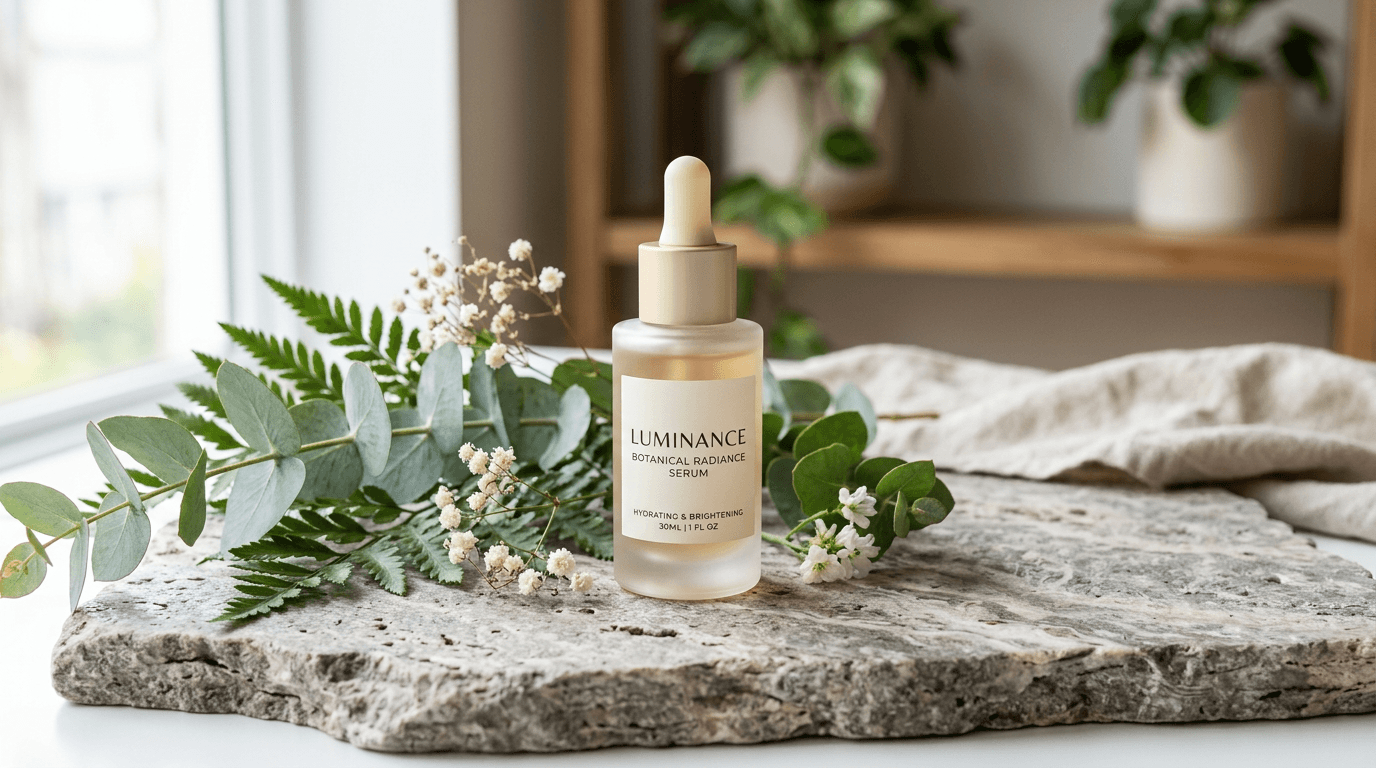
- Product placement: Where is it? (centered, on left, held in hand)
- Surface: What's it sitting on? (marble counter, wooden table, natural stone)
- Lighting: What mood? (soft natural light, dramatic studio lighting, golden hour)
- Props: Supporting elements (botanical leaves, coffee cup, fabric draping)
- Background: What's behind? (blurred minimalist, textured wall, outdoor scene)
- Style: Photography approach (product photography, lifestyle shot, flat lay)
STEP 3: Generate variations
Click "Generate" to create your mockup. Aura will produce multiple versions. Pick the best one or generate again with prompt tweaks. Try variations like different angles, lighting conditions, or seasonal themes while keeping your core product consistent.
STEP 4: Review and export
Check that your mockup meets professional standards: Not perfect? Regenerate with adjusted lighting or composition details, or use Picsart editing tools to refine colors and contrast.
- Verify product is in sharp focus with clean edges
- Check that lighting looks natural and professional
- Ensure composition follows product photography best practices
Tips for best results
💡 Use product photography terms
Include technical language like "hero shot," "three-quarter view," "overhead flat lay," or "lifestyle context." Aura understands these conventions and will compose accordingly.
💡 Keep branding consistent
Once you find a style that works, save the prompt as a template. Reuse it with minor tweaks for different products to maintain visual consistency across your catalog.
💡 Specify the hero element
Make it clear what should be in focus: "product in sharp focus, background softly blurred." This prevents the AI from treating everything equally and losing your product in the scene.
💡 Try seasonal variations quickly
Add seasonal keywords to existing prompts: "surrounded by autumn leaves," "with holiday lights," "summer beach setting." This lets you create timely campaigns without new photoshoots.

Ready to shoot?
Create professional product mockups in minutes without a studio or photographer.
Open Aura