logo

How to make virtual backgrounds for video calls
BACKGROUNDS3 minBeginner

Create custom backgrounds for Zoom, Teams, and Meet that look natural on camera.

How to make virtual backgrounds for video calls

What you'll learn

  • Design virtual backgrounds that look professional on camera
  • Create branded backgrounds for business video calls
  • Export in the right format and size for video platforms
  • Make backgrounds that work well with different skin tones and lighting

What are virtual video call backgrounds?

Virtual backgrounds are images that replace what's behind you during video calls. They hide messy rooms, add professionalism, or show brand identity during meetings. Also called video backgrounds or Zoom backgrounds, they work in any video platform that supports background replacement—Zoom, Microsoft Teams, Google Meet, and others.

Common use cases

  • Professional meetings: Clean office or neutral backgrounds for client calls
  • Brand representation: Company logos or branded graphics for external meetings
  • Privacy: Hide your actual location or personal space during work-from-home calls
  • Team building: Fun or themed backgrounds for internal team meetings
  • Webinars and presentations: Branded backgrounds that reinforce your message
  • Remote interviews: Professional settings that make good first impressions

Create your video background step by step

STEP 1: Open the background editor

  • On web: Go to picsart.com/create/editor?category=background → Start creating
  • On mobile: Open Picsart → "+" → Background templates or start from blank canvas
Open background editor

STEP 2: Design your background

Choose a template or create from scratch:

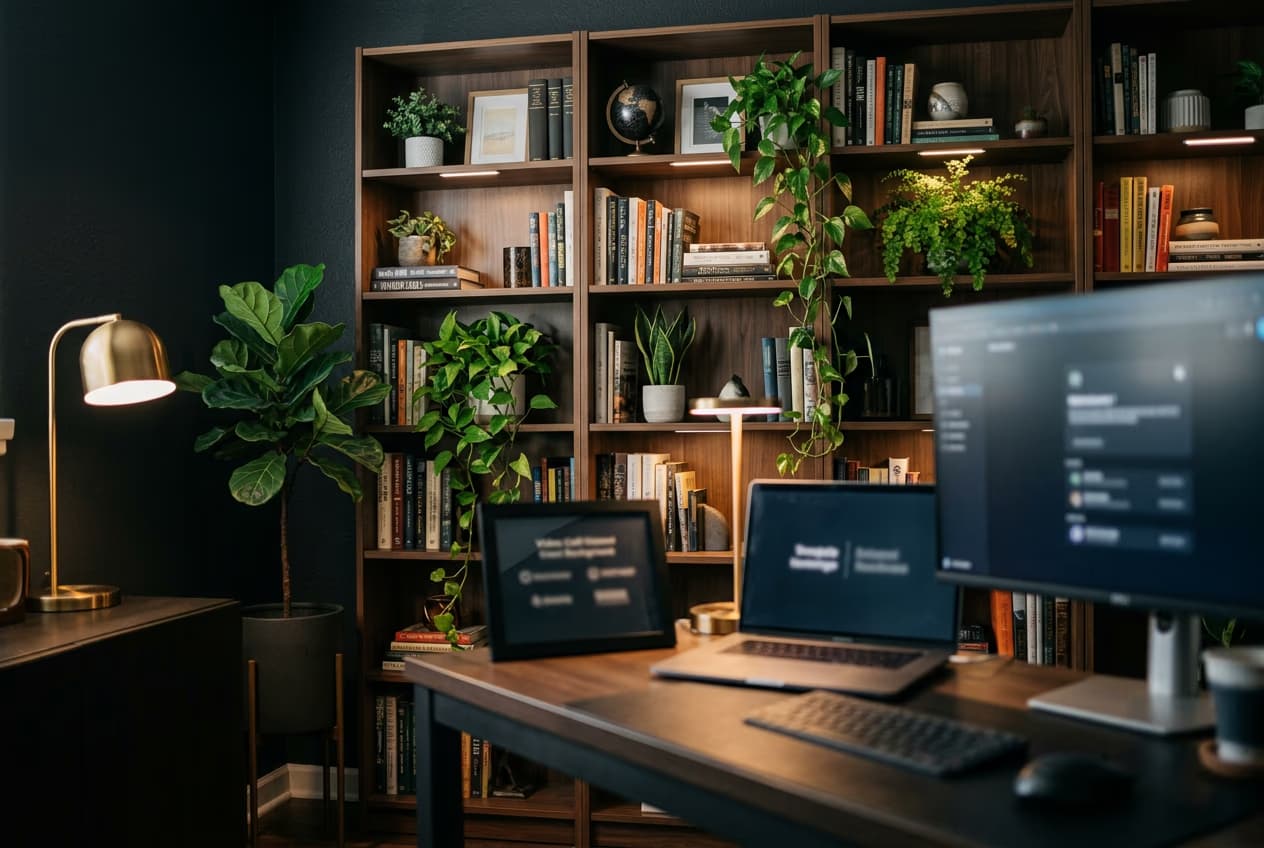
  • Professional office: Bookshelf, plants, minimal desk setup
  • Branded graphics: Company colors, logo placement, patterns
  • Neutral spaces: Soft gradients, blurred rooms, abstract patterns
  • Custom photos: Upload your own professional space or generated scene

STEP 3: Adjust for video compatibility

Set your canvas to 1920x1080 pixels (16:9 ratio) for best video platform compatibility. Avoid busy patterns near where your head will appear, and keep important elements like logos away from screen edges where they might get cut off.

STEP 4: Export and test

Download as JPG or PNG, then upload to your video platform to test: Looks weird on camera? Adjust colors if they clash with your skin tone, simplify busy areas that cause edge detection issues, or change lighting if it looks too bright or dark compared to your actual lighting.

  • Test with your actual lighting setup to check for color matching
  • Verify edge detection works cleanly around your head and shoulders
  • Check that text or logos remain readable at video resolution
Create video backgrounds

Tips for best results

💡 Keep the center area simple

Avoid busy patterns or important details where your body will appear. Most platforms show you roughly centered, so keep text, logos, or focal points toward the edges or top corners.

💡 Match your lighting

If you have warm desk lamps, use backgrounds with warm tones. Cool overhead lighting looks better with neutral or cool backgrounds. Mismatched lighting makes virtual backgrounds obvious.

💡 Test on your actual video platform

What looks good as an image might not work on camera. Upload and test before important calls. Some colors or patterns cause edge detection problems that you'll only notice during actual use.

💡 Create a few variations

Make professional, casual, and branded versions. Switch based on the meeting type—client presentations get branded backgrounds, internal team calls can be more casual.

Platform specifications

  • Zoom: 1920x1080 recommended, supports JPG and PNG, max 5MB file size
  • Microsoft Teams: 1920x1080 recommended, supports JPG and PNG, works best under 3MB
  • Google Meet: 1920x1080 recommended, JPG or PNG format
  • General best practice: 16:9 aspect ratio (1920x1080), avoid file sizes over 5MB, use JPG for photos and PNG for graphics with transparency

Frequently asked questions

Use 1920x1080 pixels (16:9 ratio) for best compatibility across all video platforms. Most services automatically resize images, but starting with the correct dimensions prevents quality loss or awkward cropping.

Lighting mismatch is the main culprit. If your room has cool fluorescent light but your background shows warm sunset tones, it looks obviously fake. Choose backgrounds with lighting that matches your actual setup, or adjust your room lighting to match your favorite background.

Yes, branded backgrounds work great for client meetings or webinars. Place logos in top corners or along the sides where your body won't cover them. Keep logo size reasonable—too large looks unprofessional, too small becomes unreadable at video resolution.

Most modern platforms support virtual backgrounds: Zoom, Microsoft Teams, Google Meet, Skype, Webex, and others. Older computers or basic webcams might not support the feature. Check your platform's system requirements if backgrounds aren't working.

Ready for better video calls?

Create professional virtual backgrounds that look natural on camera.

Make video backgrounds