

Transform videos instantly with AI video filters

What you'll learn
What are AI video filters?
Common use cases
Transform your video step by step
STEP 1: Upload your video
- On web: Go to picsart.com/ai-video-filters → Upload your video file
- On mobile: Open Picsart → "+" → Select video → AI Video Filters
STEP 2: Choose your filter style
Select your preferred filter method:
- Preset filters: Browse ready-made styles like Cinematic, Vintage, Neon, or Dreamy
- AI prompt: Type a description like "noir film style" or "warm sunset glow"
- Style reference: Upload an image to match its look and color palette
- Intensity slider: Control how strong the filter effect appears
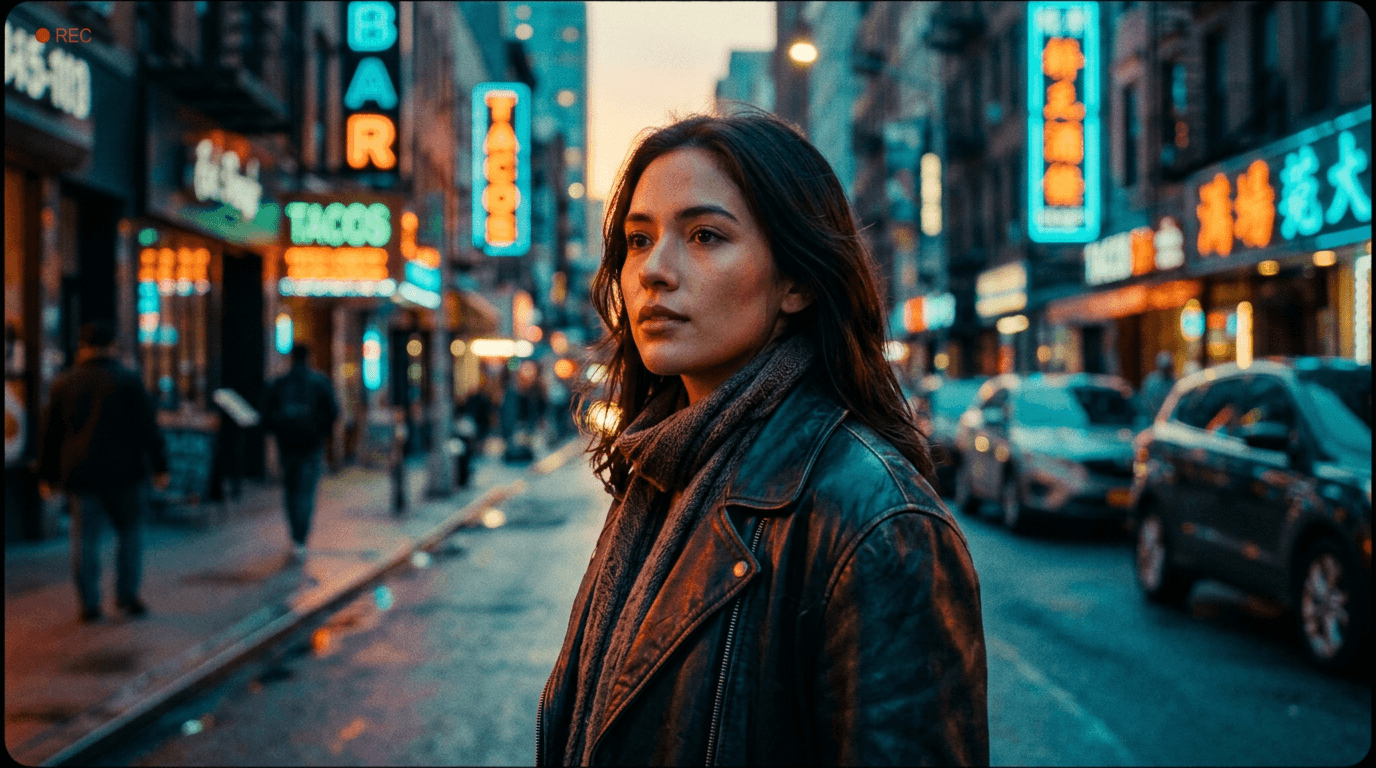
STEP 3: Generate filtered video
Click "Apply" and wait while AI processes your video. The filter will be applied consistently across all frames, maintaining smooth transitions and natural motion.
STEP 4: Review and export
Preview the filtered video and check quality: Not satisfied? Try a different filter style or adjust the intensity slider for better results.
- Play through the entire video to check consistency
- Verify that the filter enhances rather than overwhelms your content
- Check that important details remain visible and clear
Tips for best results
💡 Start with good source footage
Well-lit, properly exposed videos give filters better material to work with. Poor quality source footage can look worse with heavy filters applied.
💡 Match filter to content type
Use subtle, professional filters for business content. Save bold, artistic styles for creative projects where they enhance the message.
💡 Test intensity levels
Start at 50% intensity and adjust up or down. Full-strength filters can overpower your content, while lower settings often look more refined.
💡 Consider your platform
Instagram and TikTok audiences expect bold looks. LinkedIn and YouTube often benefit from more restrained, professional filtering.

Ready to transform your videos?
Apply professional filters and cinematic effects to your footage in seconds with AI-powered video filtering.
Start filtering now