
Fácil de usar
Adicionar texto às imagens nunca foi tão fácil graças à nossa experiência intuitiva.

Fontes modernas
Combine seu texto ao seu estilo com o editor de texto de fotos.

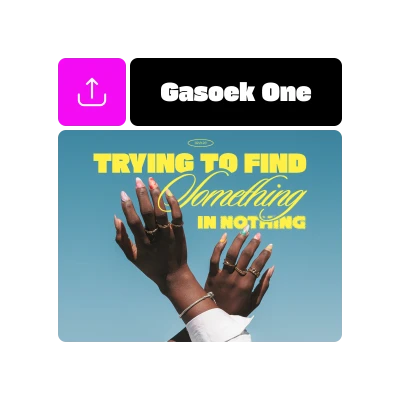
Envie suas próprias fontes
Tem algo específico em mente? Envie facilmente sua própria fonte.
Como adicionar texto às fotos
Crie um projeto
Inicie um novo projeto no Picsart para começar a adicionar texto. Carregue uma imagem ou use um dos modelos para começar.
Adicionar texto
Selecione uma fonte ou envie a sua
Baixar



Continue sua jornada de edição com o Picsart

Photo Text Editor FAQs
How do I add text to my photo or image?
How can I choose the right font for my photo?
The Picsart Text Editor has multiple features that make it easy for creators to find the perfect font for their designs. If you have a specific font in mind, you can use the search bar to find it right away. Otherwise, all the fonts are displayed in thumbnails, so you can find something that visually matches your design with just a quick scroll.
Can I change the text color?
Of course. Once you click on a text in your design, you’ll find the Color button (shaped like a teardrop) in the top toolbar. Simply click it, then set the color you want.
Can I use custom fonts on my photo or image?
Yes, totally! Once you’re in the editor, you can use the Uploads button on the left toolbar to upload any custom font you’d like from your computer. You can also find all your uploaded custom fonts from the Uploads section in the editor.
Is the Picsart Text Editor free?
Yes, the Text tool in the Picsart online editor is completely free. While certain fonts and styles are available by subscribing to Picsart Gold, there’s a large collection of free fonts, plus the ability to upload your own custom fonts.