

Add music to video online in seconds

What you'll learn
What is video audio editing?
Common use cases
Add music to your video step by step
STEP 1: Upload your video
- On web: Go to picsart.com/add-music-to-video → Upload your video file
- On mobile: Open Picsart → "+" → Video → Select clip → Add Audio
STEP 2: Choose audio source
Select where your audio will come from:
- Music library: Browse trending tracks and royalty-free music by genre or mood
- Upload file: Add your own music, sound effects, or pre-recorded voiceover
- AI voiceover: Generate narration by typing text and selecting voice style
- Record audio: Capture live voiceover directly through your device microphone
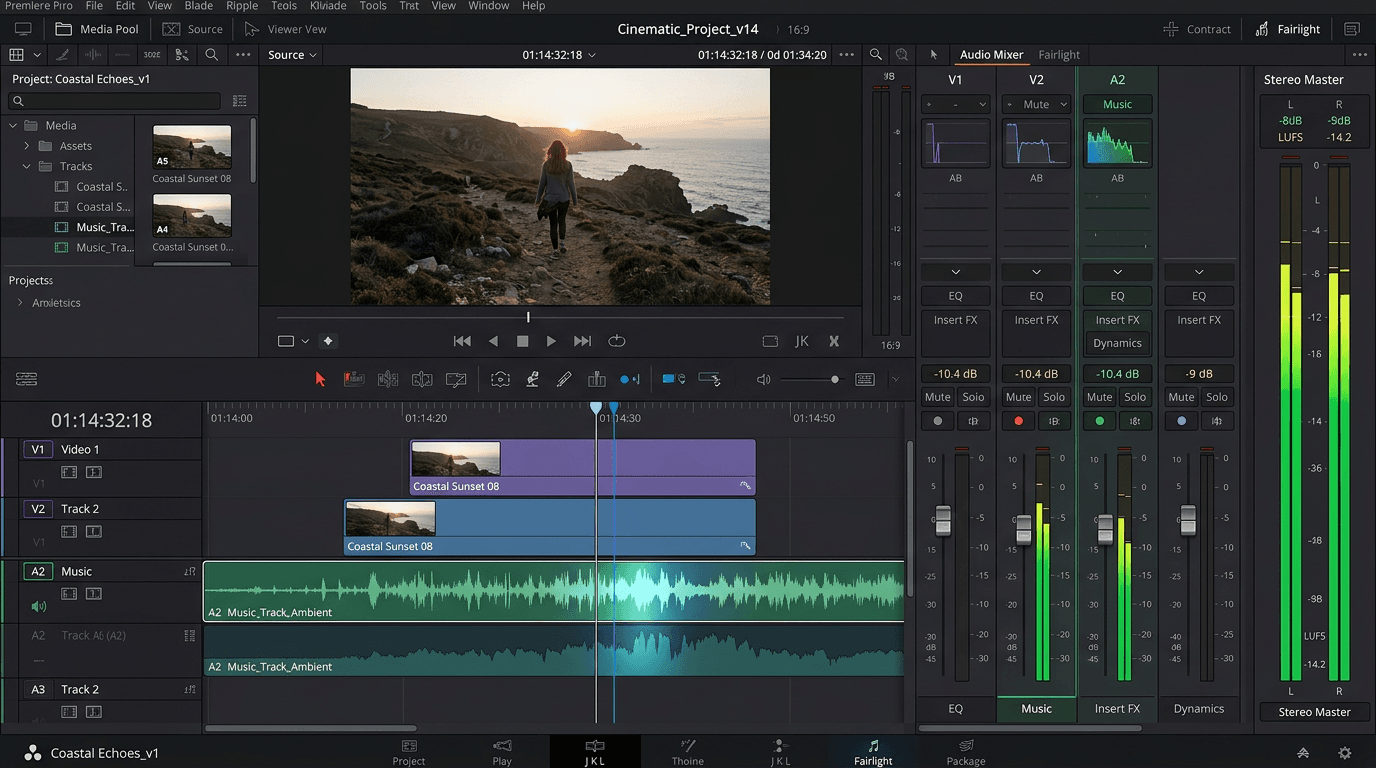
STEP 3: Adjust audio settings
Fine-tune how your audio sounds in the final video. Use the volume slider to balance music with any existing audio, trim the audio track to match your video length, and position where the audio starts in your timeline. You can also fade audio in or out for smooth transitions.
STEP 4: Preview and export
Play your video to check that audio sounds balanced and synced: Need adjustments? Go back and change volume levels, trim audio differently, or try alternative music tracks.
- Verify that music doesn't overpower dialogue or important sounds
- Check that audio starts and ends smoothly without abrupt cuts
- Confirm that music fits the mood and pace of your video content
Tips for best results
💡 Match music to video mood
Choose tracks that complement your content's emotion and energy. Upbeat music works for energetic content, while calm instrumentals suit tutorials and explanations.
💡 Mind the copyright
Use royalty-free music from Picsart's library or tracks you have rights to use. Copyrighted music can get your video muted or removed on social platforms.
💡 Balance audio levels carefully
Background music should enhance your video, not compete with dialogue or important sounds. Keep music 20-30% lower in volume than speaking or main audio.
💡 Add fade effects
Use fade-in at the start and fade-out at the end to make audio transitions smooth and professional rather than jarring and abrupt.

Need better audio?
Add music, sound effects, or voiceover to your videos and create engaging content instantly.
Start adding audio