

Edit your video with AI in minutes
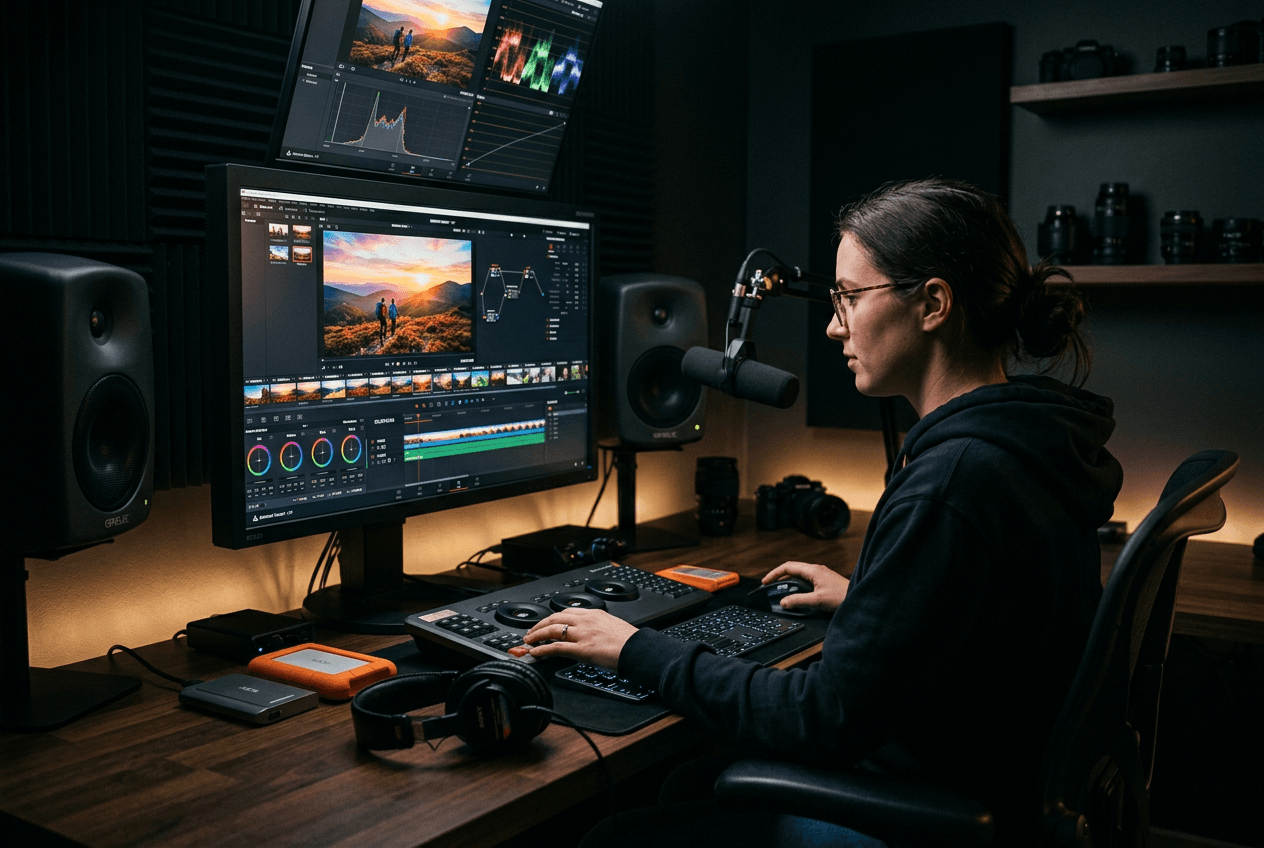
What you'll learn
What is AI video editing?
Common use cases
Edit your video with AI step by step
STEP 1: Upload your footage
- On web: Go to picsart.com/ai-video-editor → Upload your video file
- On mobile: Open Picsart → "+" → Video → Select clip → AI Editor
STEP 2: Choose AI editing features
Select which AI tools to apply to your video:
- Smart VFX overlays: Add cinematic effects like lens flares, light leaks, or particles
- Scene teleportation: Replace backgrounds and transport subjects to new locations
- Mood transformation: Change lighting, atmosphere, and overall vibe automatically
- Style filters: Apply artistic looks like vintage film, animation, or painting effects
- Object swap: Replace elements in your video with AI-generated alternatives
- Background removal: Cleanly isolate subjects for compositing or transparent export
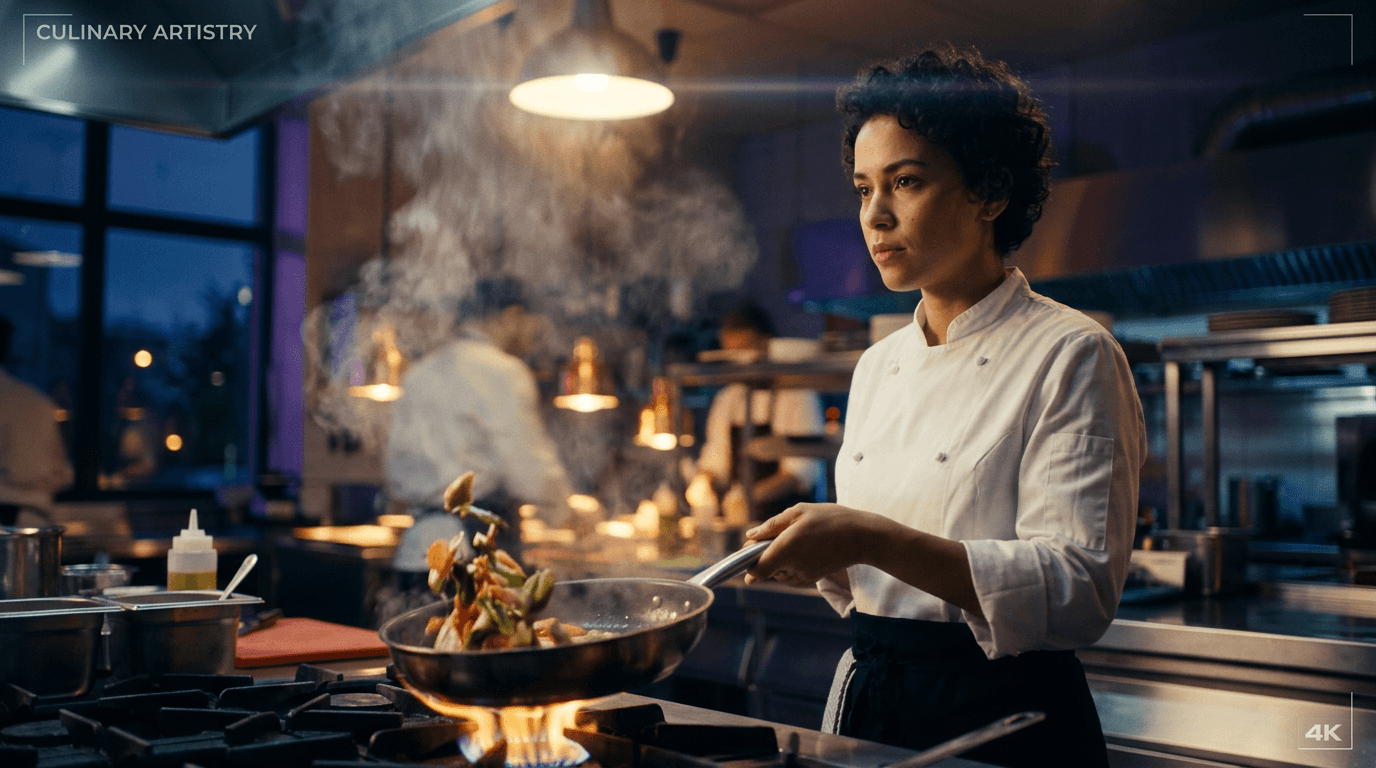
STEP 3: Generate edited video
Click "Apply" and wait while AI processes your edits. The tool analyzes your footage, applies selected effects consistently across all frames, and maintains smooth transitions throughout the video. Processing time varies based on video length and number of effects.
STEP 4: Review and refine
Preview your edited video and check all changes: Want different results? Adjust settings, try alternative effects, or combine multiple AI tools for unique looks.
- Watch the full video to ensure effects are consistent throughout
- Check that AI edits look natural and match your creative vision
- Verify that any background changes or swaps blend smoothly with the original footage
Tips for best results
💡 Start with stable footage
AI works best on videos shot with steady hands or stabilization. Shaky footage can cause effects to flicker or not track properly across frames.
💡 Layer effects carefully
Combining multiple AI effects can create amazing results, but too many at once may look overdone. Apply one or two effects first, review, then add more if needed.
💡 Match effects to your content goal
Use subtle edits for professional content and bold creative effects for entertainment. Consider your audience and platform when choosing which AI tools to apply.
💡 Keep original footage backed up
Always save your unedited video before applying AI effects. This lets you start fresh with different edits or compare your results to the original.

Ready to create?
Edit videos with AI and transform your footage into professional content in minutes.
Start editing