logo

How to connect Picsart MCP to Claude for AI-powered content creation

MCP4 minIntermediate

Set up Picsart's Model Context Protocol server in Claude to generate images, videos, and audio through conversational prompts.

Loading tutorial video

What you'll learn

  • How to install Picsart CLI and authenticate your account
  • How to add Picsart as an MCP connector in Claude
  • How to generate images, videos, and audio using natural language prompts
  • How to access 130+ AI models through a single integration

What is Picsart MCP?

Picsart MCP is a Model Context Protocol server that connects AI agents like Claude, Cursor, and ChatGPT to Picsart's creative tools. It gives your agent direct access to 130+ AI models for generating images, videos, and audio. Think of it as giving your AI assistant a professional creative studio — instead of describing what you want and making it yourself, you ask and your agent builds it.

Common use cases

  • Marketing automation: Generate social media visuals while your agent writes the copy
  • Rapid prototyping: Ask for 20 logo variations and get them in under a minute
  • Content production: Create complete video ads with voiceover from a single prompt
  • Developer workflows: Add media generation to your CI/CD pipeline through agent commands
  • Creative exploration: Test different art styles and models without switching tools
  • Batch processing: Generate hundreds of variations with your agent handling the execution

Connect Picsart MCP to your agent step by step

STEP 1: Install Picsart CLI

  • On web: Open your terminal and run: curl -fsSL https://raw.githubusercontent.com/Picsart/gen-ai-cli/main/install.sh | sh
  • On mobile: This is a developer tool — you'll need a computer with terminal access (macOS, Linux, or Windows with WSL)
Get CLI details

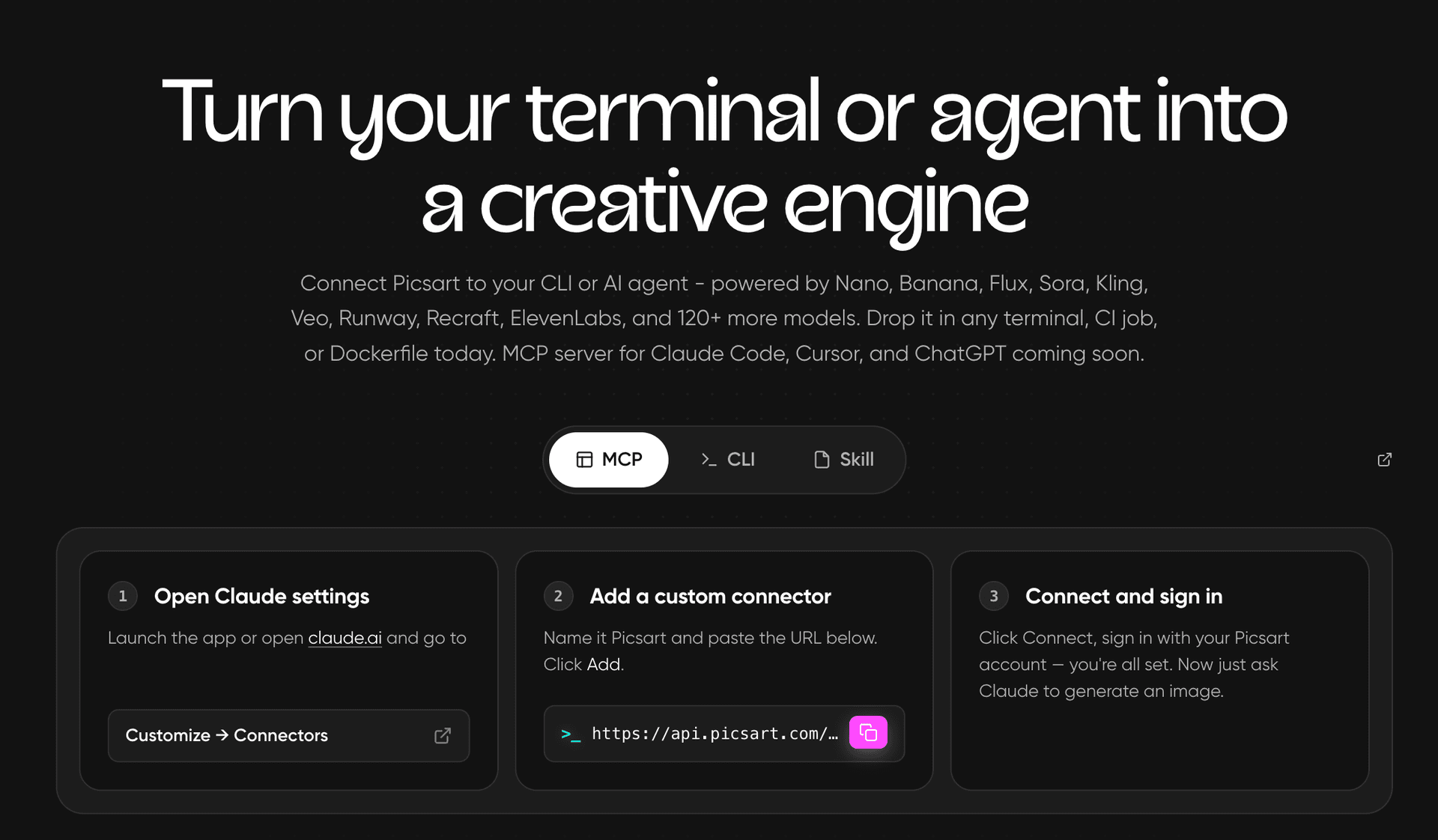
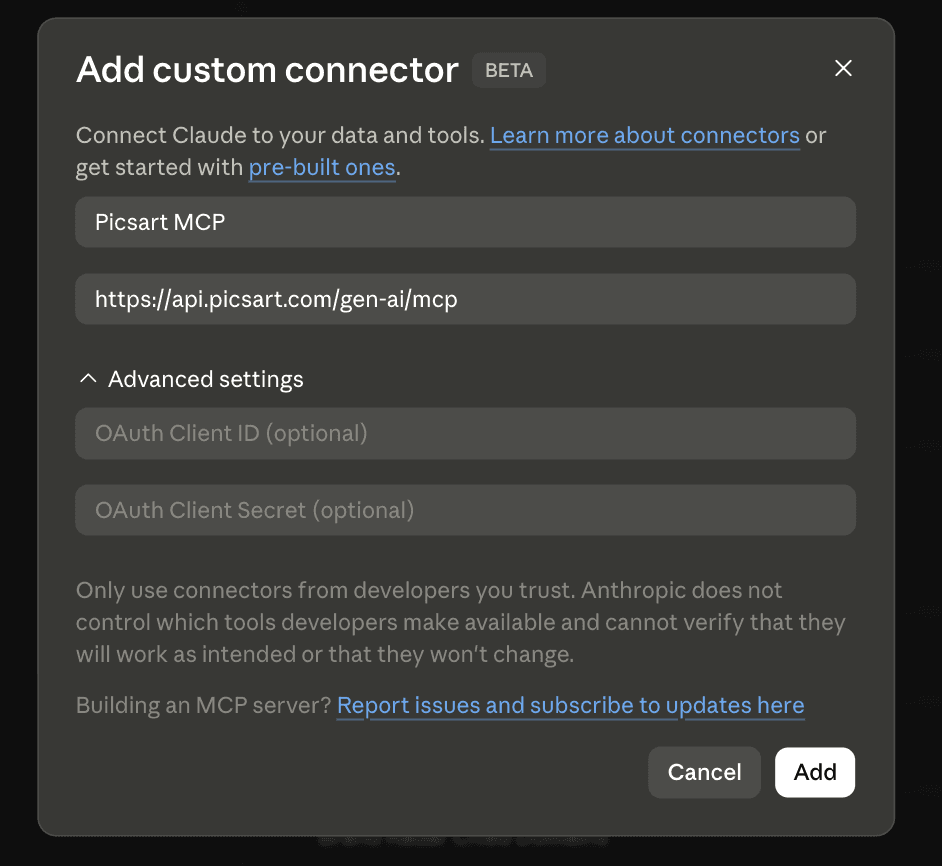
STEP 2: Add Picsart MCP to Claude

Open Claude and configure the MCP connector:

  • Go to Settings → Connectors in Claude
  • Click "Add Connector" and select "Custom MCP Server"
  • Enter server name: "Picsart"
  • Enter command: npx @picsart/mcp-server
  • Click "Connect" and authenticate with your Picsart account in the browser popup

STEP 3: Authenticate your Picsart account

A browser window opens automatically. Click "Allow" to grant Claude access to your Picsart account. Your credentials stay scoped to your agent and never leave your machine.

STEP 4: Test your first generation

Verify your connection works correctly: Not working? Check that the CLI is installed and you're logged in by running gen-ai --version in your terminal.

  • Ask Claude to generate an image: "Create a professional product photo of a coffee mug"
  • Watch Claude call the Picsart tools and return your generated image
  • Check the output quality and file location in the response
Explore workflows

Tips for best results

💡 Be specific about the model you want

Instead of "make me an image," say "generate with Flux Pro" or "use Recraft V4." Different models excel at different styles — Flux for photorealism, Recraft for illustrations, Kling for video.

💡 Start with image before moving to video

Image generation is faster and uses fewer credits. Test your prompts and composition with still images, then move to video once you're happy with the style.

💡 Use natural language for complex requests

The MCP integration understands context. You can say "make 5 variations with different color schemes" and Claude will handle the batch generation and parameter changes automatically.

💡 Check your credit balance regularly

Video and audio models consume more credits than images. Ask Claude "how many credits do I have?" before starting large batch jobs.

Supported AI agents and models

  • Claude (Desktop & Web): Full MCP support with native tools integration
  • Cursor: Code editor with MCP connector support
  • ChatGPT (with MCP plugin): Works through MCP-compatible extensions
  • Windsurf: AI coding assistant with built-in MCP
  • Image models: Flux, Recraft V4, Nano Banana, SDXL, and 40+ more
  • Video models: Sora, Kling, Veo, Runway Gen-3, Luma Dream Machine
  • Audio models: ElevenLabs voice synthesis and sound generation
  • Editing tools: Background removal, upscale, reshape, resize via MCP commands

Frequently asked questions

Model Context Protocol (MCP) is an open standard that lets AI agents use external tools through a standardized interface. Instead of building custom integrations for every AI model you want to use, MCP lets your agent (Claude, Cursor, ChatGPT) access all of Picsart's 130+ models through one connection. It's like giving your AI a universal adapter for creative tools.

You need a Picsart account to authenticate, but many features work on the free tier. Image generation with most models is available in free accounts, though you'll have monthly credit limits. Video generation with premium models like Sora and audio with ElevenLabs require a paid plan. Check your credit balance in Claude by asking "how many credits do I have?"

Yes. Picsart MCP works with any MCP-compatible AI agent. Cursor, Windsurf, and ChatGPT (with MCP extensions) all support it. The setup process is similar: install the CLI, add Picsart as a custom MCP server, and authenticate. Some agents may call it "connectors" or "plugins" instead of MCP, but the underlying protocol is the same.

Tell Claude what style you want and it will pick the right model, or specify directly. For photorealistic images, use Flux Pro or Recraft V4. For illustrations and design work, use Recraft V4 or SDXL. For speed over quality, use Nano Banana. You can also ask Claude "which model is best for [specific use case]" and it will recommend one.

Ready to build with AI?

Connect Picsart MCP to your agent and start generating images, videos, and audio through natural conversation.

Get started