logo

How to generate product color variants from one photo
SKILLS4 minIntermediate

Take one colorway and create multiple color or material variants. Save hours when photographing every option isn't realistic.

How to generate product color variants from one photo

What you'll learn

  • How to generate accurate color variants from one source photo
  • How to maintain product shape and details across variants
  • How to create material variations (matte, glossy, textured)
  • How to scale variant generation for large catalogs

What is variant fan-out?

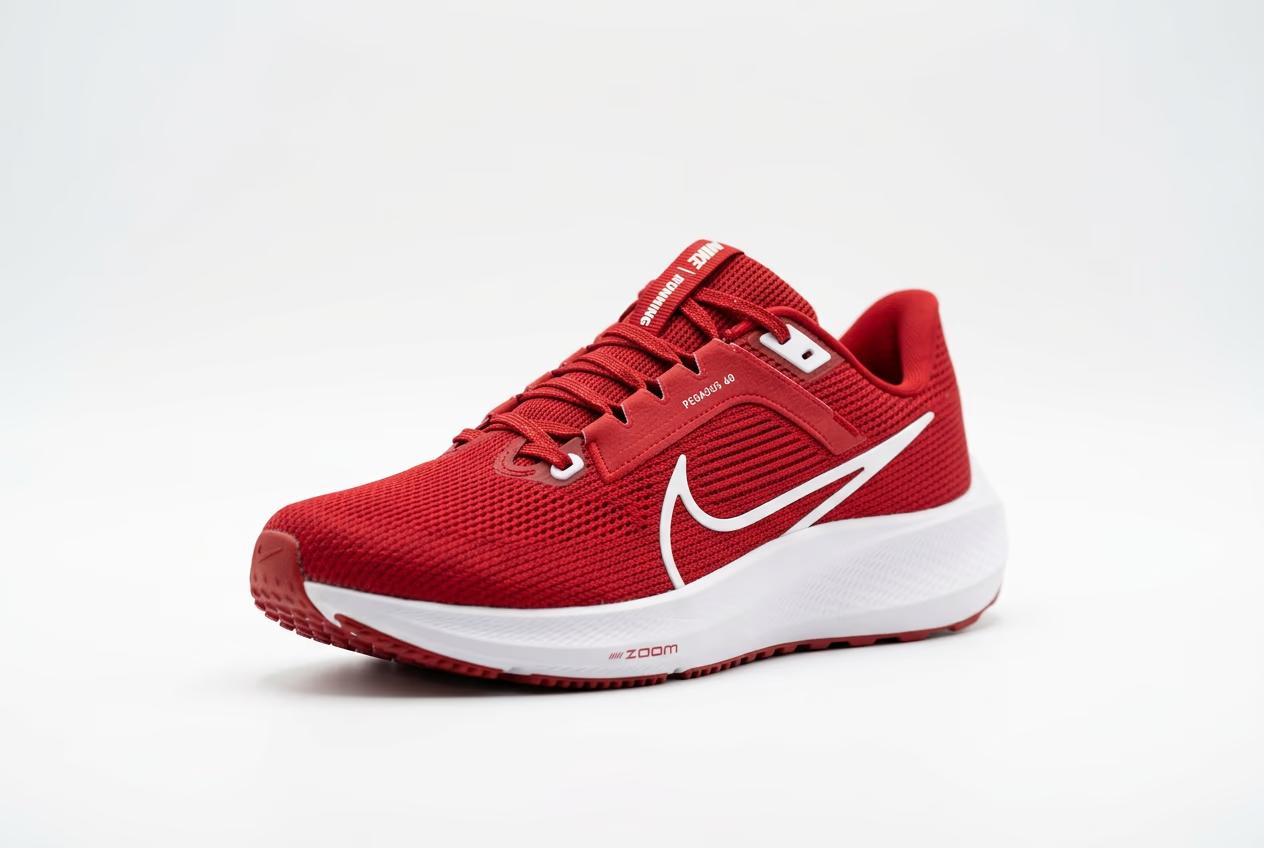
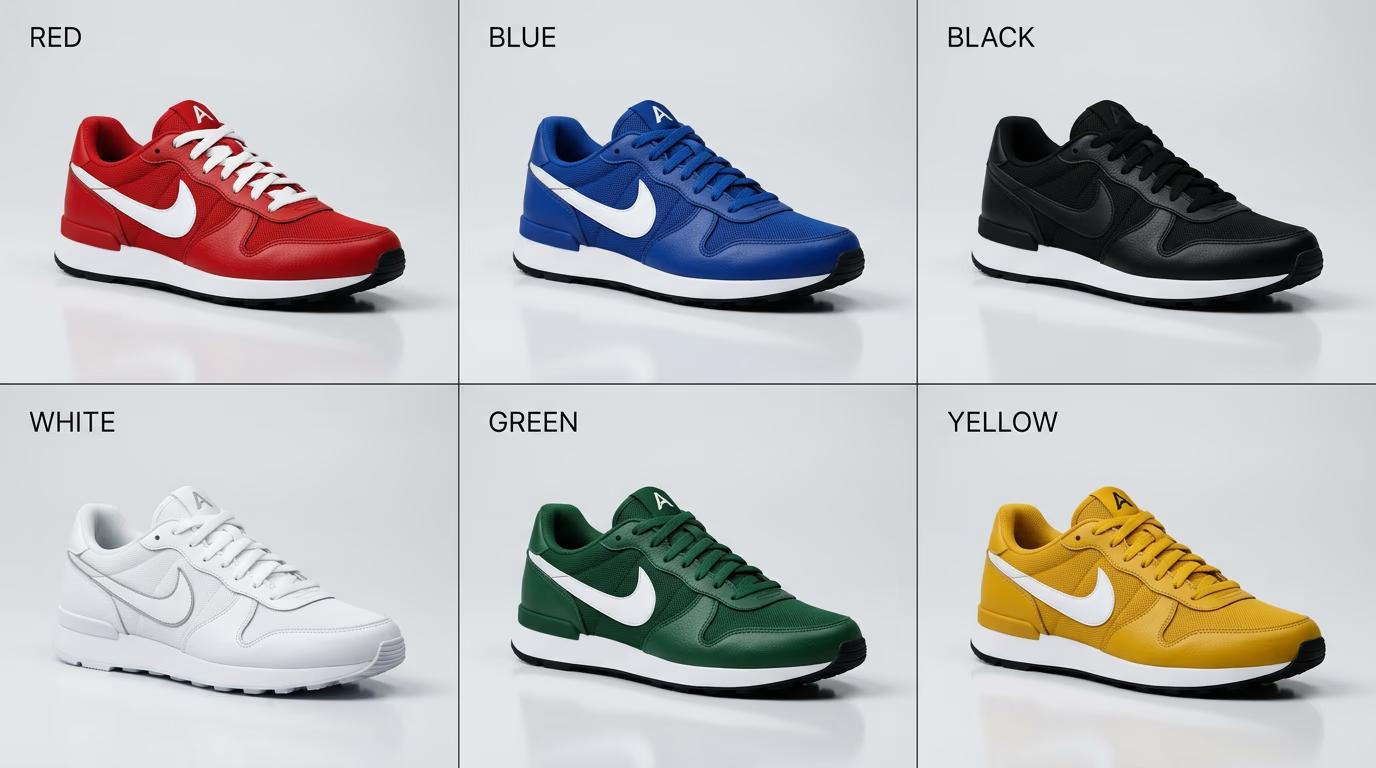
Variant fan-out takes one product photo and generates multiple color or material variations automatically. You photograph a red sneaker once. The AI creates the same sneaker in blue, black, white, green — keeping shape, lighting, and details identical. Works for any product with color or material options: furniture, clothing, accessories, home goods. It's faster and cheaper than photographing every SKU. Think of it like Photoshop's color replacement, but smart enough to handle realistic materials and lighting.

Common use cases

  • E-commerce: Show all colorways without shooting every single one
  • New product launches: Generate variant mockups before manufacturing samples
  • Seasonal updates: Add new colors to existing product lines without reshoots
  • Marketplace listings: Provide complete color selection on Amazon, Etsy, Shopify
  • Pre-orders: Let customers choose colors before you have physical inventory
  • Material options: Show same product in leather, suede, canvas, or other finishes

Generate product variants step by step

STEP 1: Upload your base product photo

  • On web: Go to picsart.com/cli → Upload one high-quality product shot in any color
  • On mobile: Open Picsart app → Select your product photo → Look for variant generation tools
Generate variants

STEP 2: Define variant specifications

List the colors or materials you need:

  • Color variants: Specify hex codes or color names (navy blue #2C3E50, forest green, burgundy)
  • Material variants: Describe finish (matte black, glossy white, brushed metal, natural wood)
  • Combination variants: Change both color and material (red leather, blue suede)
  • Batch mode: Upload a CSV with SKU codes and color specs for bulk processing
STEP 3: Generate all variants

Click "Generate variants" and wait while the AI processes each colorway. The system maintains product shape, lighting, shadows, and details across all variants. Only the color or material changes. Results land in separate files named by variant.

STEP 4: Review and export variants

Check that each variant looks accurate: Not matching your expectations? Adjust color specs and regenerate. Product shape changing? Use a cleaner source photo with better edge definition.

  • Colors match your specifications or brand palette
  • Product shape and details stay identical across variants
  • Lighting and shadows remain consistent between colorways
Create variants

Tips for best results

💡 Use exact hex codes for brand colors

Don't describe colors vaguely. Provide exact hex codes from your brand guide. "Navy blue" varies. "#2C3E50" is precise. Exact codes produce consistent results across regenerations and batch jobs.

💡 Photograph complex products in neutral colors first

Start with gray or white if your product has complex details or textures. Neutral base colors convert more accurately to bold variants. Black or dark base photos lose detail in lighter variants.

💡 Generate variants in batches for consistency

Process all variants for a product at once, not one today and five tomorrow. Batch processing uses the same model state, producing more consistent results. Sequential single generations can drift slightly.

💡 Test with physical samples when possible

If you have actual color samples, photograph one and generate the rest. Compare generated variants to real samples. This validates accuracy before you rely on variants for customer-facing catalogs.

Frequently asked questions

Variant fan-out generates multiple color or material versions from one product photo. You shoot a red sneaker. The AI creates the same sneaker in blue, black, white, green — maintaining shape, lighting, and details. It's faster than photographing every colorway, perfect for catalogs with dozens of SKU options.

Very accurate when you provide exact hex codes. The AI matches your specified color precisely. Vague descriptions like "bright red" produce variable results. Use brand palette hex codes for consistency. Test against physical samples if color accuracy is critical for your product category.

Yes. Specify materials like "matte black," "glossy white," "brushed metal," or "natural wood grain." The AI changes surface finish while keeping product shape identical. Works well for furniture, tech accessories, and home goods where material choice matters as much as color.

Yes, if your source photo is clean with good edge definition. The AI locks product geometry and only changes surface color or material. Poor source photos with soft edges or complex backgrounds cause shape drift. Use product shots on white background for best shape consistency.

Need more colorways?

Stop photographing every variant. Generate accurate color options from one product shot in minutes.

Generate variants