logo

How to lock AI model versions for consistent campaign output
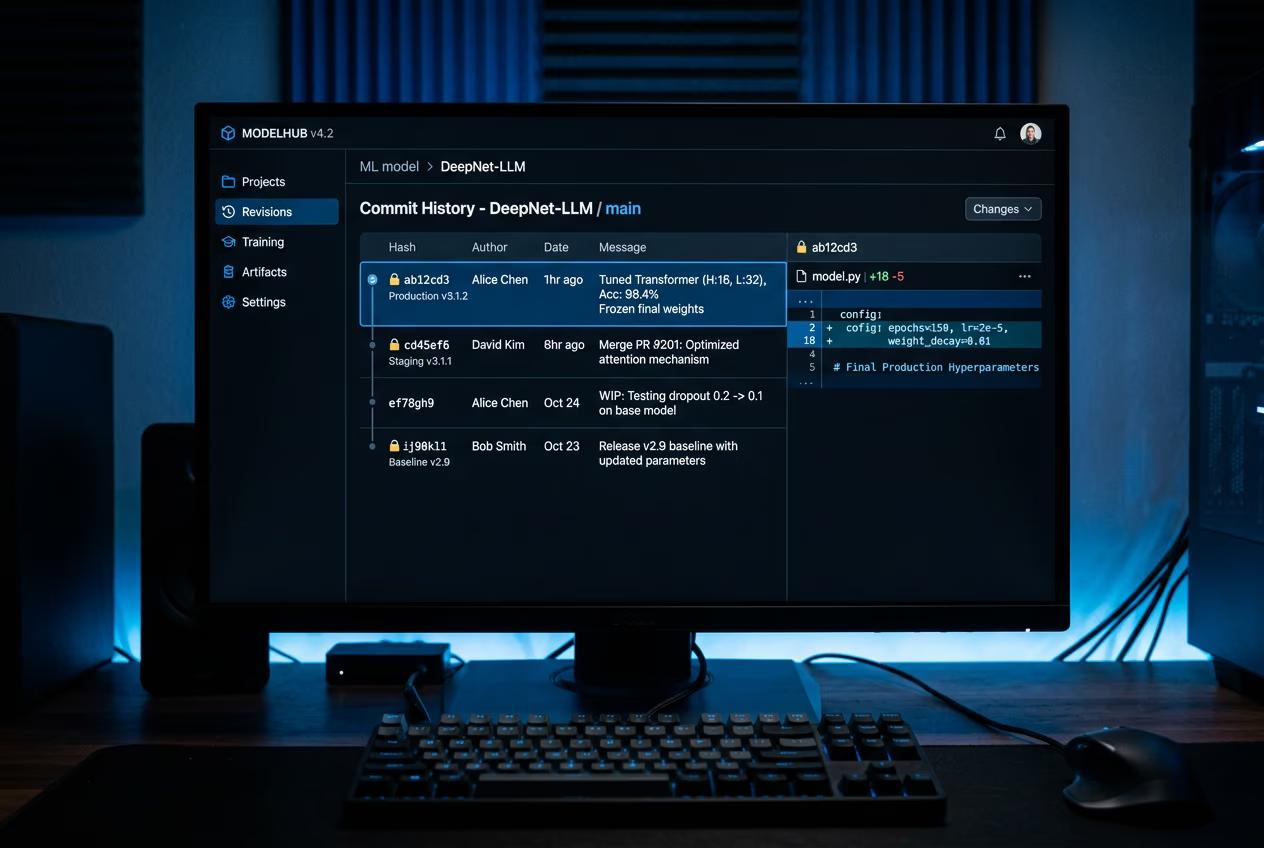
SKILLS4 minAdvanced

Pin exact model versions for reproducible results. Lock [email protected] across your campaign so every CI run produces identical output.

How to lock AI model versions for consistent campaign output

What you'll learn

  • How to pin specific AI model versions instead of using latest
  • How to maintain visual consistency across campaign assets
  • How to reproduce exact outputs weeks or months later
  • How to prevent model updates from breaking your production workflow

What is a pinned model registry?

A pinned model registry lets you lock AI models to specific versions instead of always using the latest release. When you generate with [email protected], you get that exact version every time — even if Flux releases 1.4 or 2.0. Your campaign assets stay visually consistent across weeks or months. CI runs produce identical outputs. You control when to upgrade, not the model provider. Think of it like package.json in Node — you pin dependencies so builds don't break randomly.

Common use cases

  • Campaign consistency: Lock model versions for entire launch so all assets match visually
  • Client approvals: Reproduce exact outputs months later when client requests changes
  • CI/CD pipelines: Prevent model updates from breaking automated asset generation
  • A/B testing: Compare model versions side-by-side with controlled variables
  • Legal compliance: Maintain provable reproducibility for regulated industries
  • Version rollback: Return to earlier model version if new release degrades quality

Pin your model versions step by step

STEP 1: Check available model versions

  • On web: Run gen-ai models --list to see all models and their version history
  • On mobile: Not available — version pinning requires CLI access on desktop
View registry docs

STEP 2: Pin a specific version

Add the version number to your model flag:

  • Exact version: --model [email protected] locks to version 1.3 permanently
  • Major version: --model flux-2-pro@1 accepts any 1.x release, blocks 2.x
  • Latest (default): --model flux-2-pro uses newest available version each run
  • Project lock file: Save pinned versions in .model-lock.json for team consistency
STEP 3: Test reproducibility

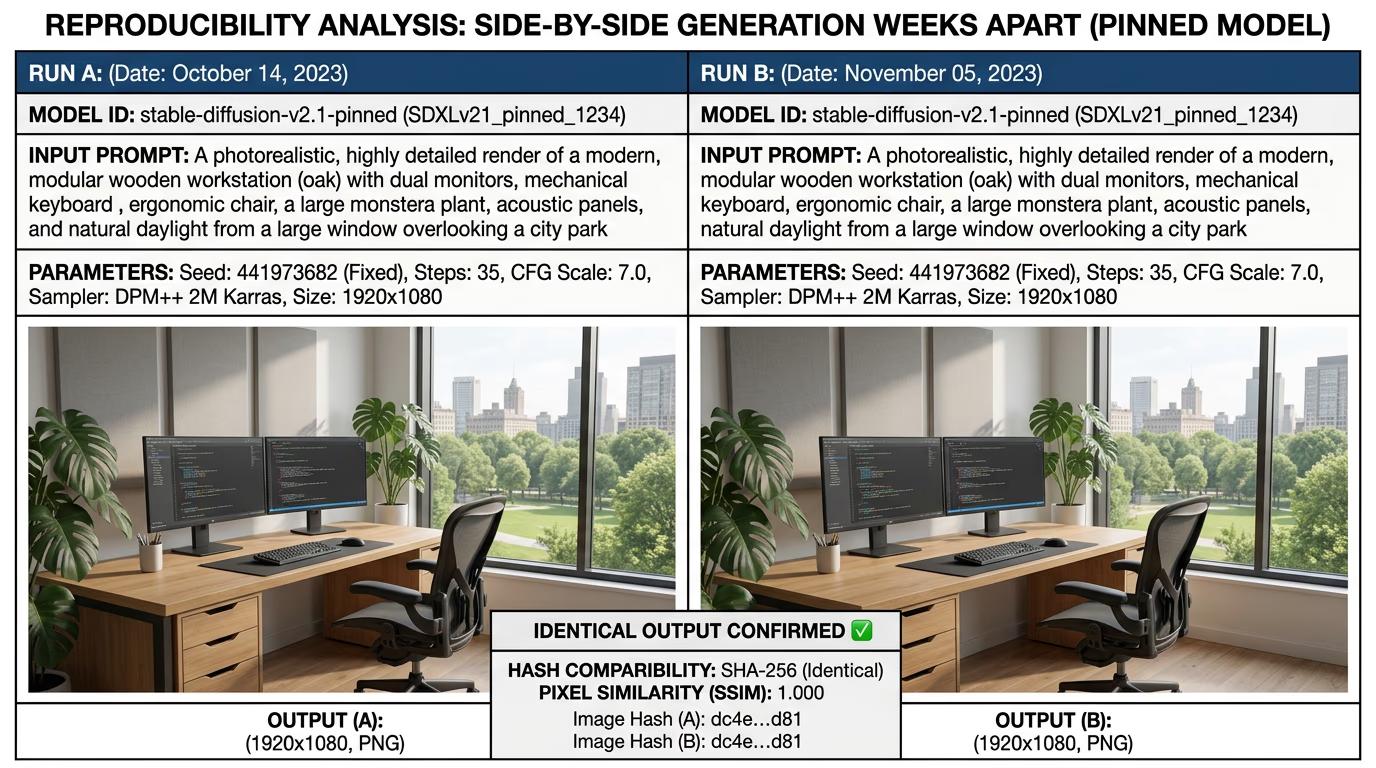
Run the same prompt with the pinned version multiple times. Compare outputs. They should be visually identical — same composition, same style, same quality. If results vary, check that your seed value is also locked.

STEP 4: Update versions when ready

When a new model version releases, test it separately: Not happy with the new version? Keep using the pinned version. Happy? Update your lock file and regenerate campaign assets to match.

  • Generate test assets with the new version
  • Compare quality, style, and consistency against your pinned version
  • Decide whether to upgrade based on real results, not marketing claims
Pin your models

Tips for best results

💡 Lock seed values along with model versions

Pinning the model version isn't enough for true reproducibility. Also lock your random seed with --seed 42. Same model version + same seed + same prompt = identical output every time.

💡 Create a lock file for team consistency

Save pinned versions in a .model-lock.json file at your project root. Commit it to version control. Everyone on your team uses the same model versions. No surprises when someone regenerates an asset months later.

💡 Test new versions in a separate branch

When a model updates, create a test branch. Generate assets with the new version. Compare against your production outputs. Only merge if the new version meets your quality bar. Don't upgrade blindly.

💡 Document why you chose each version

Add comments to your lock file explaining version choices. "[email protected]: best photorealism for product shots." Helps future you remember why you locked at that version when 2.0 is available.

Version pinning syntax

  • Exact version: [email protected] — locks to that specific release, never auto-updates
  • Major version: flux-2-pro@1 — accepts 1.x updates, blocks 2.x breaking changes
  • Minor version: [email protected] — accepts 1.3.x patches, blocks 1.4 feature releases
  • Latest (default): flux-2-pro — always uses newest version, no lock
  • Project lock file: .model-lock.json — team-wide version locks, committed to git

Frequently asked questions

Model version pinning locks your AI generations to a specific model release instead of always using the latest version. You specify [email protected], and every generation uses that exact version — even if 1.4 or 2.0 releases. This keeps campaign assets visually consistent over time and prevents model updates from breaking your production workflow.

New model versions can change output style, quality, or behavior. If you're mid-campaign, that breaks visual consistency. Pinning lets you control when to upgrade. You test new versions separately, compare results, and only upgrade when you're ready. It's like pinning npm packages — you avoid surprise breaking changes.

Pin both model version and random seed. Use --model [email protected] --seed 42 with the same prompt. Same model + same seed + same prompt = identical output every time. This works even months later, as long as the pinned version stays available in the registry.

Yes. Version pinning works across all model types — image, video, and audio. Use [email protected], [email protected], or [email protected] the same way you pin image models. Every modality supports version locking for reproducible results.

Need consistent results?

Stop worrying about model updates breaking your workflow. Lock versions and control when you upgrade.

Pin model versions