

How to make video slideshows from photos

What you'll learn
What is a video slideshow?
Common use cases
Create your slideshow step by step
STEP 1: Upload your photos
- On web: Go to picsart.com/slideshow-maker → Upload multiple images
- On mobile: Open Picsart → "+" → Select multiple photos → Slideshow
STEP 2: Arrange and customize
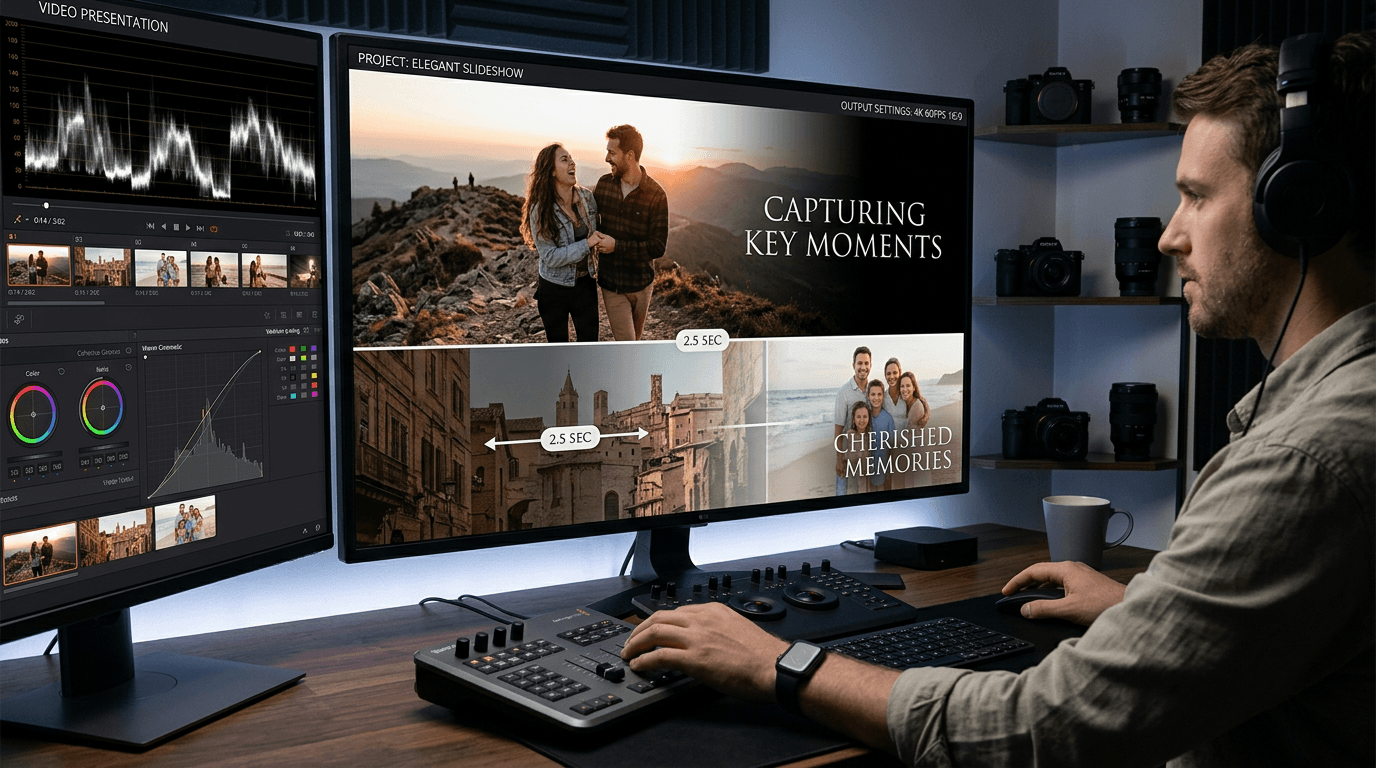
Set up your slideshow structure:
- Drag photos to reorder them in your preferred sequence
- Choose transition style: crossfade, slide, zoom, or fade
- Set display duration: how long each photo shows (2-5 seconds typical)
- Add text overlays: captions, dates, or descriptions
- Apply filters: consistent look across all images
STEP 3: Generate slideshow video
Click "Create" and the tool combines your photos into a video. Processing time depends on the number of images — usually 10-30 seconds for 10-20 photos.
STEP 4: Review and export
Watch your complete slideshow to verify quality: Need adjustments? Change photo order, adjust timing, or try different transitions until it flows perfectly.
- Check that transitions are smooth between all photos
- Verify text is readable and appears at the right times
- Confirm total video length matches your needs
Tips for best results
💡 Keep photo count manageable
15-25 photos creates a 30-60 second video that holds attention. More than 30 photos can feel too long for most viewers.
💡 Match photos in style
Use similar lighting, color tones, or filters across all images. Consistency makes your slideshow feel professional.
💡 Time transitions thoughtfully
Simple photos need less time (2-3 seconds). Detailed images or those with text need longer (4-5 seconds) so viewers can absorb the content.
💡 Start and end strong
Your first and last photos matter most. Open with an attention-grabbing image and close with your best shot or call-to-action.
Slideshow timing guide

Ready to showcase?
Turn your photo collection into a polished video slideshow in minutes.
Create slideshow video