logo

How to manage multi-brand asset packs with Picsart CLI skills

SKILLS4 minIntermediate

Switch between client brand templates in one workspace without re-uploading files.

How to manage multi-brand asset packs with Picsart CLI skills

What you'll learn

  • How to set up multi-brand workspace with CLI skills
  • How to organize client brand assets for quick switching
  • How to generate content for different clients without reconfiguration
  • How to maintain brand consistency across multiple client accounts

What are multi-brand packs?

Multi-brand packs are workspace configurations that let you manage assets for multiple clients in one place. Instead of uploading logos and brand guidelines every time you switch clients, you store everything once and reference it by name. Think of it like having separate file cabinets for each client, all in the same room.

Common use cases

  • Agency workflows: Manage 5-50 client brands in one workspace
  • Freelance designers: Switch between client contexts without setup time
  • In-house teams: Handle multiple product brands or sub-brands
  • Social media managers: Generate content for different brand accounts
  • White-label services: Maintain separate brand identities for reseller clients
  • Campaign management: Run parallel campaigns for different brands

Set up multi-brand packs step by step

STEP 1: Install the CLI and create workspace

  • On web: Visit picsart.com/cli → Copy install command → Paste into terminal → Run gen-ai login
  • On mobile: Not applicable — multi-brand workflows require terminal access on desktop systems
Get the CLI

STEP 2: Organize brand asset folders

Create a folder structure for each client brand:

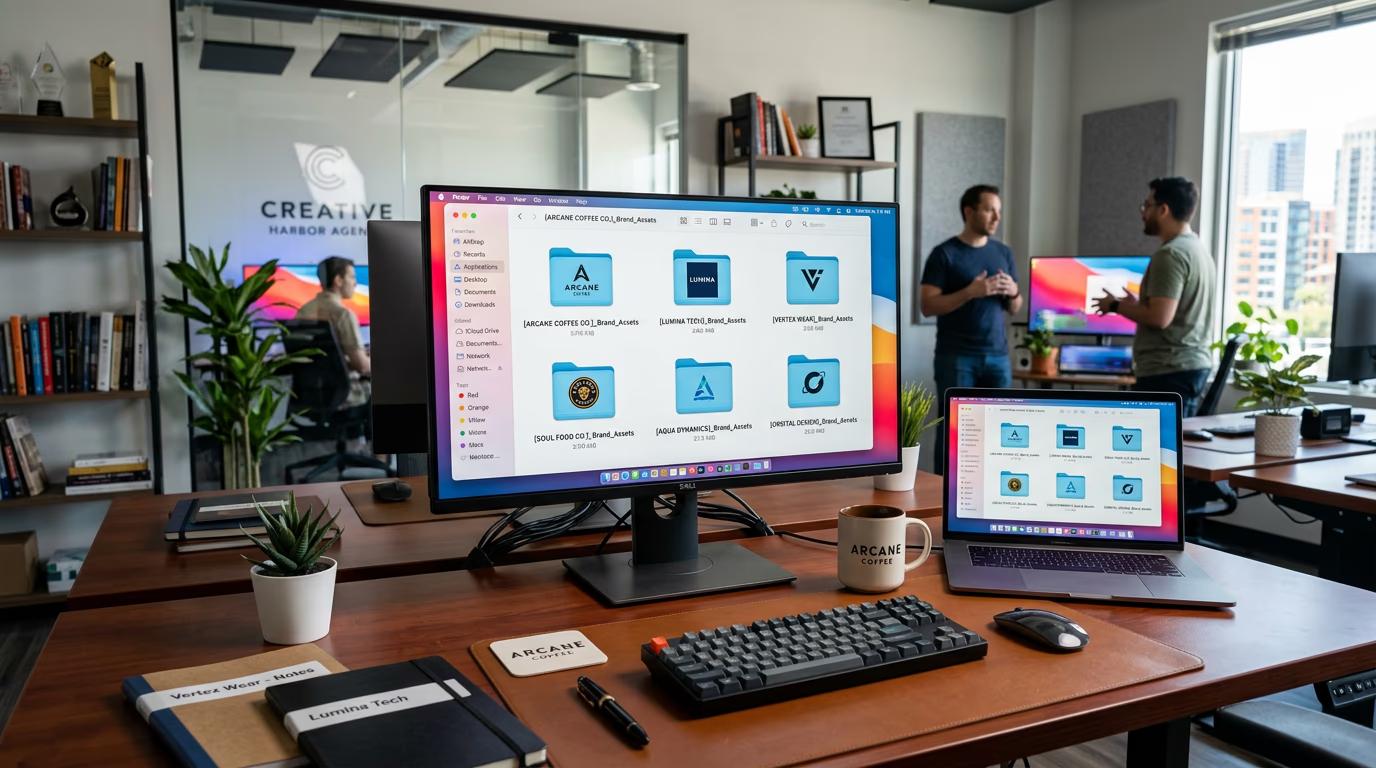
  • Create one folder per client (e.g., /brands/client-a, /brands/client-b)
  • Add brand.md file with colors, fonts, logo paths, and usage rules
  • Store logos, templates, and reference images in each brand folder
  • Use consistent naming conventions across all client folders
STEP 3: Generate content with brand flag

Run any skill with the --brand flag to specify which client. The CLI loads that brand's assets and applies all guidelines automatically. Switch between clients by changing the flag value — no re-upload, no reconfiguration.

STEP 4: Verify brand consistency

Check that outputs match the correct brand: Not perfect? Update the brand.md file with clearer rules, or add reference images to guide the AI more precisely.

  • Confirm logos and colors match the selected brand guidelines
  • Check that tone and visual style align with brand identity
  • Verify file naming follows your client's delivery specs
Explore CLI skills

Tips for best results

💡 Use detailed brand.md files

The more specific your brand guidelines, the better the output. Include not just colors and logos, but tone of voice, imagery style, spacing rules, and examples of approved vs. rejected work.

💡 Store reusable templates per brand

Save common formats (social post, email header, ad banner) as templates in each brand folder. Reference them in your commands instead of describing layouts from scratch every time.

💡 Version-control your brand folders

Put your /brands directory in Git. When a client updates their logo or guidelines, you have a history of changes and can revert if needed.

💡 Test new brands with small batches

Before running 100 generations for a new client, test with 3-5 outputs. Make sure the skill is reading brand.md correctly and applying rules as expected.

Frequently asked questions

Multi-brand packs are folder-based configurations where each client gets a directory with their brand assets and rules. When you run a skill, you pass a --brand flag with the client name, and the CLI loads that folder's brand.md file, logos, and templates. This lets you switch between clients with a single command instead of manually swapping files.

Yes. There's no limit on how many brand folders you can create. Agencies managing 50+ clients use multi-brand packs to keep everything organized. As long as your folders follow a consistent structure, the CLI handles switching between them instantly.

If you run a skill without the --brand flag, the CLI uses default settings or prompts you to select a brand. You can set a default brand in your config file so frequently used clients load automatically, or configure the CLI to require explicit brand selection for every run.

Store your /brands folder in a shared directory or Git repository. Team members clone the repo, point their CLI to that folder, and everyone works with the same brand assets and guidelines. Changes to brand.md files sync across the team automatically.

Need brand control?

Manage unlimited client brands in one workspace with Picsart CLI skills.

Start organizing now