How to replace multiple AI tools with 1 Picsart Flow workflow
What you'll learn
What is workflow consolidation?
Common use cases
Build your consolidated workflow step by step
STEP 1: Open Picsart Flow
- On web: Go to picsart.com/flow → Click "Start creating"
- On mobile: Open Picsart → Tap "Flow" → Start new workflow
STEP 2: Map your current tool stack
Add nodes that replace each separate tool you currently use:
- AI Generate node: Replaces Midjourney, DALL-E, or other image generators
- Background Removal node: Replaces Remove.bg or Photoshop background tools
- Enhance node: Replaces Topaz or standalone upscaling apps
- Resize node: Replaces manual resizing in Canva or image editors
- Text/Overlay nodes: Replace going back to design tools for text
- Export node: Output directly to your preferred format and resolution
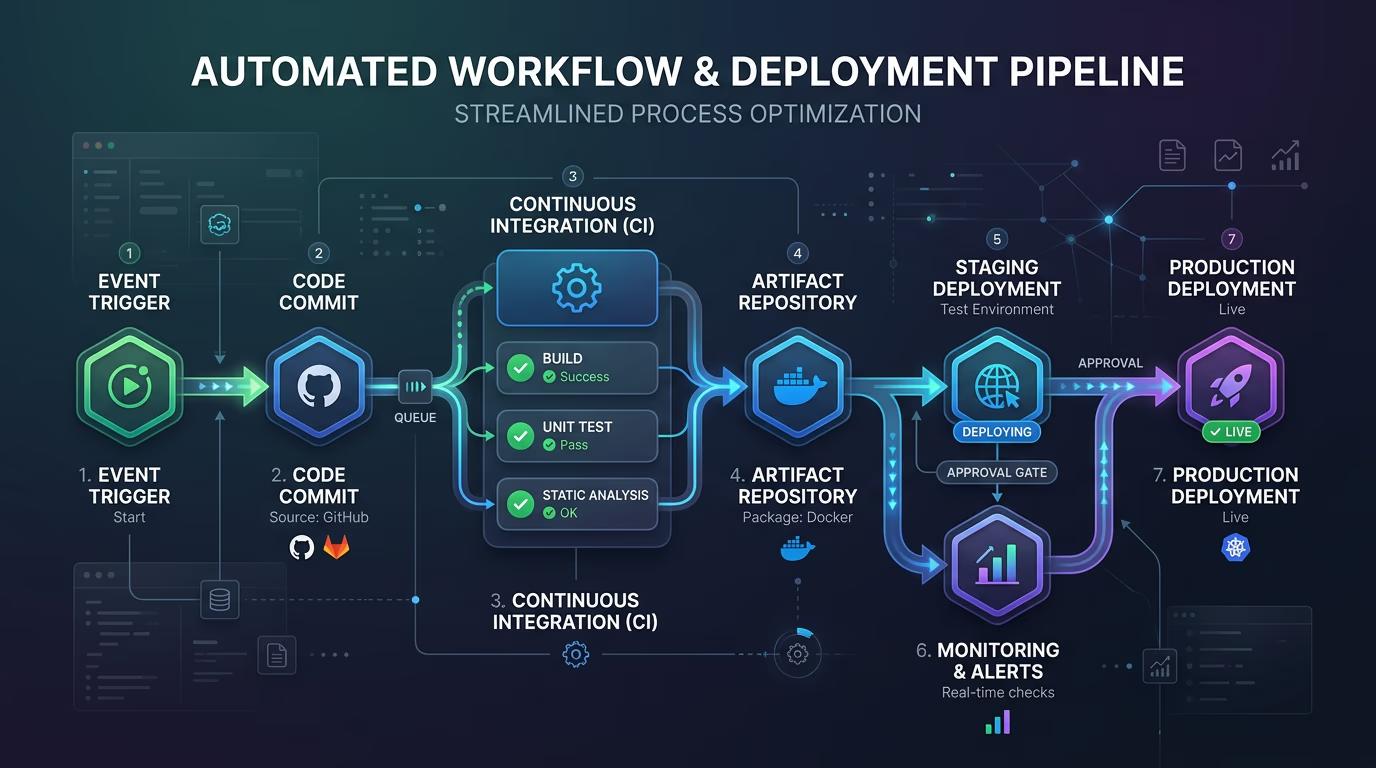
STEP 3: Connect and configure nodes
Drag connections between nodes to build your pipeline. Each node's output becomes the next node's input. Configure settings for each step: AI model selection, enhancement strength, resize dimensions, text placement. Flow will remember these settings every time you run the workflow.
STEP 4: Test and save your workflow
Run a test with sample content to verify each step works correctly: Not working as expected? Adjust individual node settings and rerun. Once it's perfect, save the workflow as a template for reuse.
- Check that generation quality matches your needs
- Verify editing steps produce clean results
- Confirm output files are the right format and resolution
Tips for best results
💡 Start with your most repetitive task
Don't try to replace everything at once. Build a Flow for the task you do most often (like resizing for social media) and expand from there. This gives you immediate time savings while you learn.
💡 Use branches for multi-format output
After your editing steps, split the workflow into multiple branches with different Resize nodes. This outputs square, vertical, and horizontal versions simultaneously instead of running separate workflows.
💡 Keep specialized tools for edge cases
Flow handles 90% of work, but you might still need Photoshop for complex manual edits. That's fine. The goal is reducing tool-switching for routine tasks, not eliminating every app.
💡 Share workflows with your team
Once you build a solid workflow, share it with colleagues. Everyone gets the same quality output without learning multiple tools, and you maintain consistent branding across all content.
Frequently asked questions

Ready to simplify your tool stack?
Build a consolidated workflow in Flow and stop switching between apps.
Try Flow now