How to run batch processing workflows with Picsart Flow
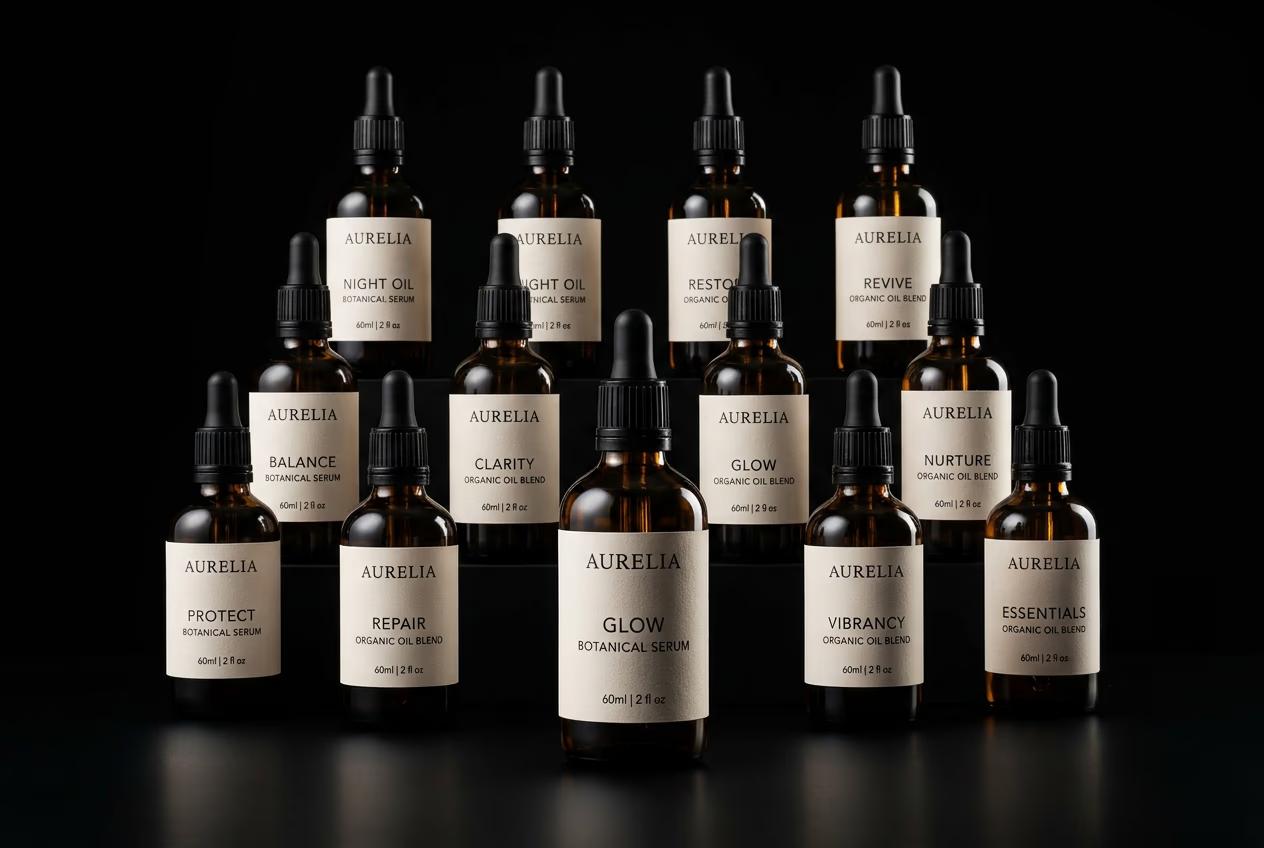
What you'll learn
What is batch processing in Picsart Flow?
Common use cases
Process your batch workflow step by step
STEP 1: Open Picsart Flow
- Go to picsart.com/create/workflows → Select a template or build out some nodes → Click "Combine into batch"
STEP 2: Upload multiple inputs
Add all files you want to process:
- Drag and drop: Select multiple files from your computer
- Folder upload: Upload an entire directory of images
- Cloud storage: Connect Google Drive or Dropbox
- Maximum batch size: Process up to 100 files per run

STEP 3: Run workflow on all files
Click "Combine into batch" and wait while Flow applies your workflow to every input. Processing time depends on batch size and workflow complexity—typically 2-5 seconds per image.
STEP 4: Review and export results
Check your processed files before downloading: Not satisfied with some results? Remove those files and reprocess them individually with adjusted settings.
- Preview all outputs in grid view for quick comparison
- Verify consistency across the entire batch
- Check that automated edits worked correctly on different image types
Tips for best results
💡 Test your workflow first
Run your Flow on 3-5 sample images before processing the full batch. This catches issues with settings or edge cases before you commit to hundreds of files.
💡 Group similar inputs together
Process images with similar characteristics in the same batch. Product photos work well together, but mixing portraits and landscapes may produce inconsistent results.
💡 Name your batches clearly
Use descriptive batch names like "spring-collection-backgrounds" or "instagram-stories-v2" so you can find and reuse workflows later.
💡 Monitor processing progress
Keep the browser tab open during processing. If you close it, some workflows may pause or cancel depending on complexity.

Ready to scale production?
Process dozens of images at once with Picsart Flow batch workflows.
Start batch processing