


Contents
To edit TikTok videos online, open Picsart’s video editor, trim your clips, add text, subtitles and music, then export a vertical 9:16 file and upload it to TikTok. Everything happens in the browser, on one multi-track timeline, so a multi-clip edit takes minutes instead of an evening.
The edit is also where a video earns its money. On Picsart Earn, TikTok is one of four platforms creators post to, and payouts follow views, comments, shares, and reach.
What Picsart’s video editor does for a TikTok edit
Picsart’s video editor keeps video and audio on a single timeline, and it is built for social formats like TikTok, Instagram Reels, and YouTube Shorts. Each part of a TikTok edit has its own tool inside it, and all of them sit among Picsart’s video tools.
| Tool | What it does for a TikTok |
|---|---|
| Trim video | Cuts the slow opening and the dead air at the end |
| Add text to video | Titles, labels, and step markers timed to the action |
| Add subtitles to video | Timed captions generated from speech, ready to restyle |
| Add music to video | A soundtrack from the Audio app or your own track |
| Resize video | A vertical 9:16 canvas with the subject kept in frame |
| Video templates | A ready-made layout to swap your clips, text, and music into |
| AI video editor | Prompt-based changes like color and effects |
Nothing needs installing. Upload the footage, work through the tools in order, and export a file that is ready for TikTok.
The video editor takes a TikTok from raw clips to an upload-ready file in five steps.
How to edit videos for TikTok in five steps
1. Upload your footage
Open the editor and add your clips from your device or library. Add every take you plan to use, so you can arrange them on the timeline in the order the story needs.

2. Trim and split the clips
Cut a slow opening or a dragging ending with the trimmer, and split clips to cut a section from the middle. Play each cut back and check both sides, so a sentence or movement does not stop halfway.
3. Add text and subtitles
Add text layers for titles, labels, and step markers, and set when each one appears on the timeline. For speech, generate subtitles instead. The subtitle generator detects speech and creates timed captions that you can restyle.
4. Set the music and audio
Add music from the Audio app, which has categories like Hip Hop, Pop, Chill, and Cinematic. You can also upload a track you have permission to use. Keep the music quieter whenever a voice carries the message.
5. Resize to 9:16 and export
Resize the project to a vertical 9:16 canvas, then reposition the clip so faces and products stay inside the frame. Export the file and upload it to TikTok from your gallery.
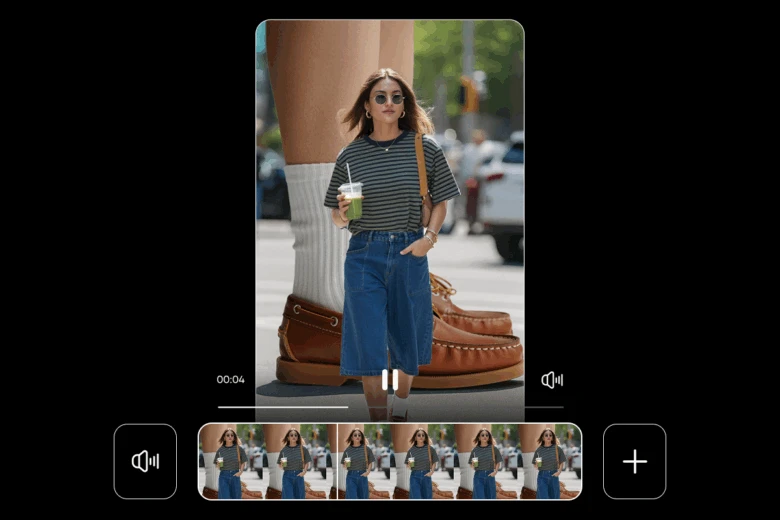
Short on time? Start from a video template and swap in your own clips, text, and music. For bigger changes, the AI video editor applies color and effects from a prompt, while you keep control of the final cut.
Edit TikTok videos on iPhone, Android, or PC
Learning how to edit TikToks takes the same steps on every device. On a PC or a laptop, the video editor runs in the browser, with room for high-resolution footage and long timelines.
On a phone, use the Picsart app on iPhone or Android. Open Picsart, select a video, and work through the editing tools, like Text for on-screen titles. Export the finished file to your camera roll, then upload it to TikTok.
Editing choices that keep viewers watching
Good TikTok editing is mostly subtraction. These five habits do more for watch time than any effect.
- Open on the action. The first frame should show the payoff or the problem, not you getting ready.
- Cut every pause. Fast cuts feel natural on TikTok, so trim breaths and filler words between sentences.
- Caption for sound-off viewers. A lot of viewers scroll muted, and subtitles keep them following along.
- Keep text off the edges. TikTok’s buttons and description cover the sides and bottom of the frame, so place text near the middle.
- Use transitions with a purpose. A transition should match a movement or a beat. A cut that lands on the beat looks sharper than a flashy effect.
Templates help when speed matters, and they make it easier to stay on a trend while it is still rising.
Edit TikTok videos for paid Picsart Earn campaigns
Picsart Earn pays creators for content they post on their own accounts. TikTok is one of four supported platforms, alongside Instagram, YouTube, and X. There is no follower minimum, and payouts are based on engagement: views, comments, shares, and reach.
Each campaign is a paid brief. It explains who can join, what to make, where to post, and how payouts work. Browse the Earn campaigns board, pick a brief that fits your style, make the video with Picsart tools, and submit it through your Earn dashboard.
Clipping campaigns bring the editing skills from this guide straight into paid work. The campaign supplies an approved source pack, and you turn it into short clips in the Picsart Video Editor. You trim the footage, test different openings, and add captions, music, and layers. Then you size the clip for the platform, publish it, submit the link, and the campaign verifies the qualifying performance.
Frequently asked questions
Open Picsart’s video editor in your browser and upload your clips. Trim them, add text, subtitles, and music, resize to 9:16, then export the file and upload it to TikTok.
Edit your next TikTok in minutes
Your next TikTok gets better in the edit: cut it tight, caption it, and frame it for a phone screen. Open Picsart’s video editor and make the next video worth watching to the end. For more daily inspiration, follow Picsart on TikTok.


