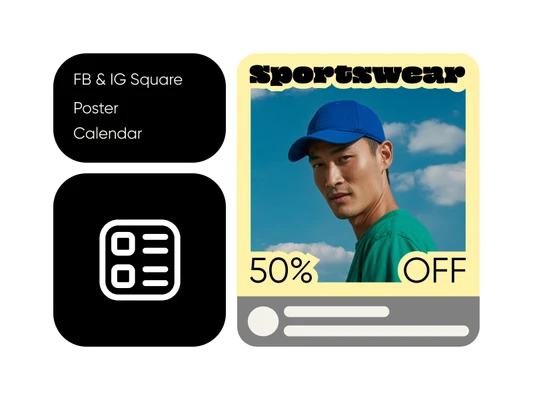

Unlimited canvas for every idea
With Infinite Frame, you can keep drafts and assets organized while experimenting across an open workspace.

Stay organized with an Infinite Canvas
Use this freedom design tool to keep drafts, assets, and ideas in one place with an Infinite Frame.

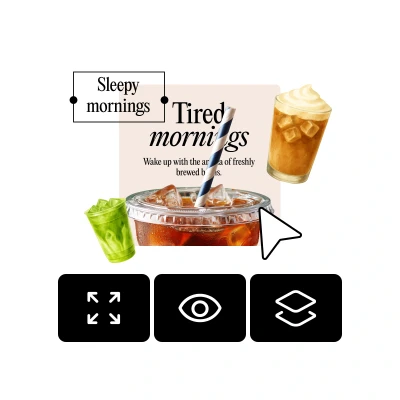
One-click control
Switch your endless canvas online on or off with a single toggle for quick adjustments.
How to use Infinite Canvas
Open your design
Start by opening any project in the Picsart Editor.
Toggle Infinite Frame
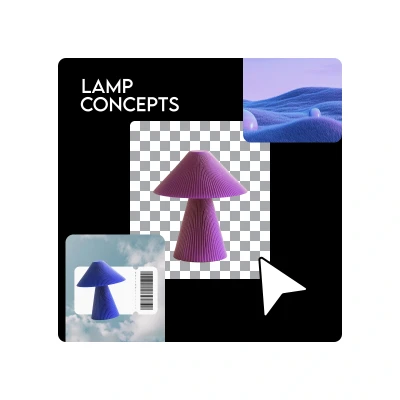
Place assets freely
Export your final design
Infinite Canvas FAQ
What is Infinite Frame or Infinite Canvas in Picsart?
How do I use Infinite Canvas for design?
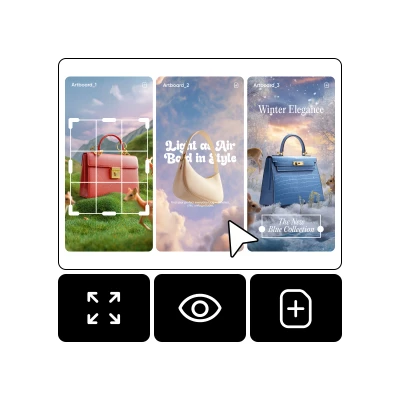
Open a project in the Picsart Editor, toggle Infinite Frame, and start arranging drafts, images, or text beyond the edges of your canvas. You can use it for brainstorming, layouts, or planning, then export only the finished canvas area when ready.
Can I save/export designs from Infinite Frame/Canvas?
Yes. When you export, only the defined canvas area is saved by default. This means you can keep your working drafts, notes, and extra assets in the workspace without cluttering your final file.
Infinite Frame the same as an Infinite Canvas?
Yes, the terms describe the same feature. Infinite Frame and Infinite Frame both refer to Picsart’s free online canvas that expands beyond standard boundaries, giving you a limitless design area.
What are the benefits of using Infinite Canvas for mood boards and storyboards?
Infinite Frame is ideal for mood boards and storyboards because it gives you space to experiment with fonts, layouts, colors, and reference images. You can keep everything side by side in one workspace, making it easy to organize ideas and see the bigger picture.