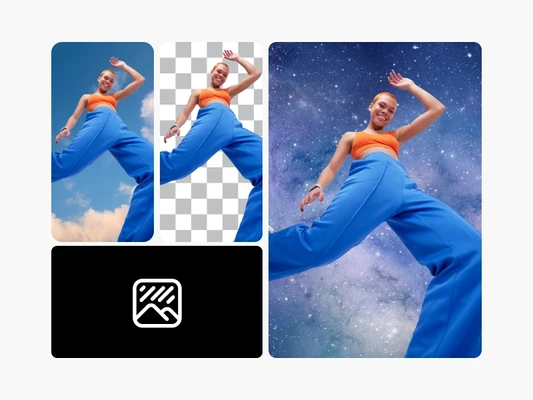
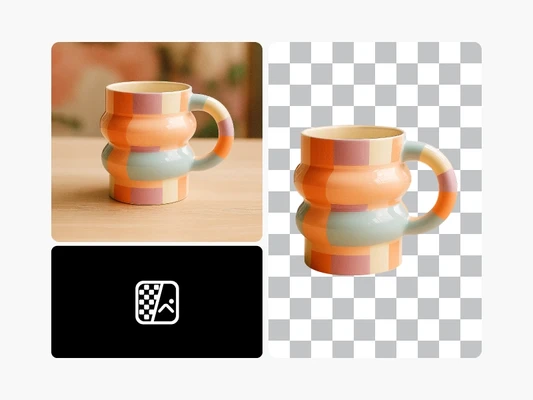
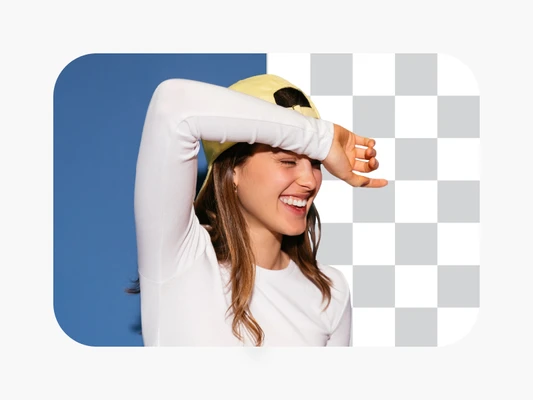
Clean and professional visuals
Remove text from images online and reclaim control of your photos for a clean, professional look.

AI-powered text remover
Get rid of unwanted text, adverts, and signs from images with the AI text remover.

High-quality results
Easily clean text from images without sacrificing your image quality.
How to remove text from image
Open the Remove tool
Upload your image to Picsart and open the Remove tool to start editing text directly on your photo.
Detect or select text
Remove and refine
Apply and download
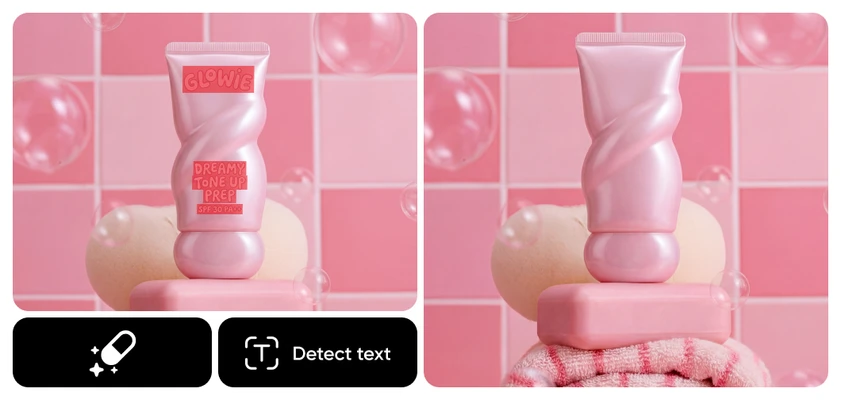
Get a peek of the AI text remover in action
Remove text from image FAQ
Can you remove text from an image using AI prompts?
How can you remove text from a picture without affecting the background?
Upload your image and open the Remove tool in Picsart. Use Detect text to automatically select text elements, or click on specific words manually. Click Remove, and AI rebuilds the background naturally so the original image stays intact.
Will removing text reduce image quality?
No. Picsart uses AI to fill in the area where the text was removed, preserving textures, colors, and details so your image stays sharp and high quality.
Can you remove different types of text, like captions, signs, or overlays?
Yes. You can remove captions, watermarks, logos, signs, and overlays of any size. Detect text works best for clean, readable text, while the brush tool gives you precise control for smaller or stylized text.
Can you edit the image further after removing the text?
Absolutely. Once the text is removed, you can continue editing your image with filters, effects, retouching tools, or add new text — everything stays fully editable in the Picsart editor.