logo

How Picsart CLI credits work: pricing guide for beginners

CLI5 minBeginner

Understand credit costs across Flux, Veo, Sora, and 130+ models — plus how to estimate jobs before running them.

How Picsart CLI credits work: pricing guide for beginners

What you'll learn

  • How credits work and what they replace
  • Compare costs across image, video, and audio models
  • Use gen-ai pricing to estimate costs before generating
  • Understand free tier limits and when to buy more credits

What are Picsart CLI credits?

Credits are the currency you spend when generating images, video, or audio through the CLI. Instead of paying for separate subscriptions to Flux, Sora, Runway, ElevenLabs, and others, you buy one credit balance that works across all 130+ models. Each generation costs a certain number of credits depending on the model and settings you choose. Think of it like arcade tokens — one currency works in every machine.

Common use cases

  • Budget planning: Estimate costs before running large batch jobs
  • Model comparison: Choose cheaper models for quick tests, premium models for finals
  • Team spending: Track credit usage across multiple developers or projects
  • Cost optimization: Pick the right model for your quality needs without overspending
  • Free tier testing: Use starter credits to evaluate the CLI before buying more
  • Vendor consolidation: Replace 3-5 separate subscriptions with one credit balance

Understand CLI pricing step by step

STEP 1: Check your credit balance

  • On any platform: Run gen-ai credits in your terminal to see your current balance
  • On web dashboard: Log into picsart.com and check your account settings for credit info
View pricing

STEP 2: Check model costs

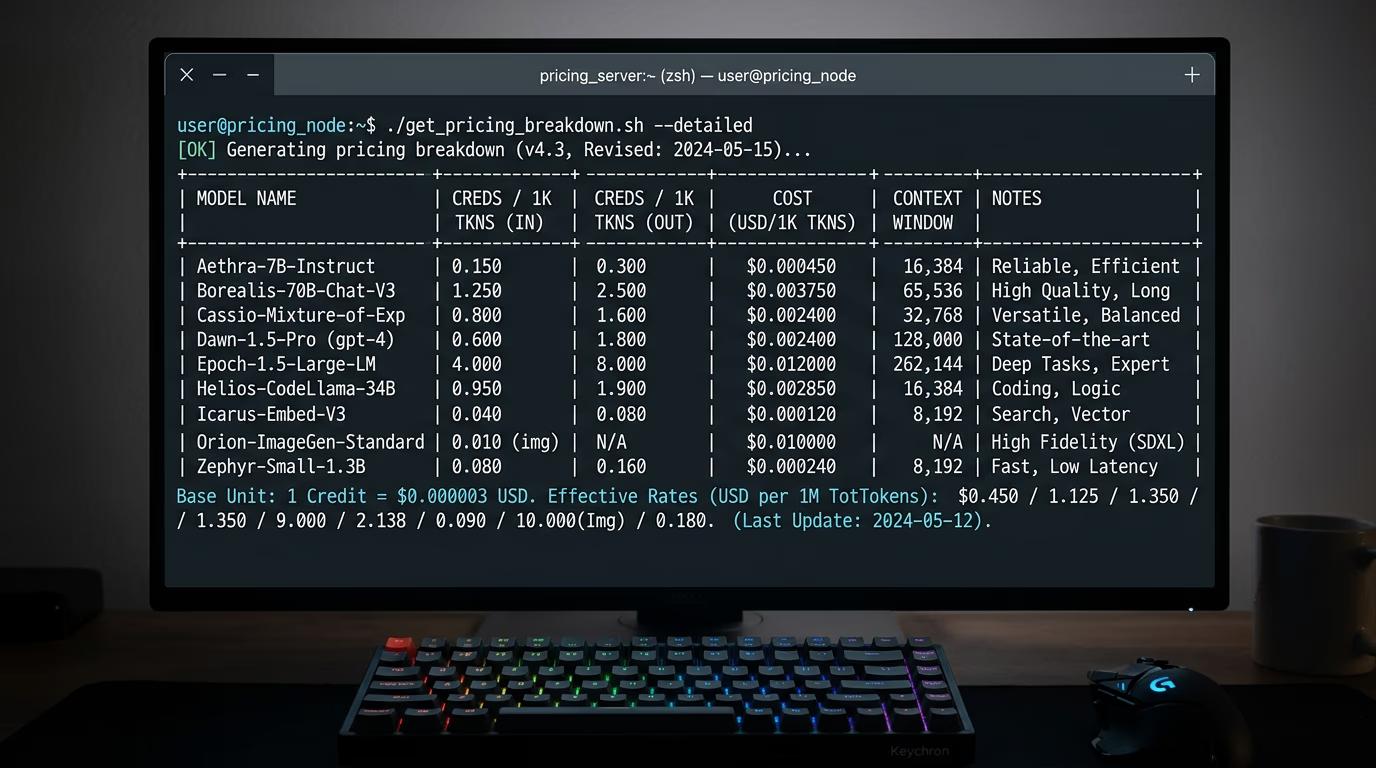
Run gen-ai pricing to see a full table of credit costs:

  • Image models: 1-4 credits per generation (Nano Banana cheapest, Flux mid-range, Recraft similar)
  • Video models: 10-50 credits depending on length and quality (Sora, Kling, Veo, Runway, Luma)
  • Audio models: 2-10 credits per generation (ElevenLabs, MiniMax)
  • Editing tools: 1-3 credits for background removal, upscale, or other ops
STEP 3: Estimate your job cost

Before running a batch, calculate total credits needed. If you're generating 20 Flux images at 2 credits each, you'll spend 40 credits. If you're creating 10 Sora videos at 30 credits each, that's 300 credits. Run gen-ai pricing to get exact numbers, then multiply by your batch size.

STEP 4: Buy credits if needed

Check if you have enough credits for your planned work: Ran out mid-batch? The CLI stops and shows how many generations completed. Buy more credits, then resume the batch from where it stopped.

  • Compare your balance to your estimated job cost
  • If you're short, visit picsart.com to purchase more credits
  • Credits never expire and work across all models and devices
Buy credits

Tips for best results

💡 Use cheaper models for testing and iteration

When refining prompts, use nano-banana-v2 (1 credit) or similar budget models. Once you nail the prompt, regenerate with flux-2-pro (2-4 credits) for final quality. This saves credits during the experimental phase.

💡 Batch jobs save time but lock in costs

Running --count 100 is faster than 100 separate commands, but you spend all credits upfront. Estimate costs carefully before batching. If you're unsure a prompt will work, generate 5-10 samples first to validate before scaling up.

💡 Video models cost significantly more than images

A single Sora or Kling video can cost 30-50 credits — the equivalent of 15-25 Flux images. Budget accordingly if you're generating video content. Use shorter durations and lower resolution for tests.

💡 Credits are scoped to your account, not per device

Your balance syncs across all machines where you're authenticated. Spending credits on your laptop reduces the balance on your desktop. Check gen-ai credits before starting work on a new device to avoid surprises.

Approximate model costs

  • Nano Banana: 1-2 credits per image — fastest and cheapest, good for simple concepts
  • Flux 2 Pro: 2-4 credits per image — photorealistic, balanced quality and speed
  • Recraft V4: 2-4 credits per image — vector art and illustration styles
  • Sora: 30-50 credits per video — OpenAI's video model, high quality, slower
  • Kling: 20-40 credits per video — fast video generation, good motion
  • Veo: 25-45 credits per video — Google's video model, realistic
  • ElevenLabs: 3-10 credits per audio — realistic voice synthesis

Frequently asked questions

Most AI vendors charge $20-30/month per service. If you use Flux, Sora, and ElevenLabs separately, that's $60-90/month minimum. Picsart credits give you all three plus 130+ other models from one balance. You buy only what you need, no recurring subscriptions. For users generating across multiple modalities, credits typically cost 40-60% less than paying each vendor directly.

No. Credits stay in your account until you use them. Buy 500 credits today, use 100 this month and 400 next year — both work the same. There's no monthly reset or expiration date. This makes credits work well for sporadic use or seasonal projects.

No refunds on completed generations. You spend credits when the model finishes processing, regardless of whether you like the result. This is why we recommend using cheaper models to test prompts before committing to expensive video generations. If a generation fails due to an error, you aren't charged.

New accounts get starter credits to test the CLI. The exact amount varies by promotion, but it's usually enough for 10-20 image generations or 1-2 short videos. Once you use your free credits, you'll need to purchase more to continue generating. Free credits work with all models.

Ready to start generating?

You understand how credits work. Now put them to use and create something.

Generate with credits